.png?width=250&height=99&name=CivicEye_Identity_Secondary%20(4).png)
Reset User Account and Password
The following tutorial will provide the steps needed to reset a user account and password.
The following tutorial will provide the steps needed to reset a user account and password.
Go to training-rms.civiceye.com
1. Introduction
Due to FBI CJIS policy, users have a limited number of attempts to sign into a CivicEye platform. Exceeding the number of attempts will lock the user out of their account and an agency administrative user will be required to reset the account and password.
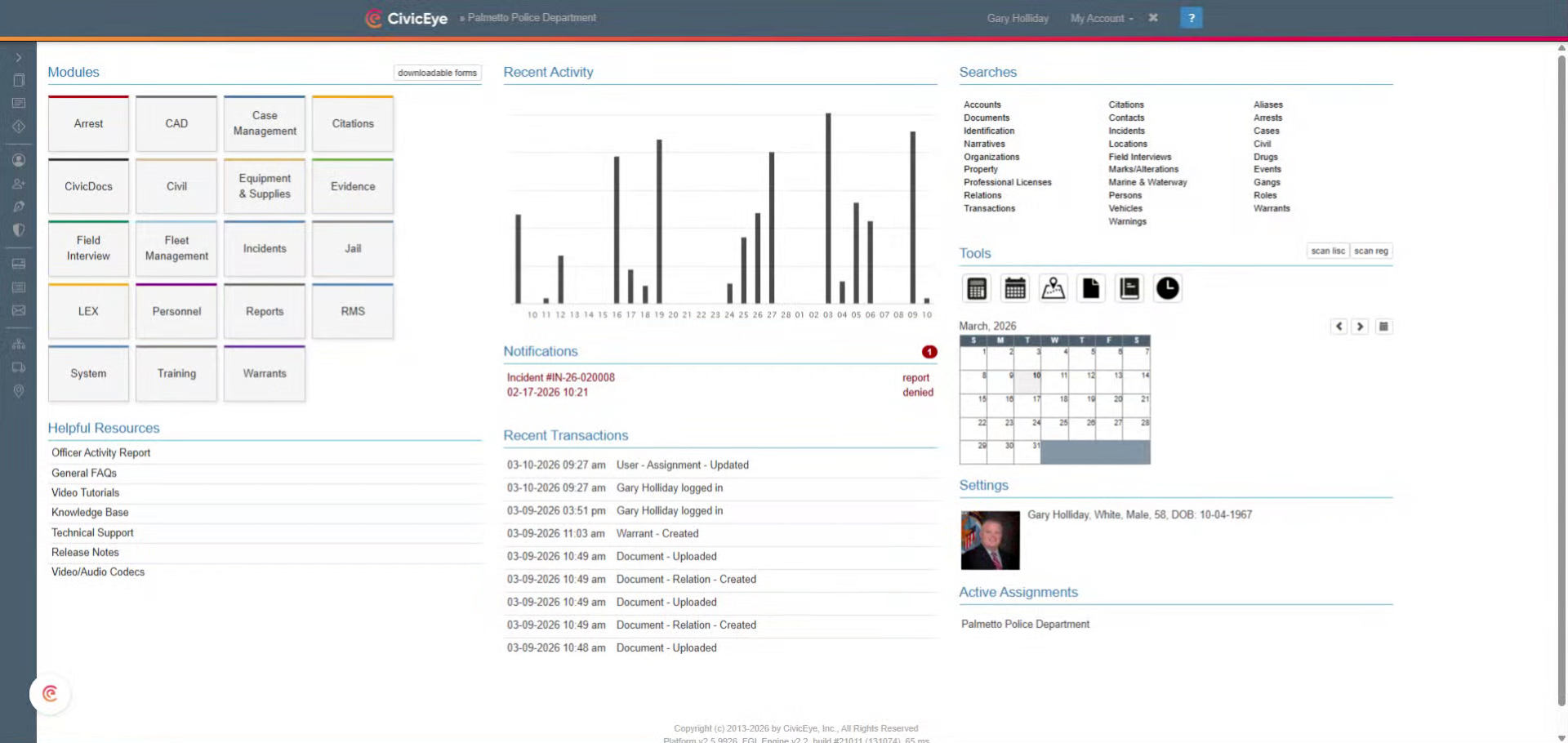
2. Access Personnel Section
To reset the user account and password, first select the Personnel Module from the main dashboard.
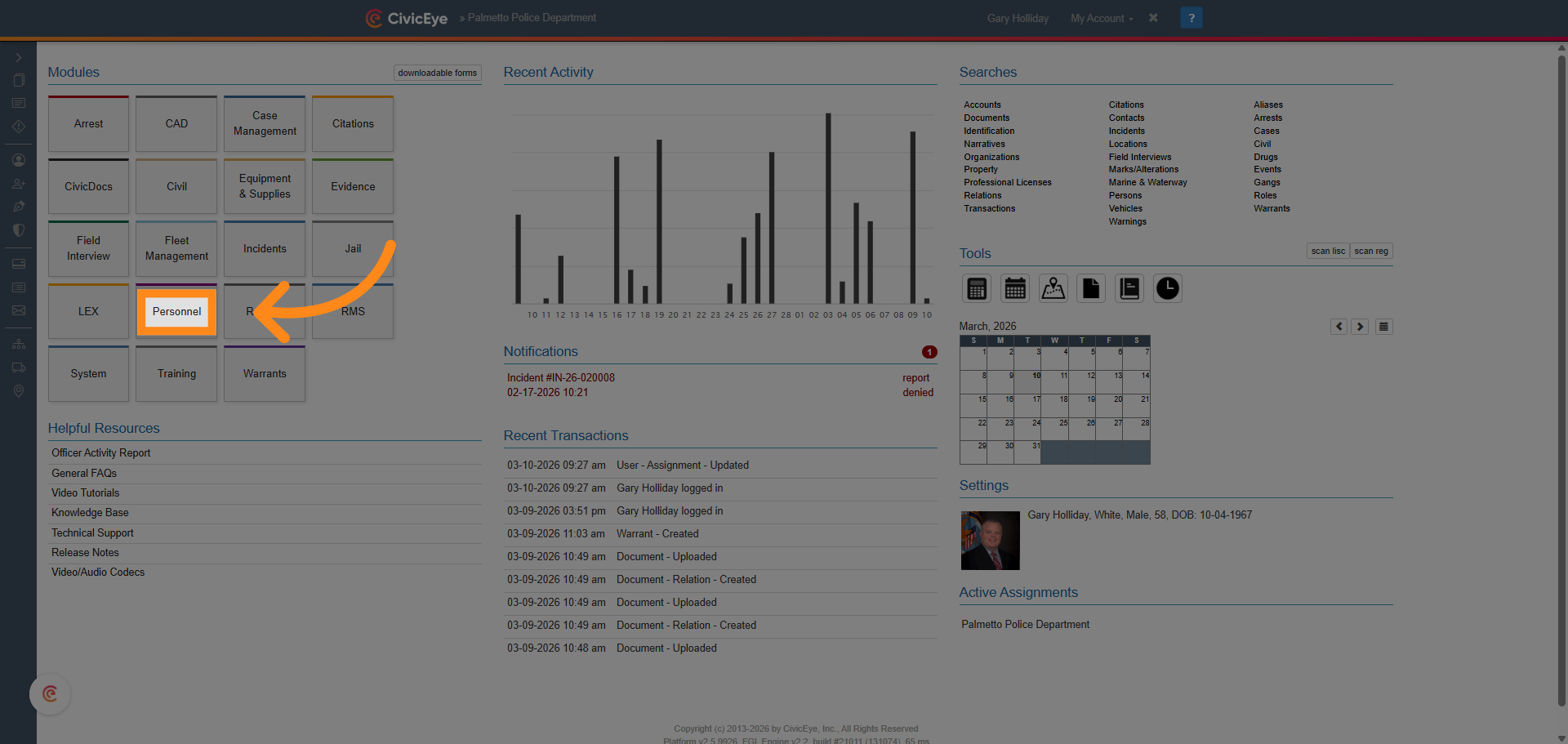
3. Open Personnel Search
In the Personnel Module, locate the Search All Personnel box in the upper left hand section of the dashboard. Enter the locked out users name into the provided box and "click" enter.
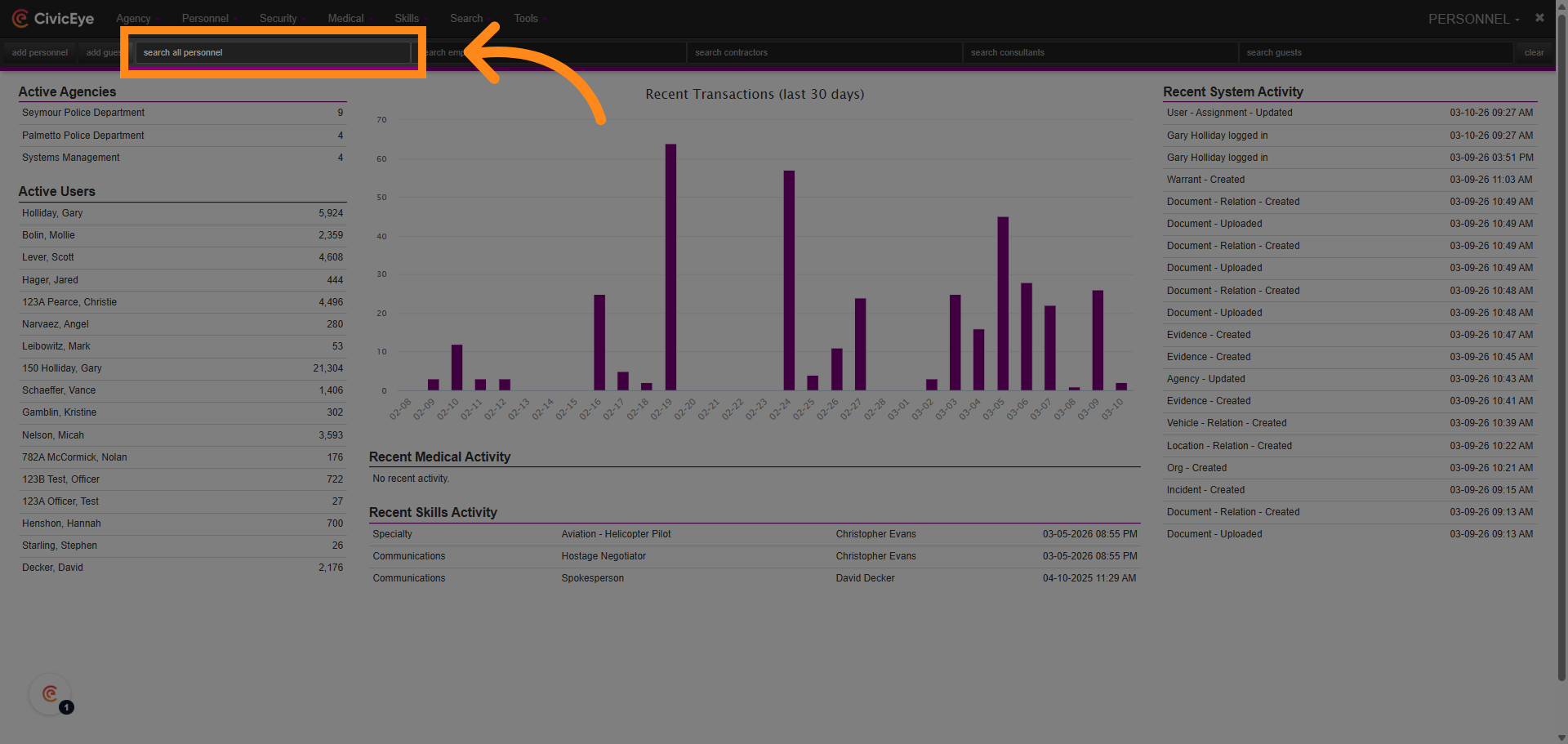
4. Select Specific Personnel
This will access a frame showing all the personnel with the searched name. In this frame, select the locked out user.
5. Personnel Page
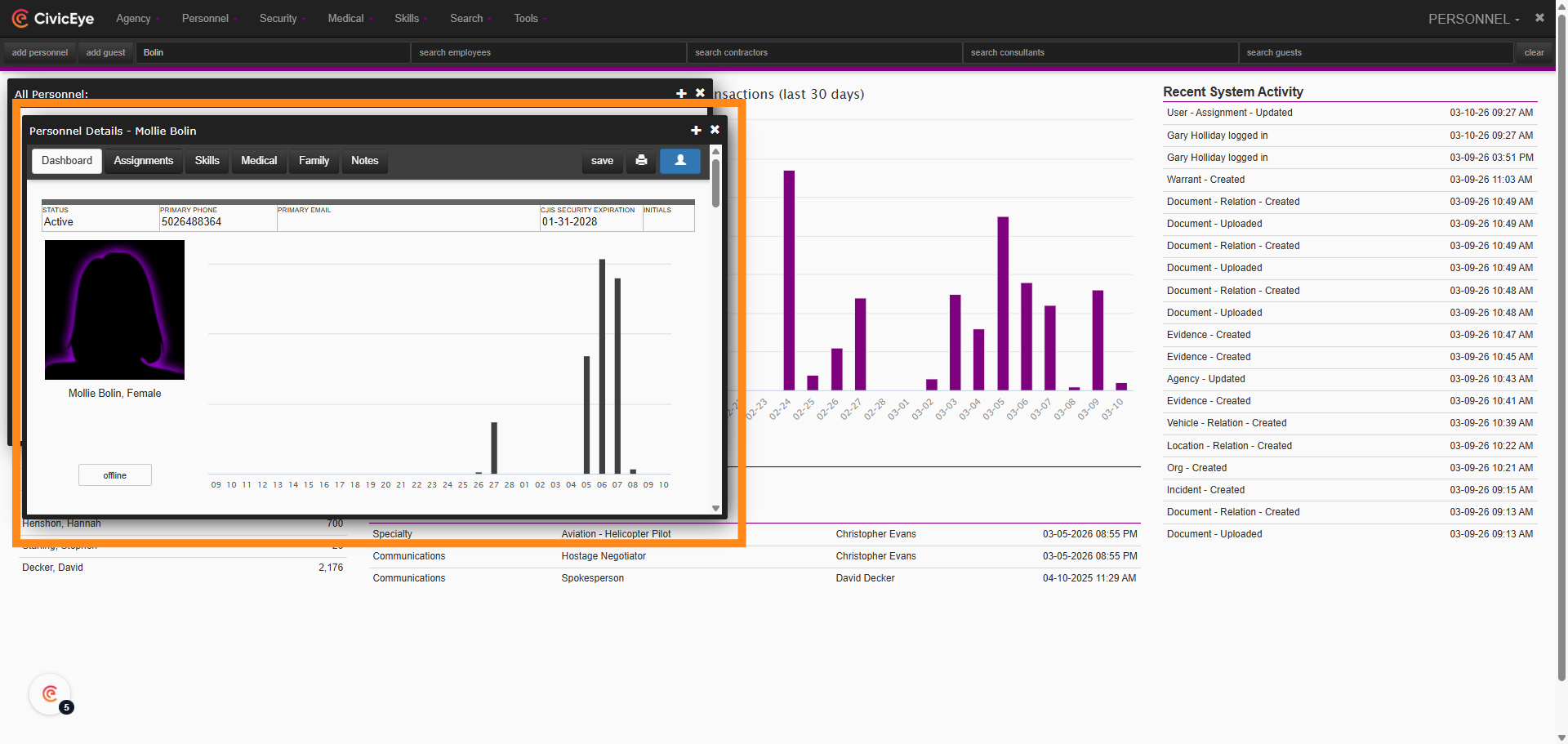
Selecting the user name will open the locked out user's personnel page, giving the administrative user access to their account.
6. Select Assignments Tab
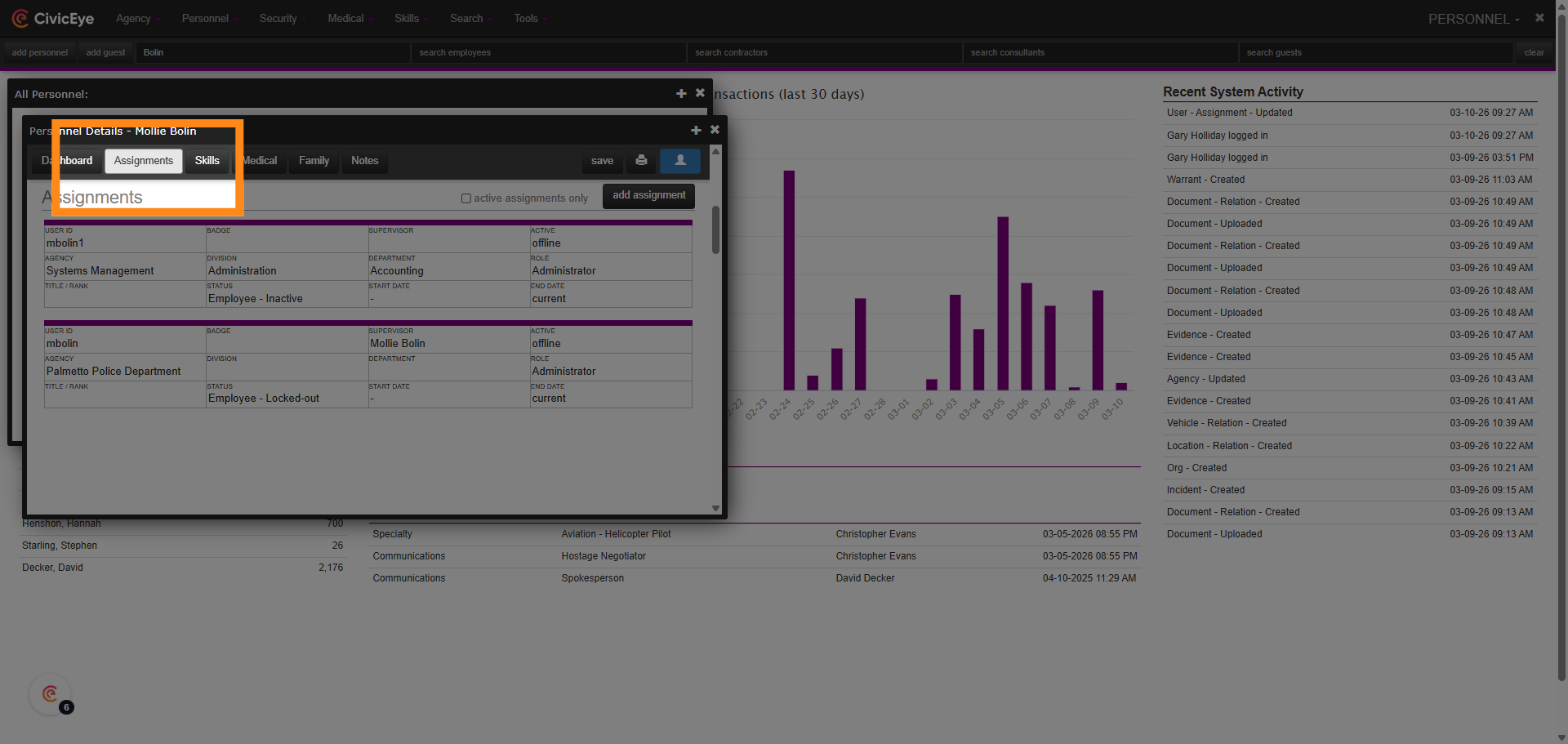
In the locked out users personnel page, select the assignments tab. This provides the administrator access to the users assignments.
7. Select Assignment
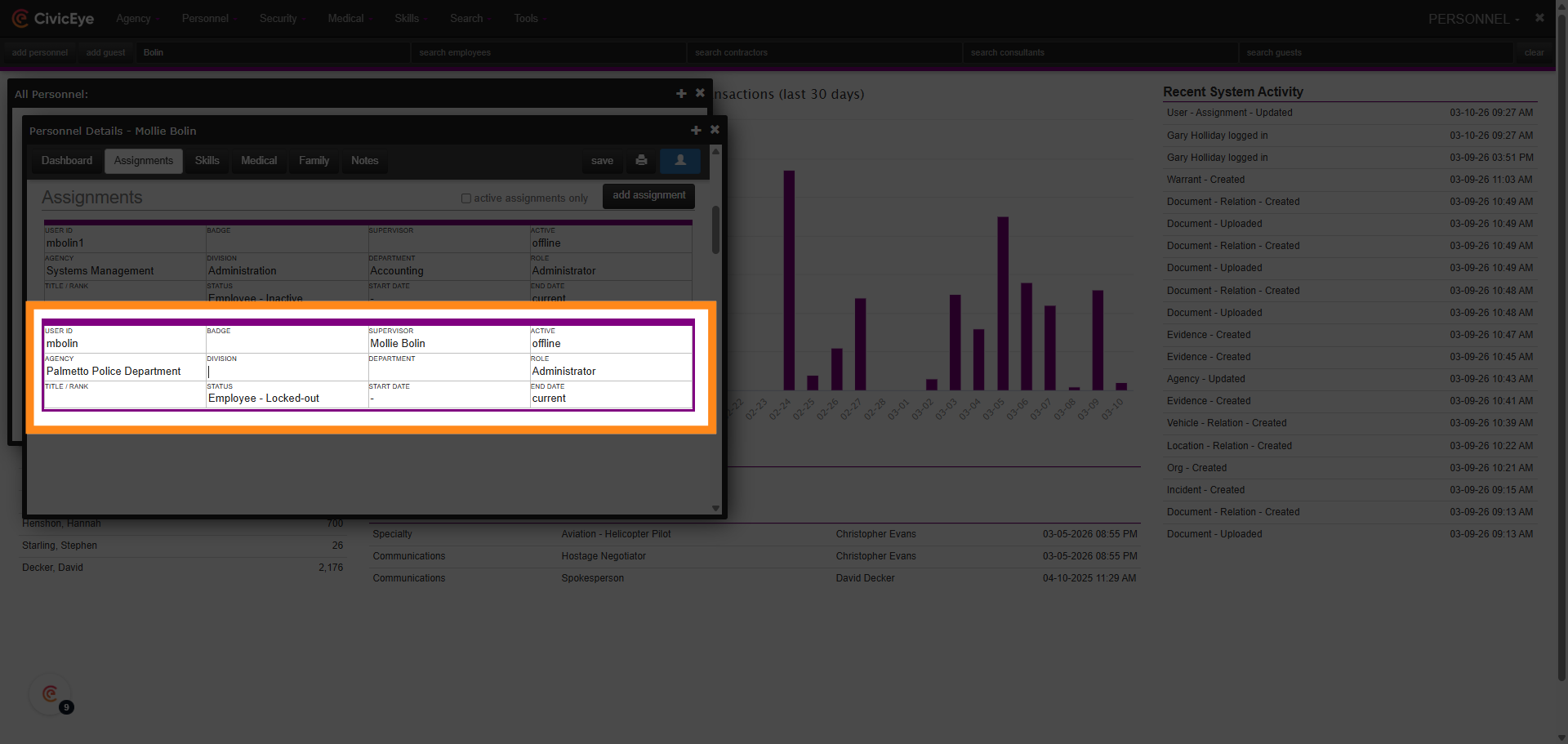
In the assignments page, select the locked out assignment by hovering your curser in the assignment box outlined in purple and left click. This will open the locked out users assignment page with access settings.
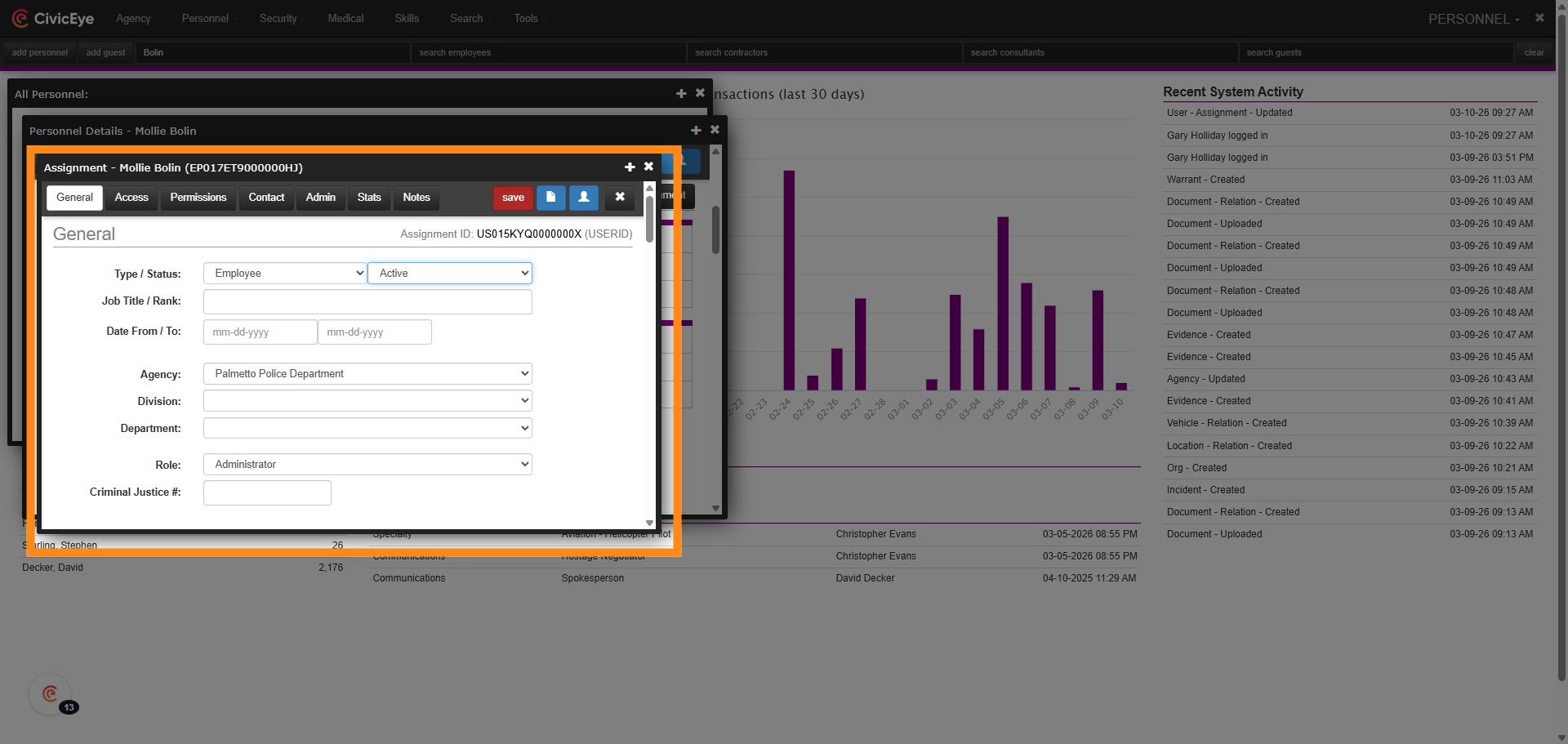
8. User Status
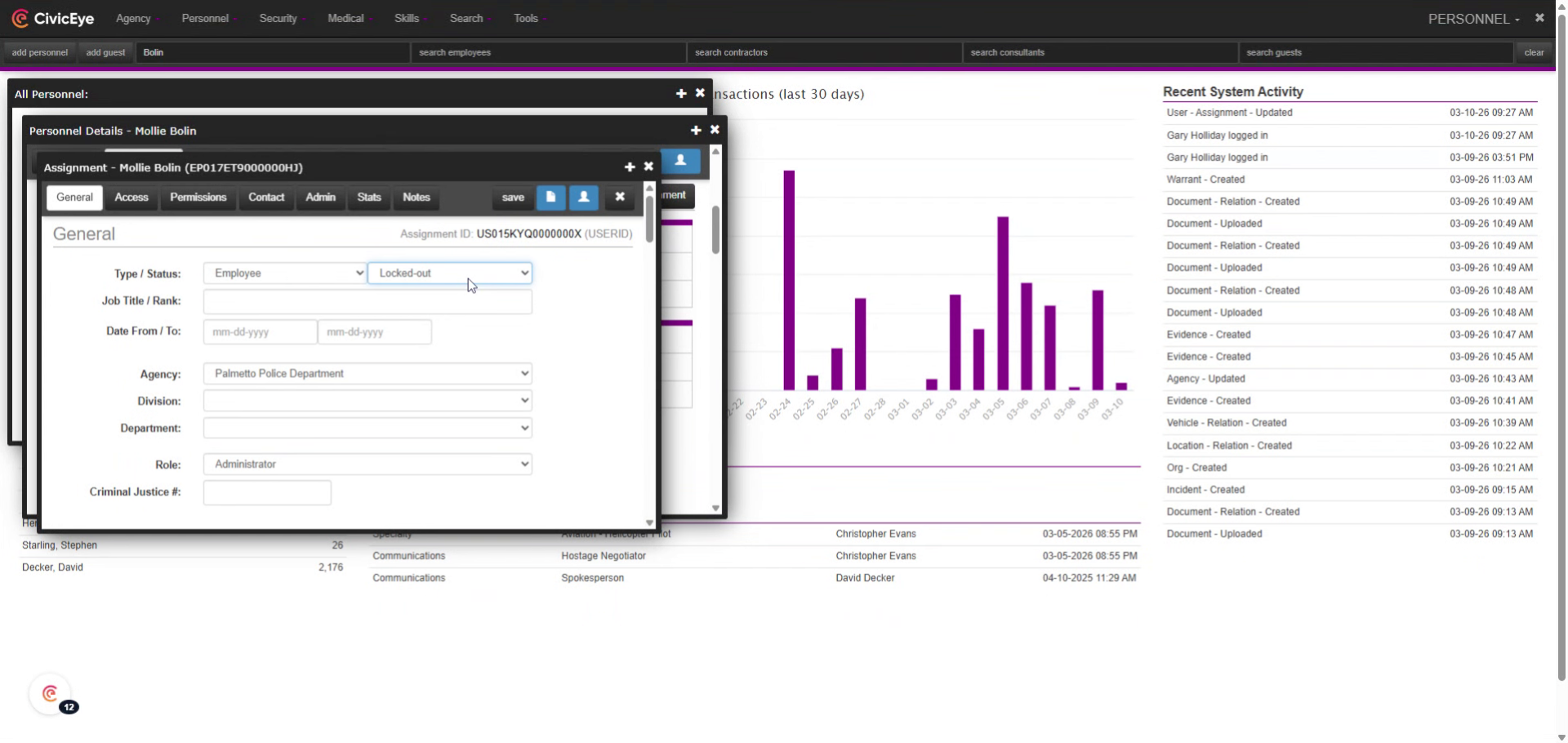
In the users assignment page, general tab, note the users status. If the user has been locked out, the status will be locked out. Left click in the box showing status, and from the provided dropdown, select active.
9. Save
Selecting active from the status dropdown resets the users account. Hit the red Save button in the upper right hand corner of the frame.
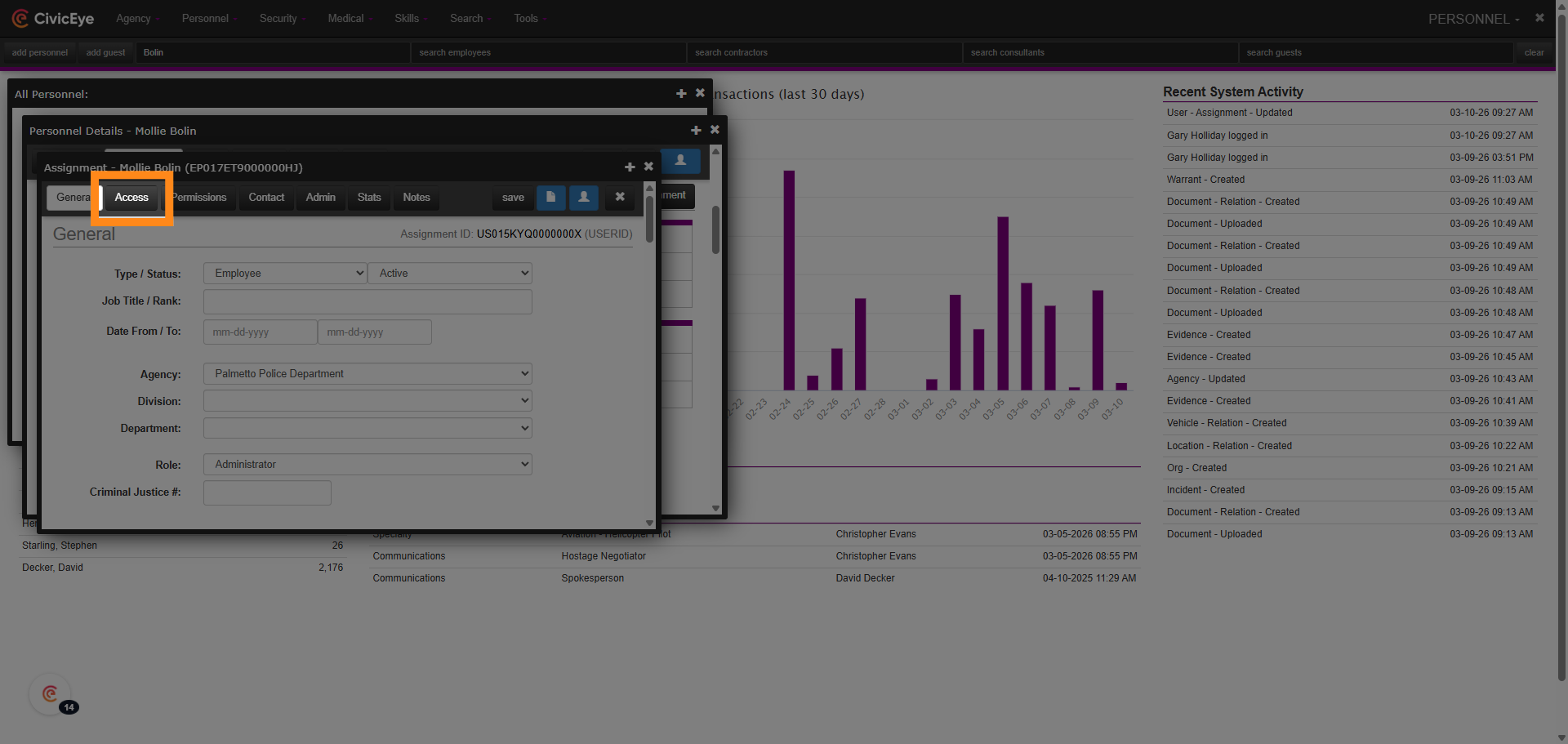
10. Access Tab
Next, select the Access tab. This allows the administrative user to reset the locked out users password.
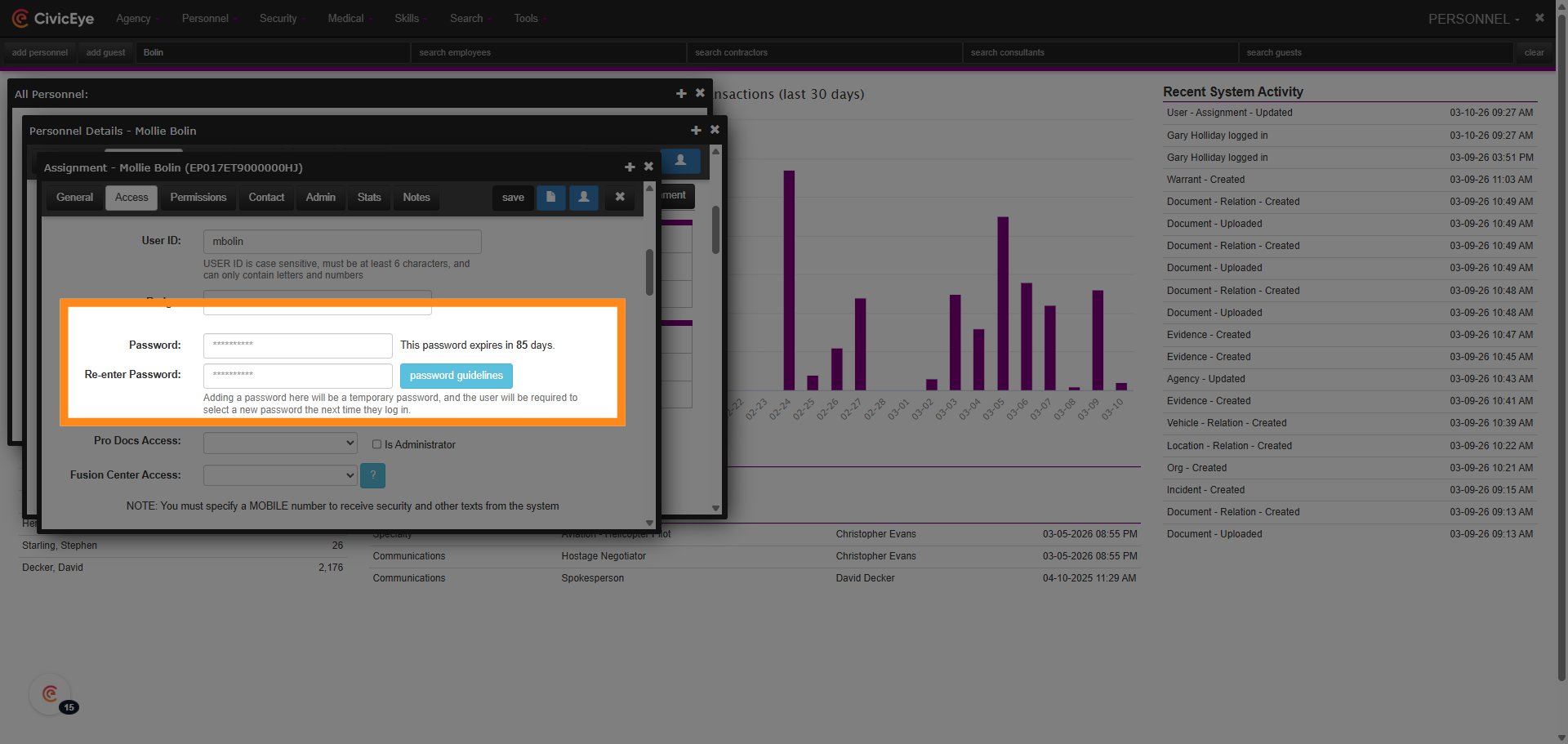
11. Reset Password
The administrative user can now reset the locked out users password. Always use the default reset password of password01. Enter password01 in both password boxes as required. By entering the default password, the user will be required to enter a CJIS compliant password on their initial sign in.
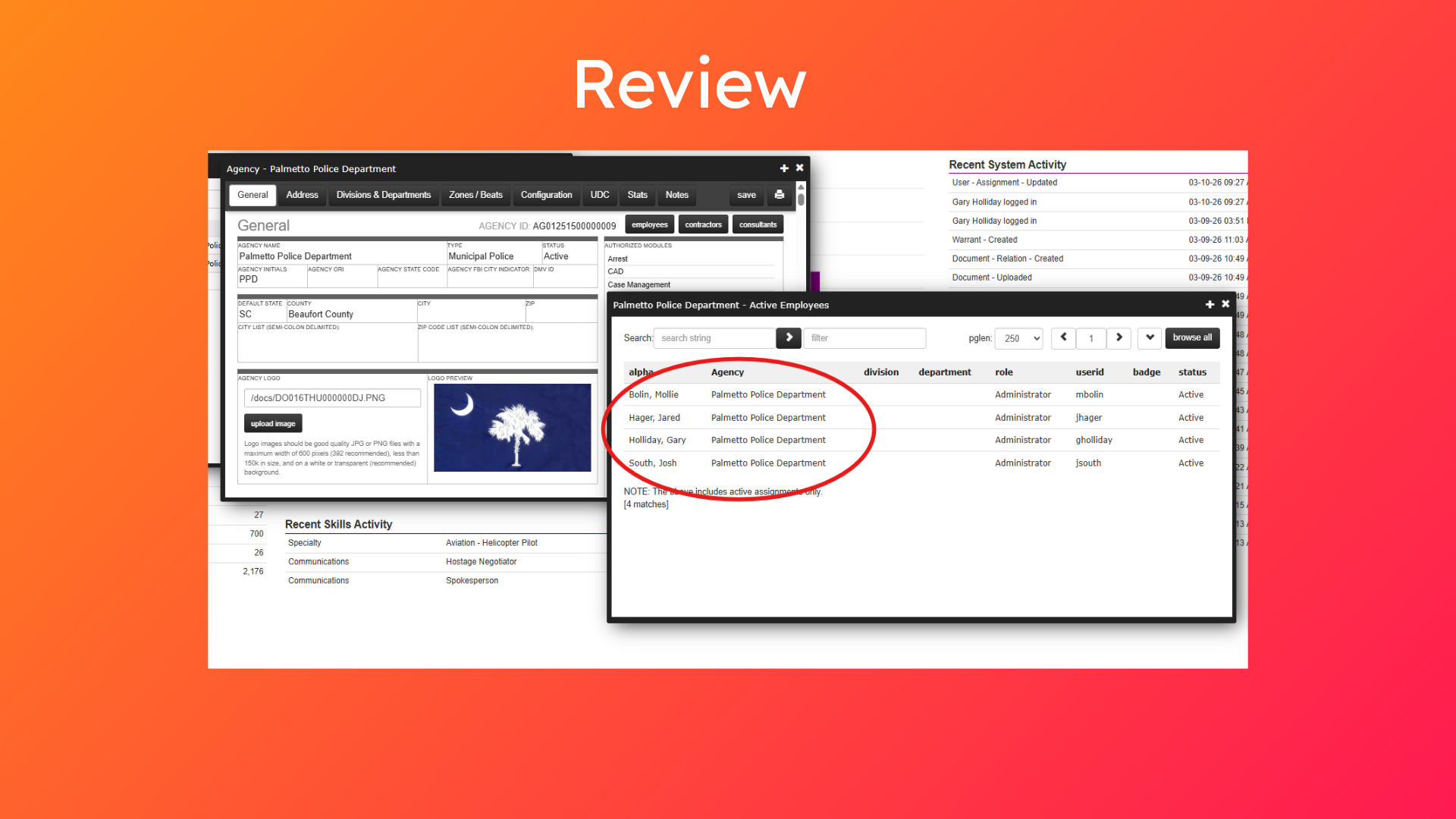
12. Review
The system administrator can now review their organizational roster to insure that the user account has been successfully reset.
The preceding video has provided a guide for the administrative user to reset a locked out users account and password. If you have any questions about this process or inquiries about any other CivicEye platform, feel free to call at 877-778-5277.