.png?width=250&height=99&name=CivicEye_Identity_Secondary%20(4).png)
Perform Incident Search Using CivicRMS Advanced Features
This tutorial guides you through performing an incident search in CivicRMS, enabling you to locate specific incident records efficiently.
This tutorial guides you through performing an incident search in CivicRMS, enabling you to locate specific incident records efficiently.
Go to training-rms.civiceye.com
1. Click "Incidents"
To begin searching for an incident report, select the incident module from the main CivicRMS dashboard.
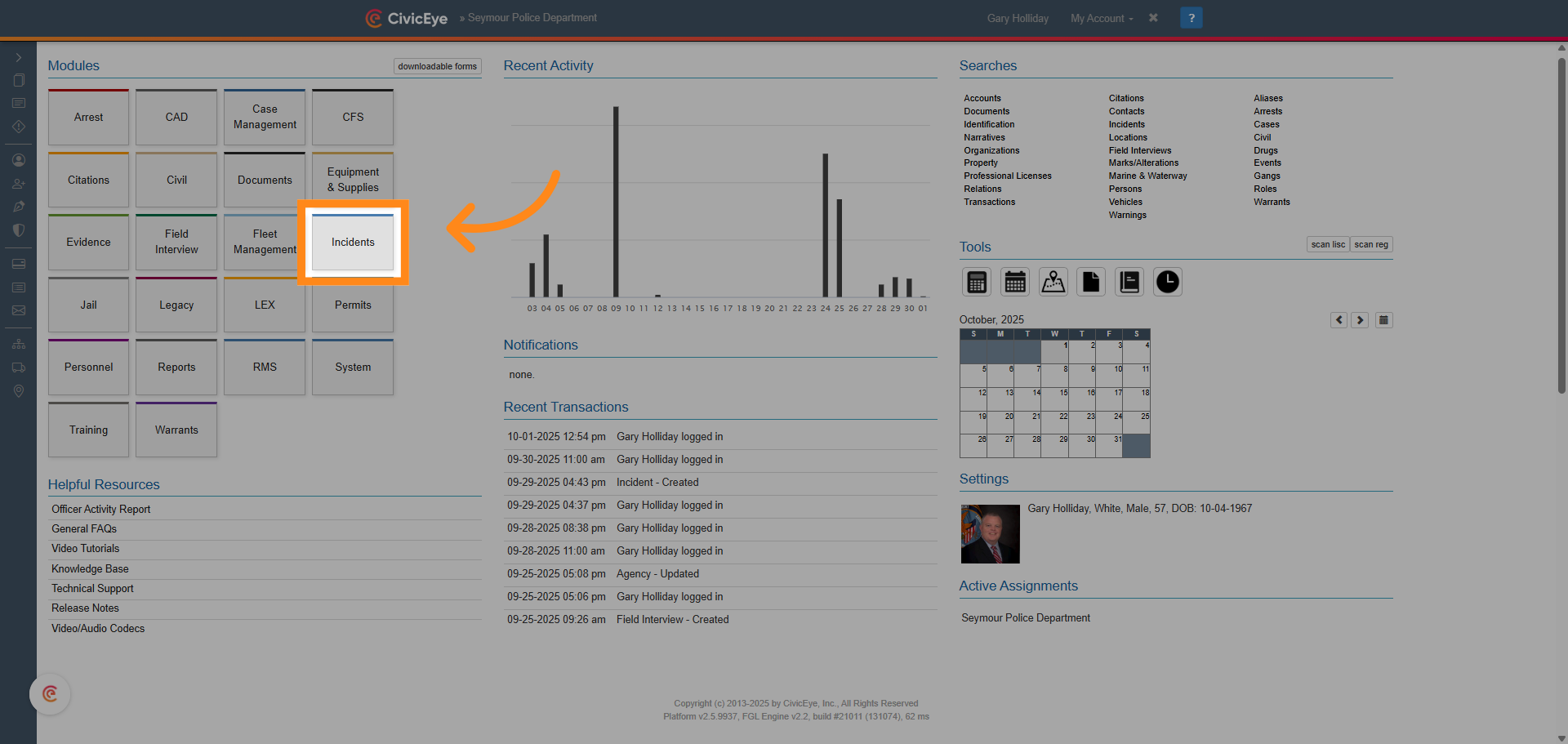
2. Incident or LEX number search
Selecting the incident module opens the incident dashboard. In the top banner of the dashboard you will find an incident number or LEX number search. If the user knows either number they can be entered here to search for the specific report.
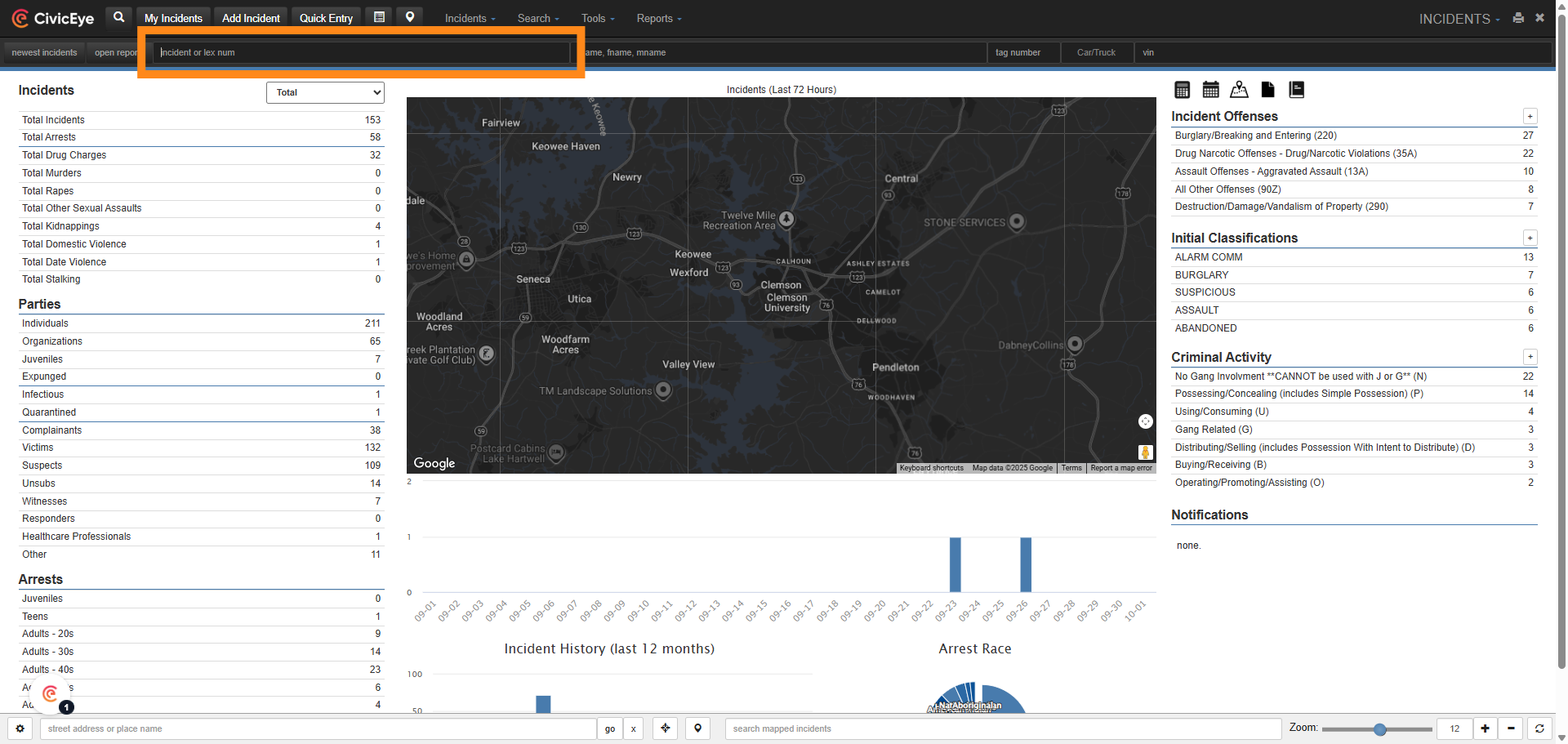
3. General Search
If the user does not know the incident report number, or wishes to search incidents for other criteria, select the search magnifying glass.
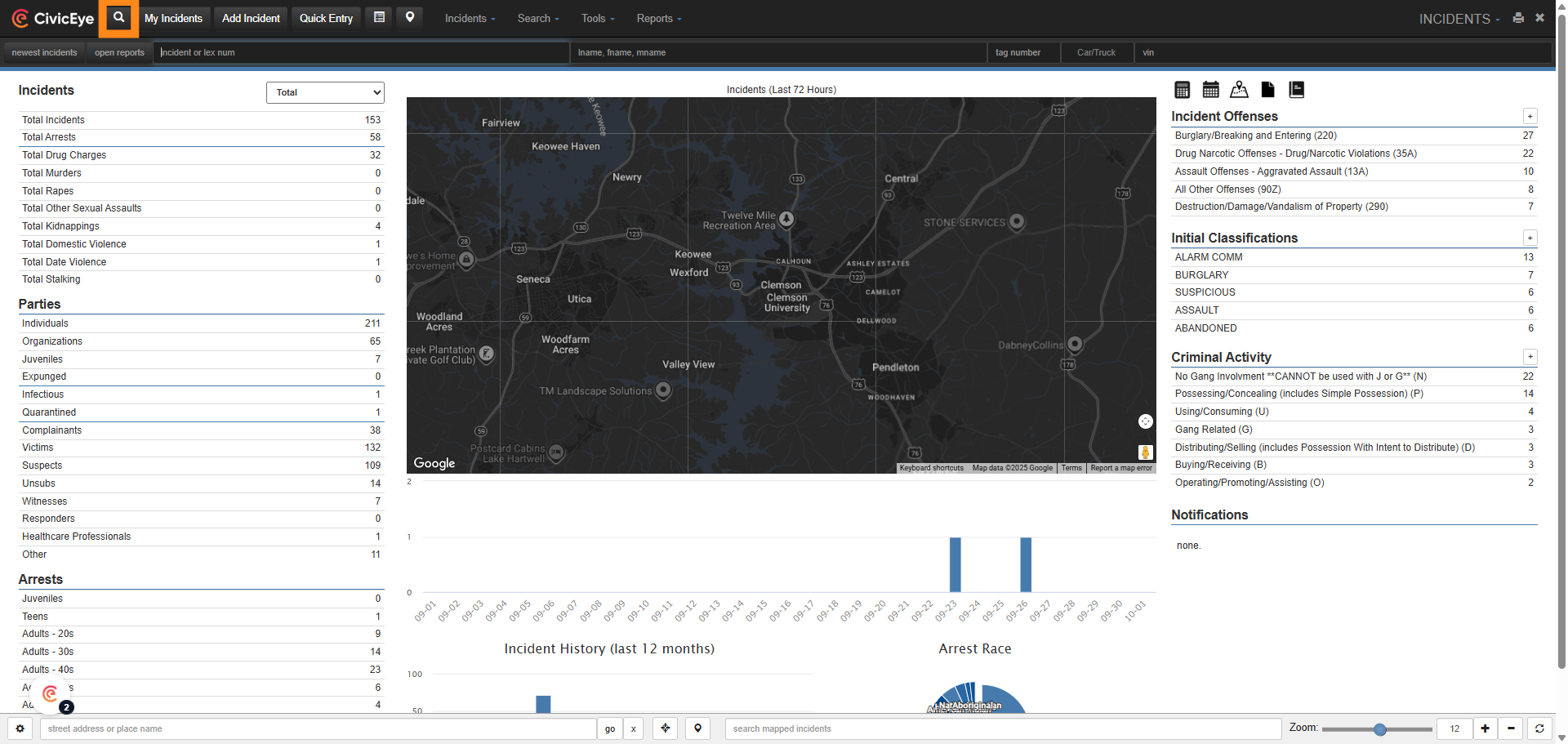
4. Search Tool
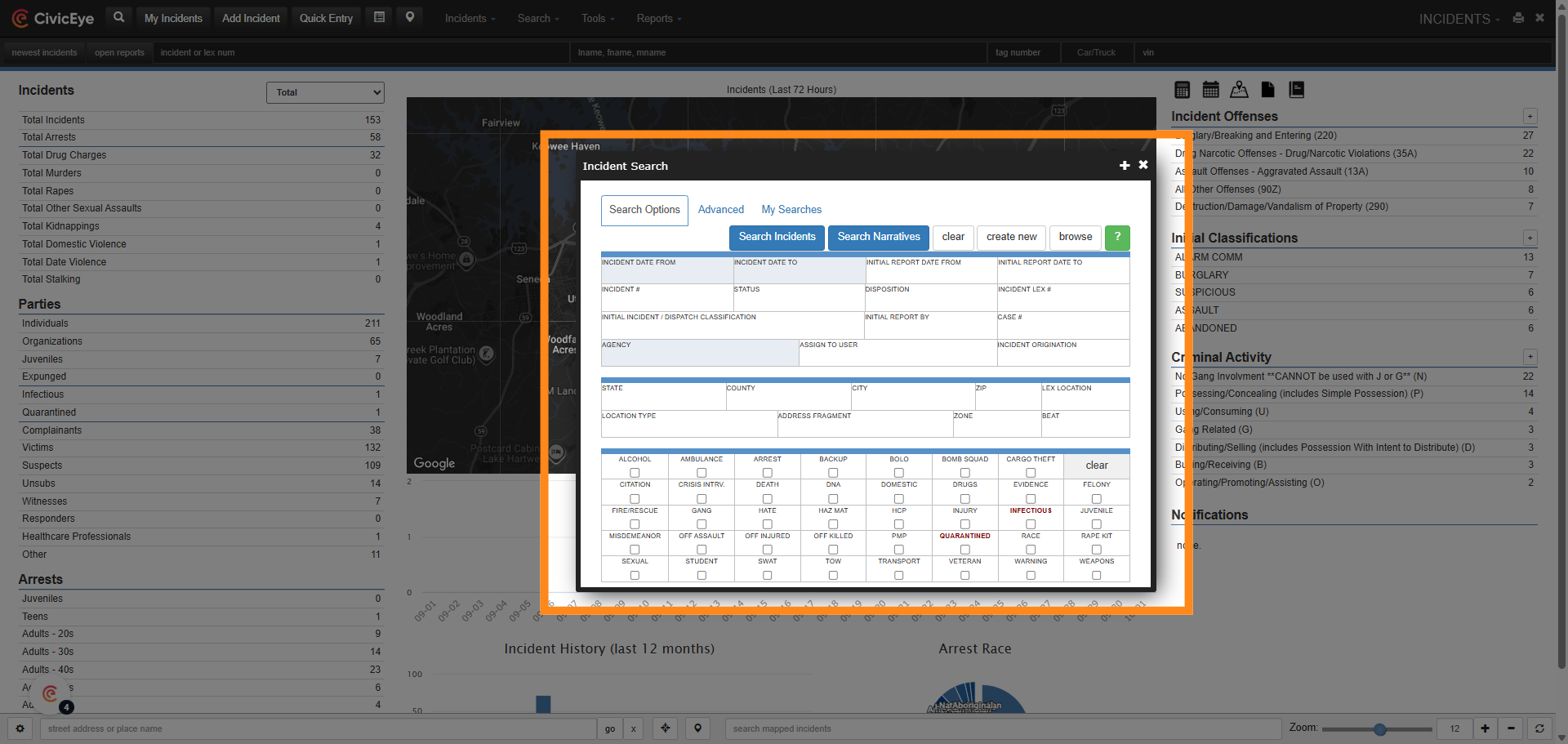
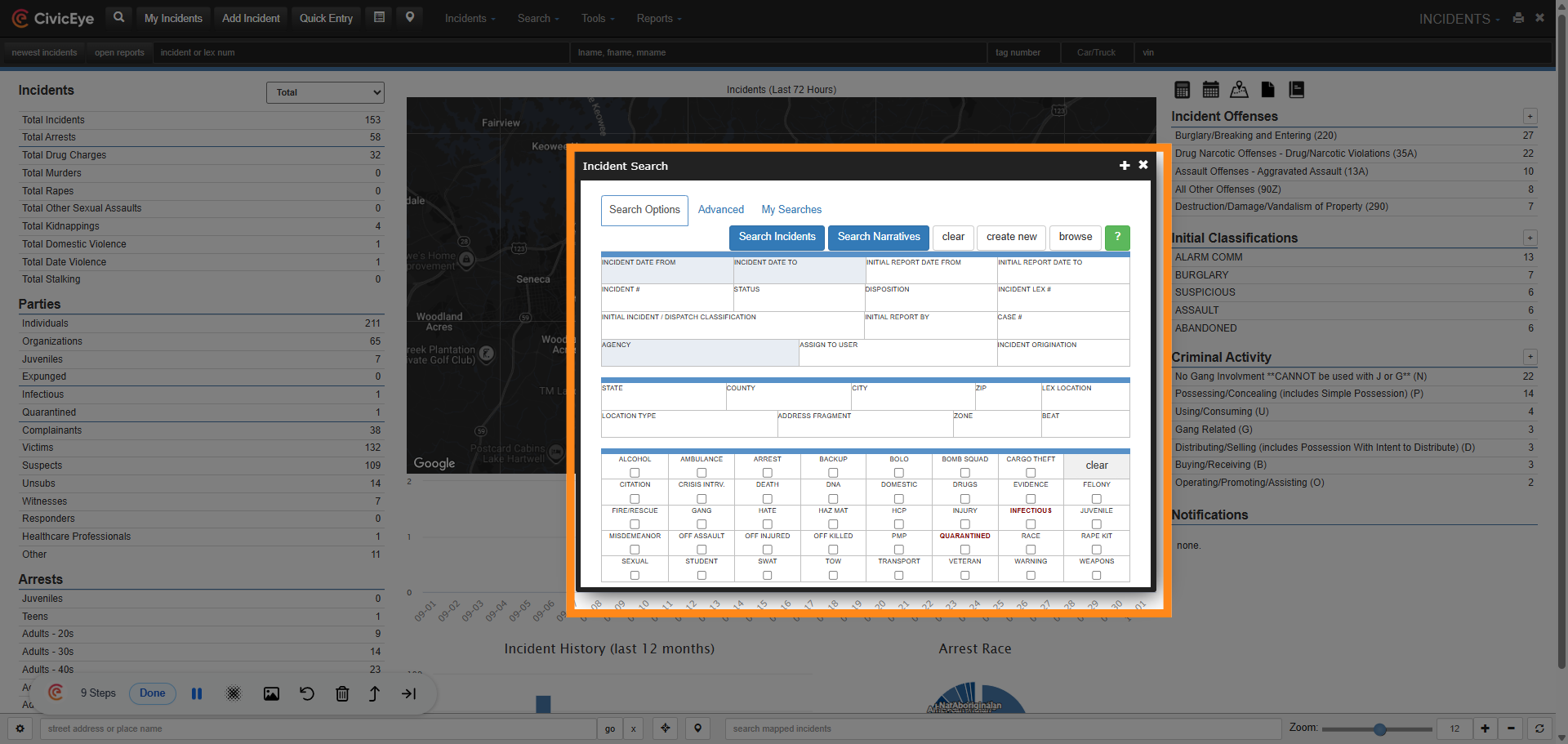
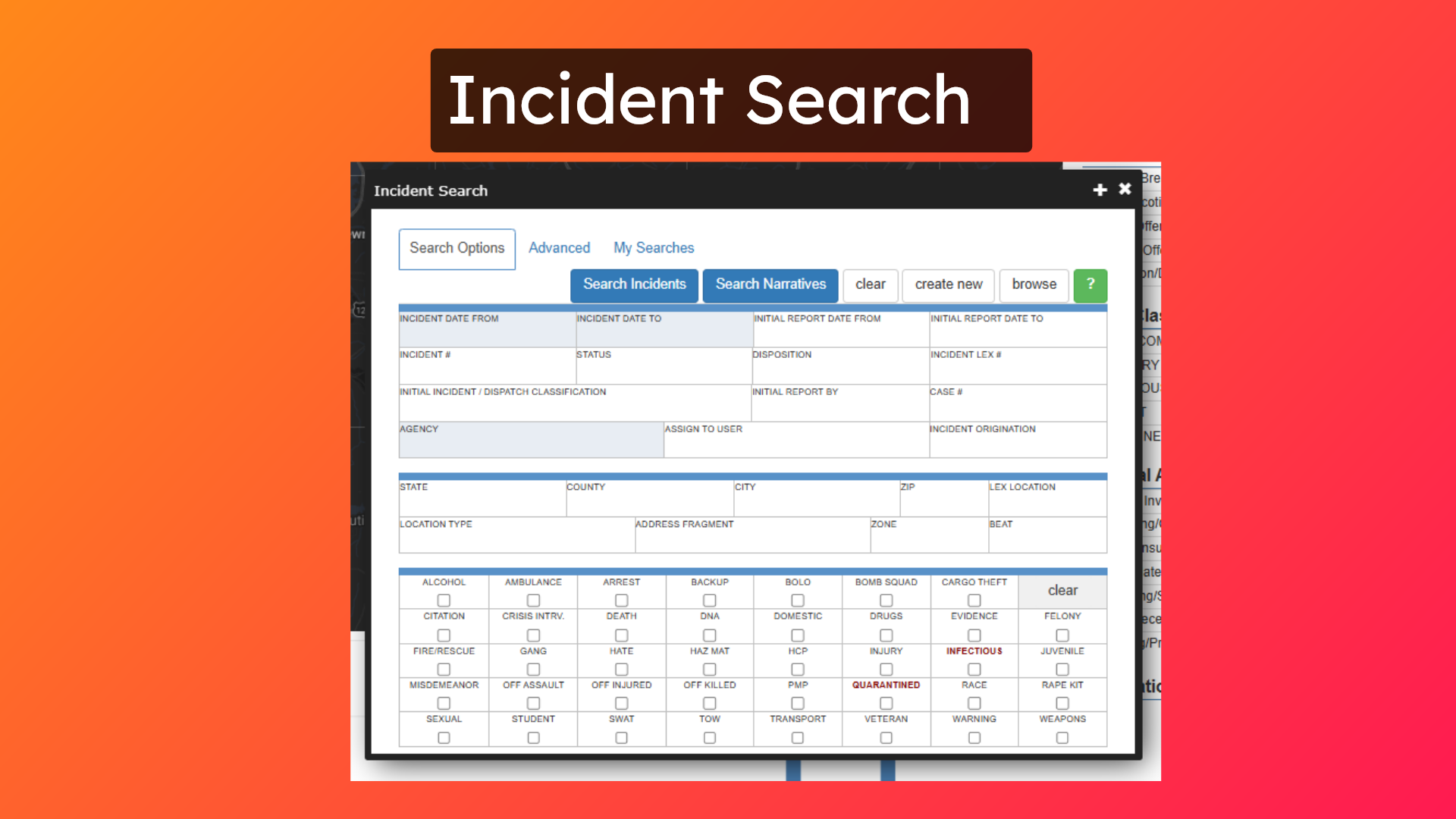
Selecting the magnifying glass opens the incident search tool. This has several search filters to narrow or broaden the search for incidents.
5. Filters
The incident search tool provides the user several search filters, including search by report date, initial incident, report status, reporting officer, and location.
6. Report Jacket
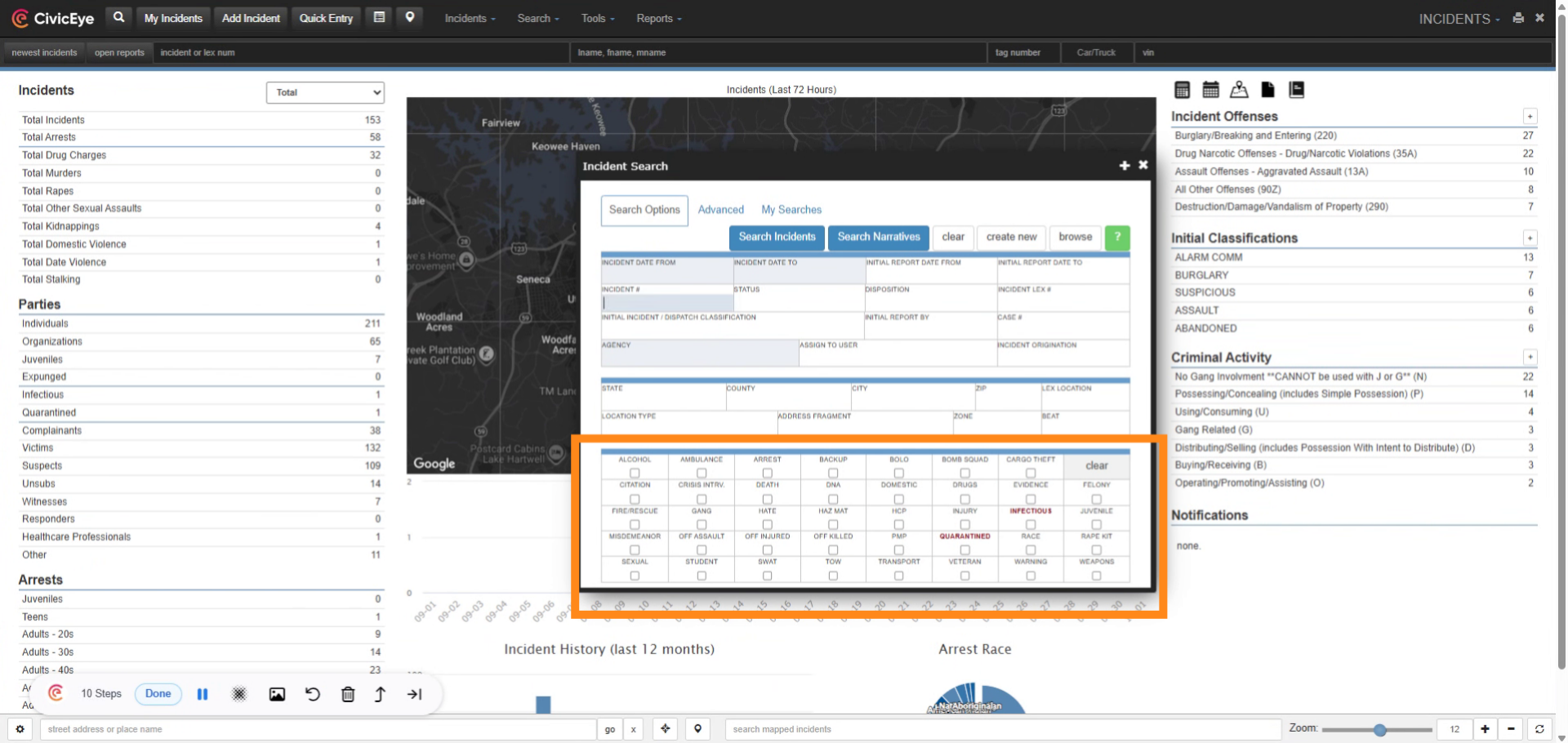
Users can also use the report jacket section to search for specific report details, such as arrests, SWAT utilization, fire, or officer assaults. These filters coinside with the report jacket of the incident report and provide a more granular detail search.
7. Advanced Search
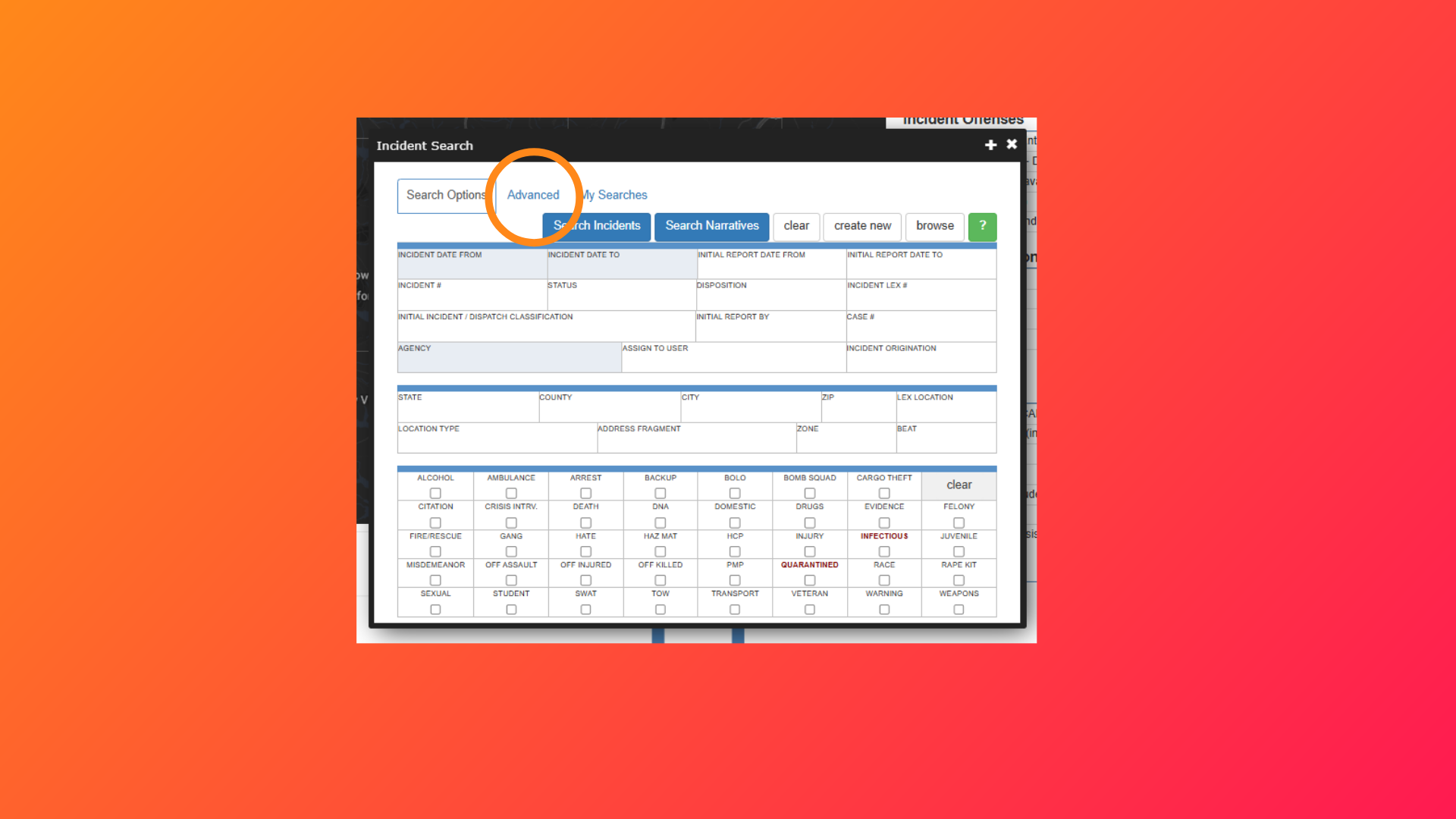
The CivicRMS incident search also provides an advanced search feature.
8. Advanced Search Filters
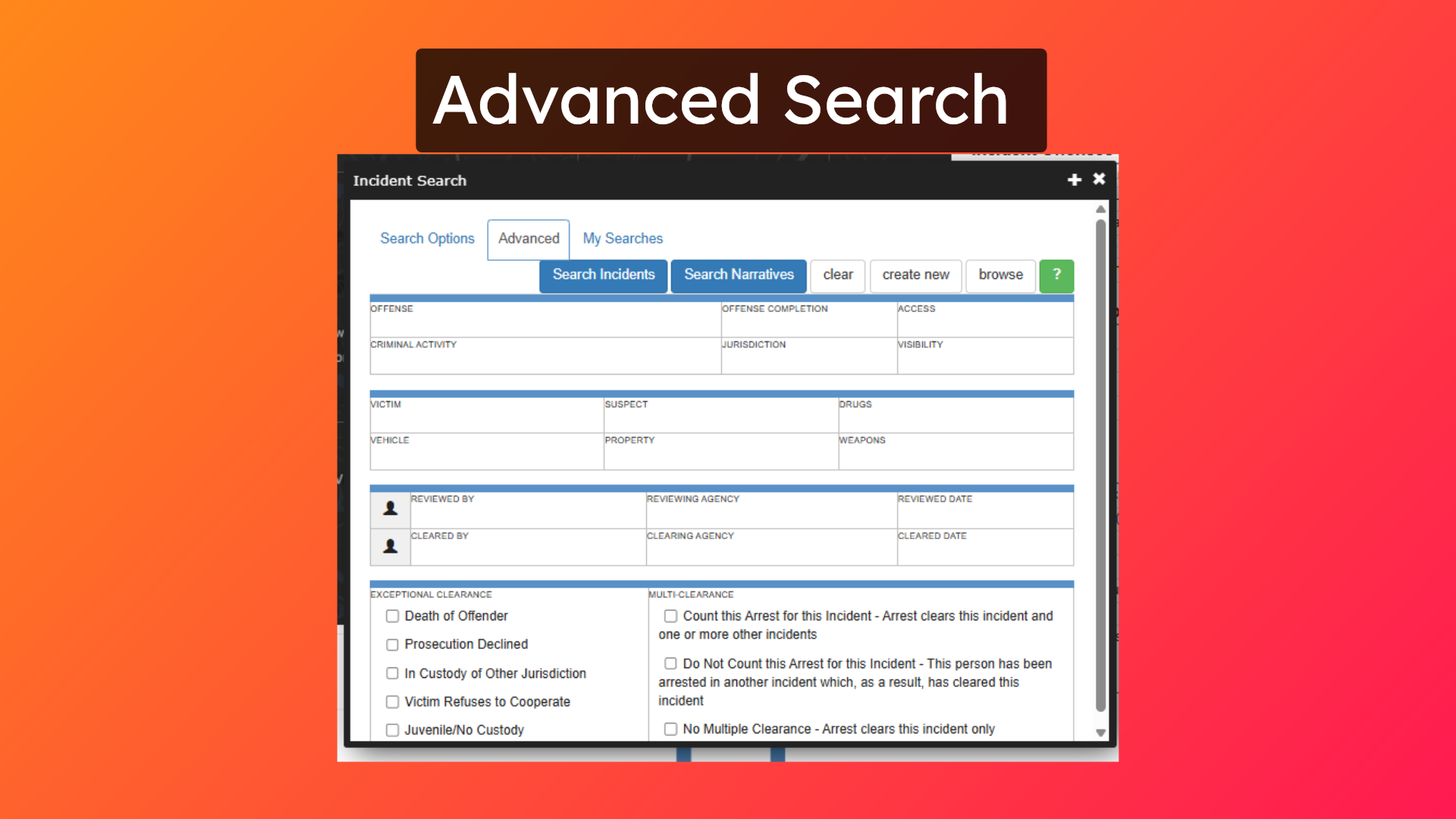
Advanced search provides search filters for offense, criminal activity, suspect, and clearnce type.
9. Incident Search
The incident search tool provides the user a vast array of search parameters and filters. Remember, as with any search, the more filters, the fewer results, and the less filters, the more results. The incident search gives the user the tools needed to widen or narrow any search.
10. Additioanl Search
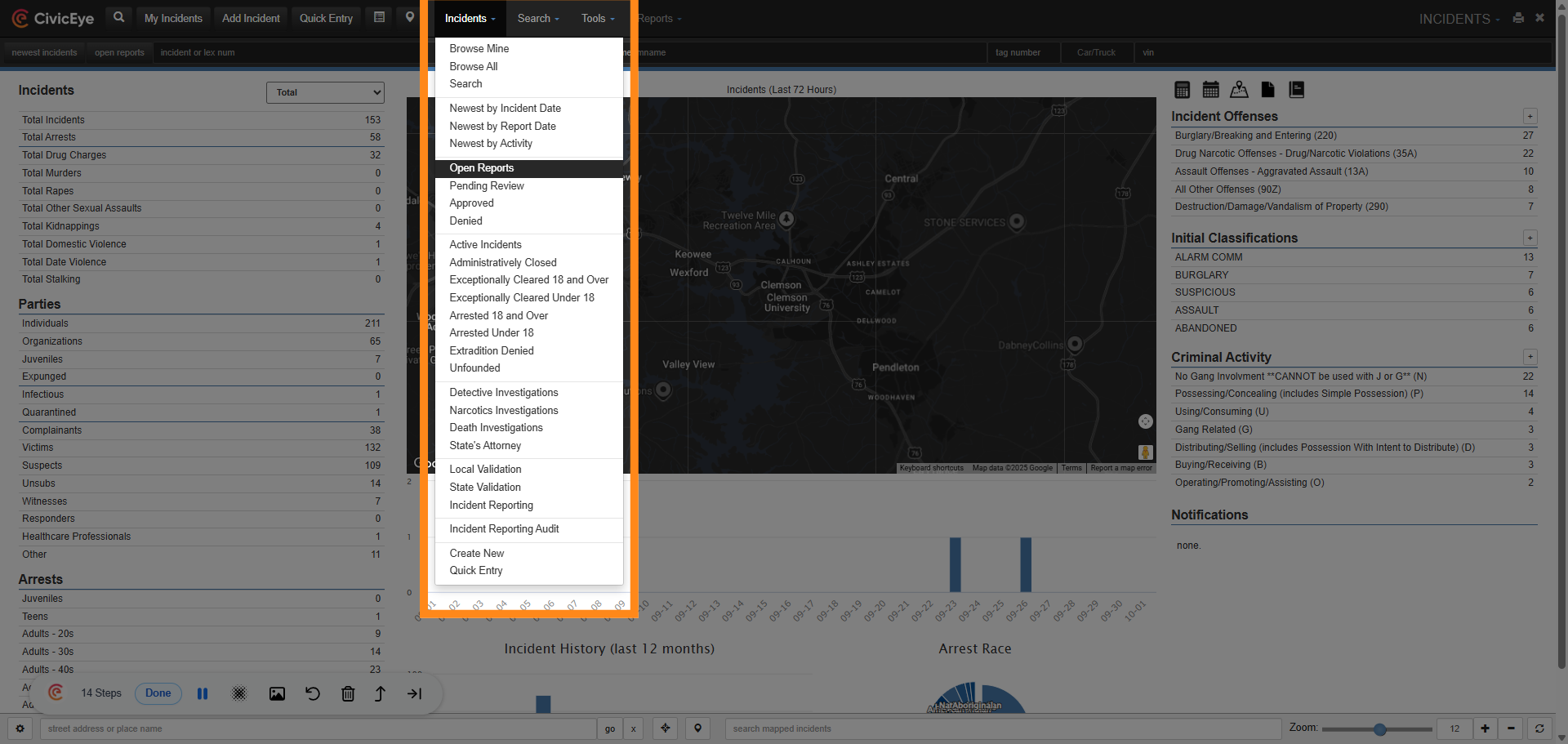
CivicRMS also provides other processes to search for incident reports. In the upper banner of the main Incident Module dashboard, selecting the incident tab will open a dropdown of prefiltered results. This allows the user to search for specific statuses, date ranges, or report activity.
11. Incident Report Search
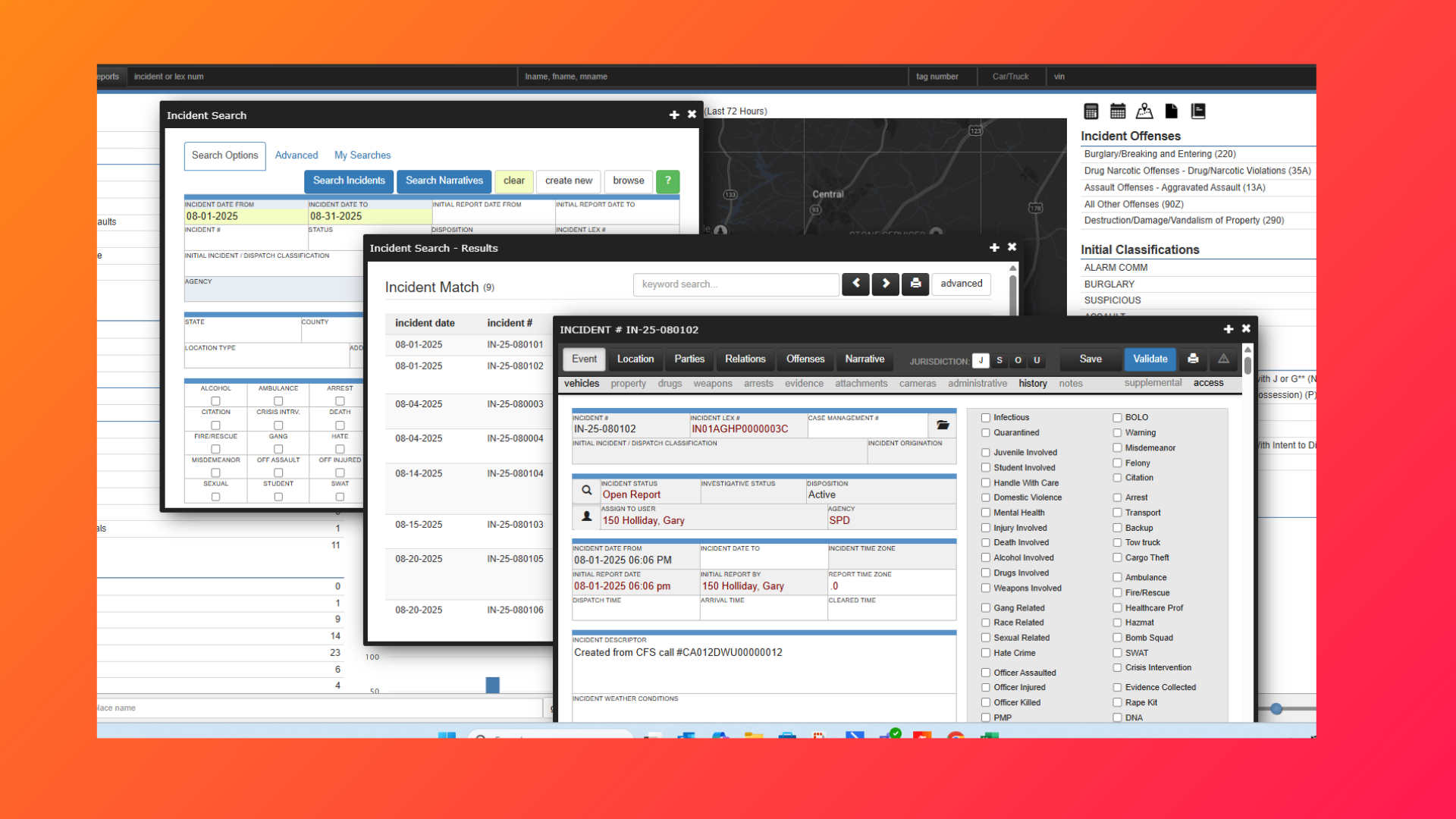
CivicRMS provides the user a wide array of tools to search for incident reports. These tools help in finding specific reports, but are also valuable in providing information for statistical and analytical reporting.
For more information concerning incident report searches, contact a CivicEye client support manager at 877-778-5277 or email us at support@civiceye.com.