---
title: Originating Incident Reports Using the CAD Module in Civiceye
description: Originating Incident Reports Using the CAD Module in CivicRMS
---
[Skip to content](https://knowledgebase.civiceye.com/knowledge-base/originating-incident-reports-using-the-cad-module-in-civiceye#main-content)
English
Show submenu for translations
[Customer Portal](https://portal.civiceye.com/tickets-view?hsLang=en)
.png?width=250&height=99&name=CivicEye_Identity_Secondary%20(4).png)
Open main navigation
Close main navigation
- English
Show submenu for translations
- [Customer Portal](https://portal.civiceye.com/tickets-view)
- [Contact us](https://www.civiceye.com/support/)
[Contact us](https://www.civiceye.com/support/)
How can we help you?
- There are no suggestions because the search field is empty.
1. [CivicEye Knowledge Base](https://knowledgebase.civiceye.com/knowledge-base?hsLang=en)
2. [CivicRMS](https://knowledgebase.civiceye.com/knowledge-base/civicrms?hsLang=en)
3. [Incident Reports](https://knowledgebase.civiceye.com/knowledge-base/civicrms?hsLang=en#incident-reports)
August 24, 2026
# Originating Incident Reports Using the CAD Module in Civiceye
## CivicRMS provides an interface to a number of Computer Aided Dispatch systems. If your agency has this interface, the CAD Module will be accessable on the main CivicRMS dashboard. This functionality provides the user call for service information through an interface with the CAD at dispatch.
# [Originating Incident Reports Using the CAD Module in Civiceye](https://app.guidde.com/playbooks/mVW2Z4gQCnUpxcmmexw1nZ)
This tutorial guides you through originating an incident report using the CAD module in CivicRMS.
### Go to [training-rms.civiceye.com](https://training-rms.civiceye.com)
### 1. CAD Module
CivicRMS provides an interface to a number of Computer Aided Dispatch systems. If your agency has this interface, the CAD Module will be accessable on the main CivicRMS dashboard. This functionality provides the user call for service information through an interface with the CAD at dispatch.
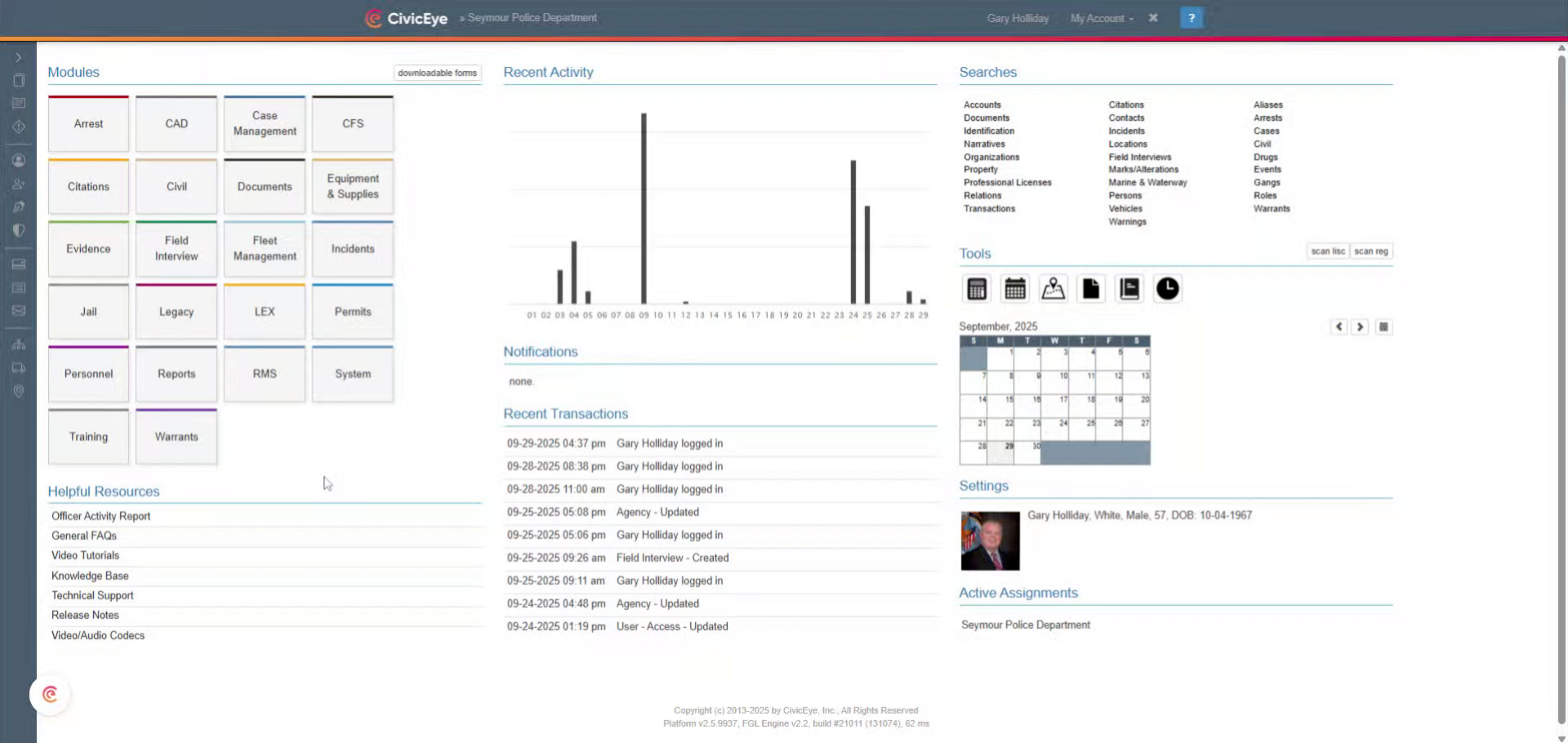
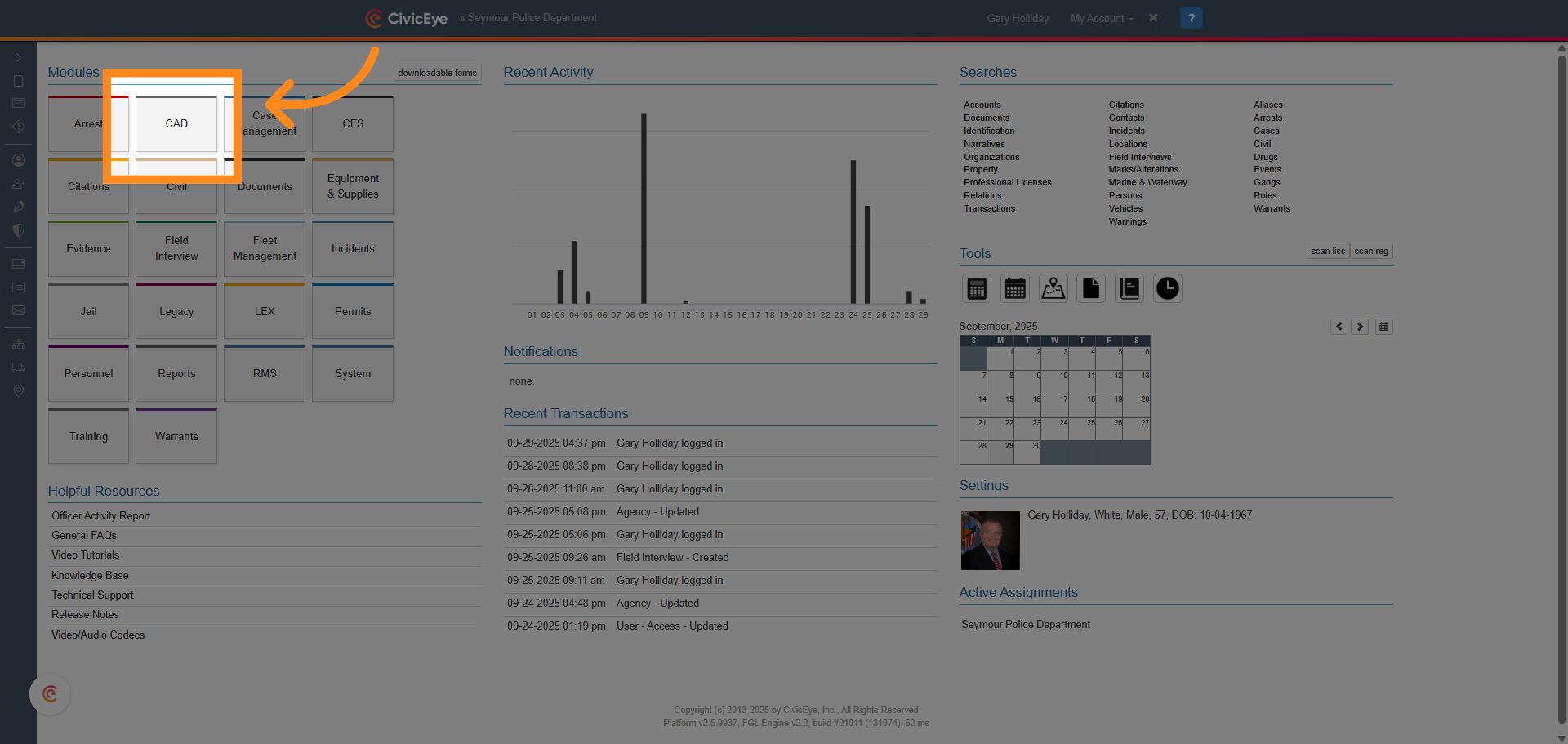
### 2. Select CAD Module
Select the CAD Module from the main CivicRMS dashboard.
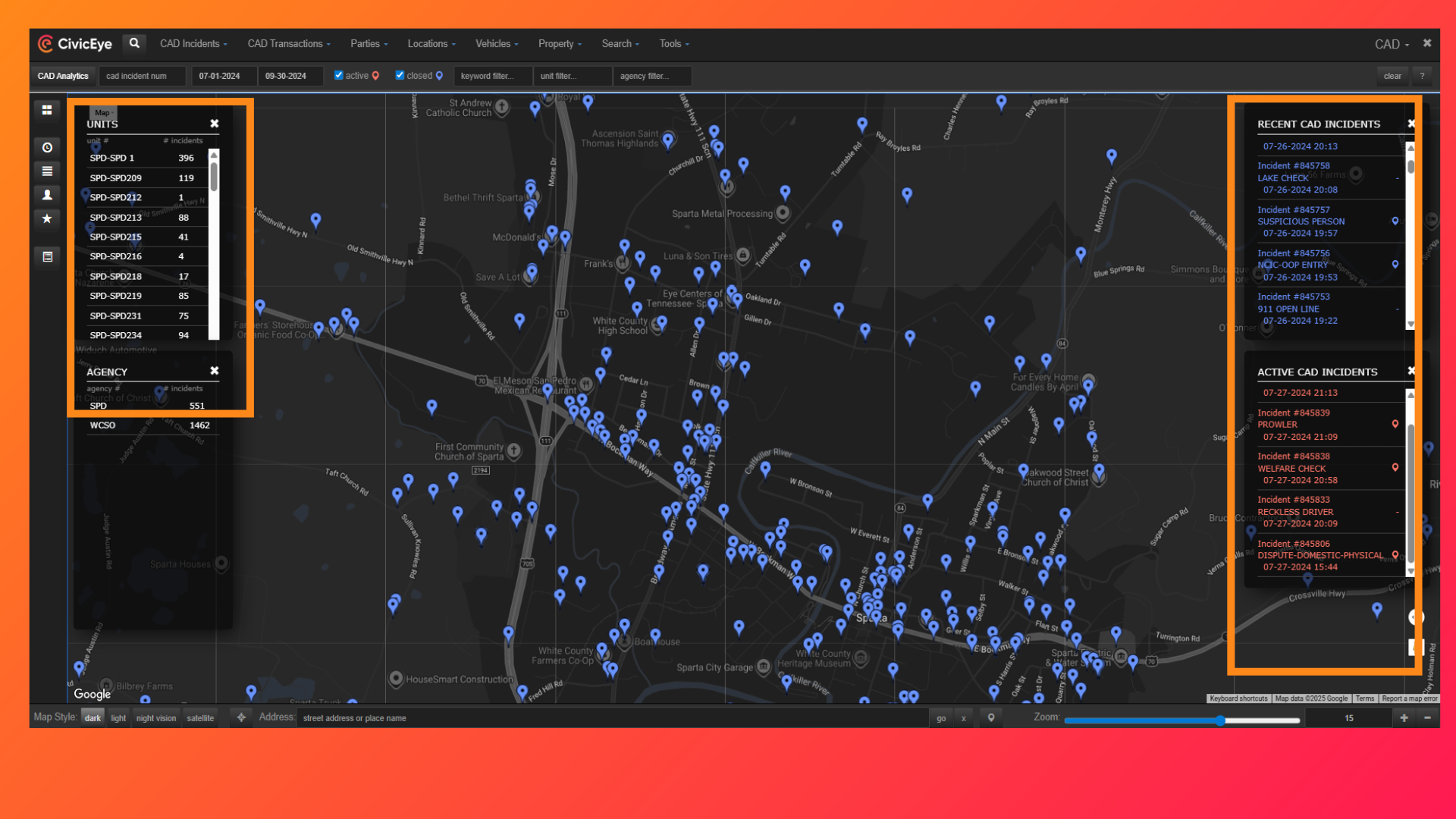
### 3. CAD Dashboard
Selecting the CAD Module opens the CAD dashboard. The dashboard displays units on duty, recent calls for service, and active calls for service.
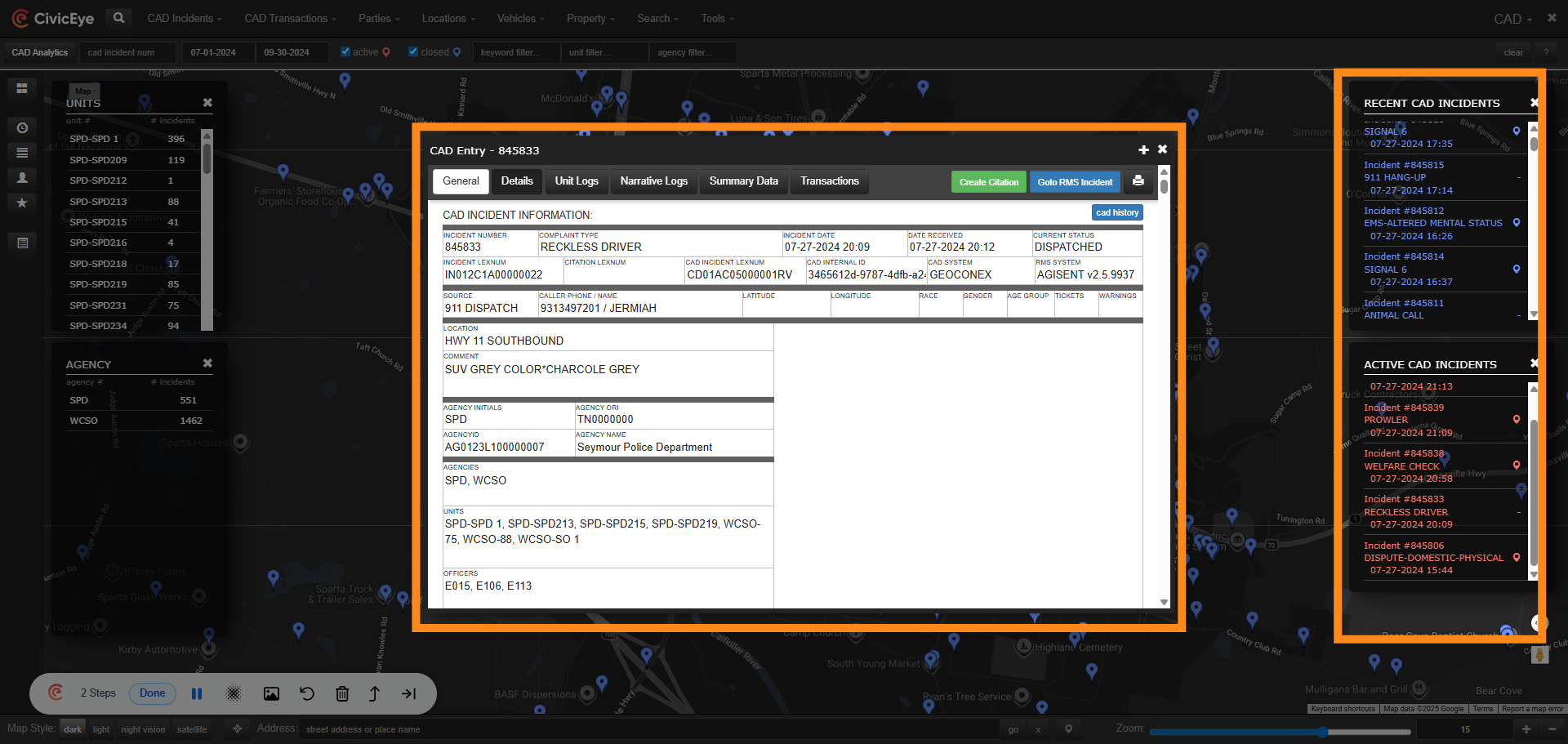
### 4. CAD Card
To originate an incident report from the CAD, select the appropriate call for service from the list, or by using the map pin which corrisponds to the call. When the call is selected, the CAD card will open. The CAD card contains call details as entered by dispatch. These include dates and times, location, call type, incident number, and units dispatched.
### 5. Details
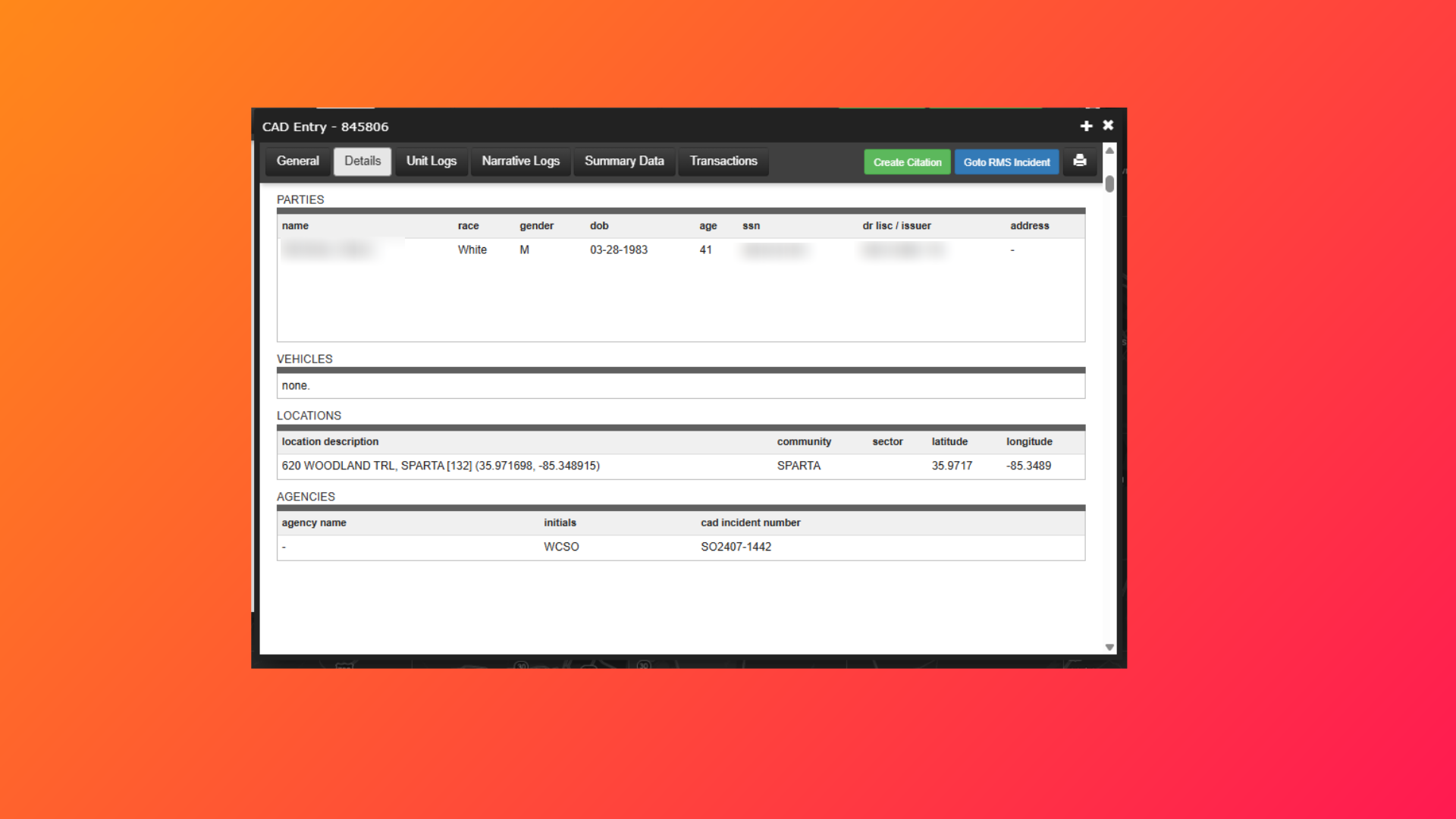
Selecting the details tab provides the user with additional information, including persons, vehicles, and latitude longitude of the address. Other information is provided under the Unit Log tabs, and Narrative tabs.
### 6. Create RMS Incident
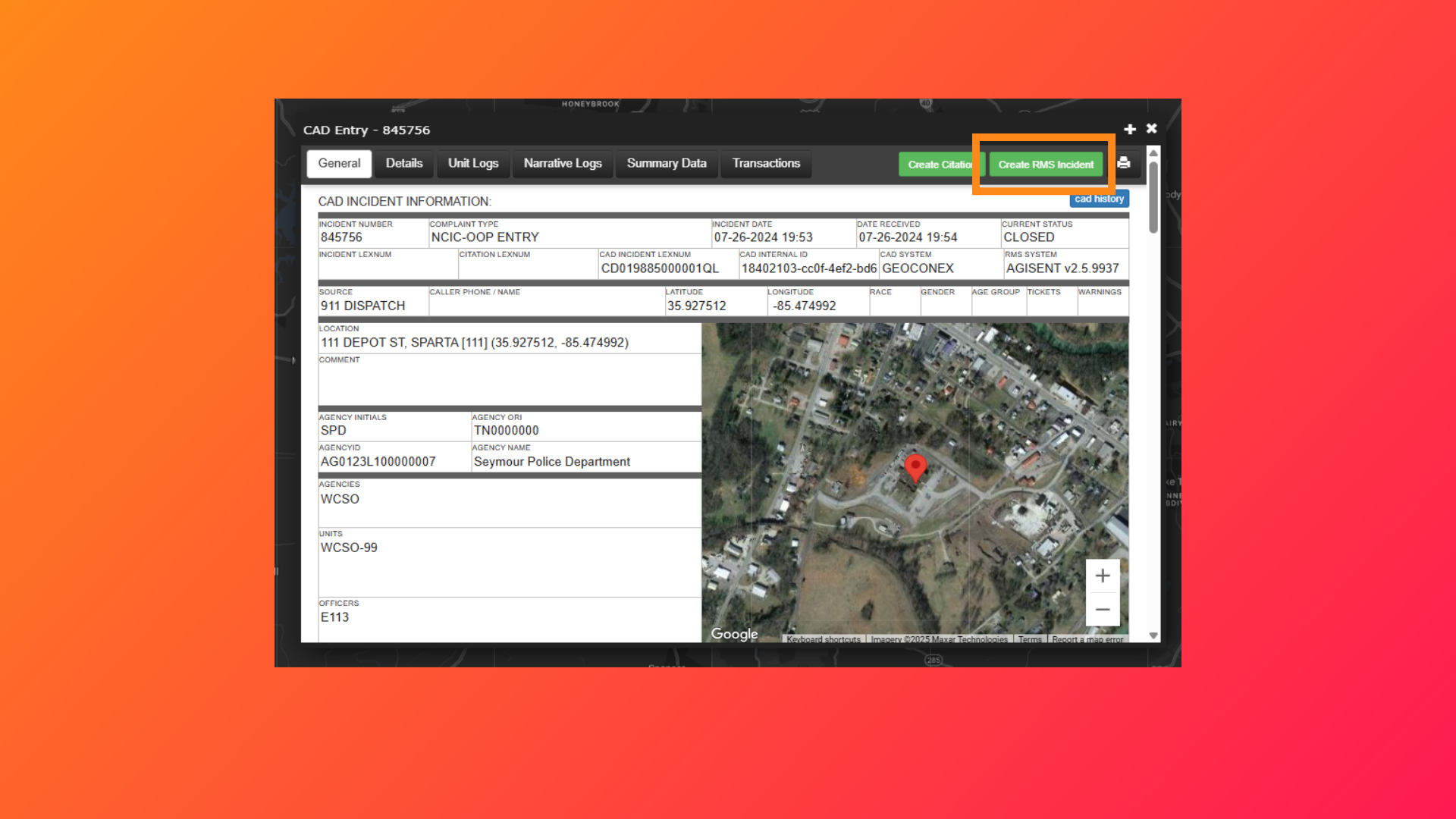
To create an RMS incident report from the CAD card, select the green Create RMS Incident tab in the upper right hand corner.
### 7. Incident Report
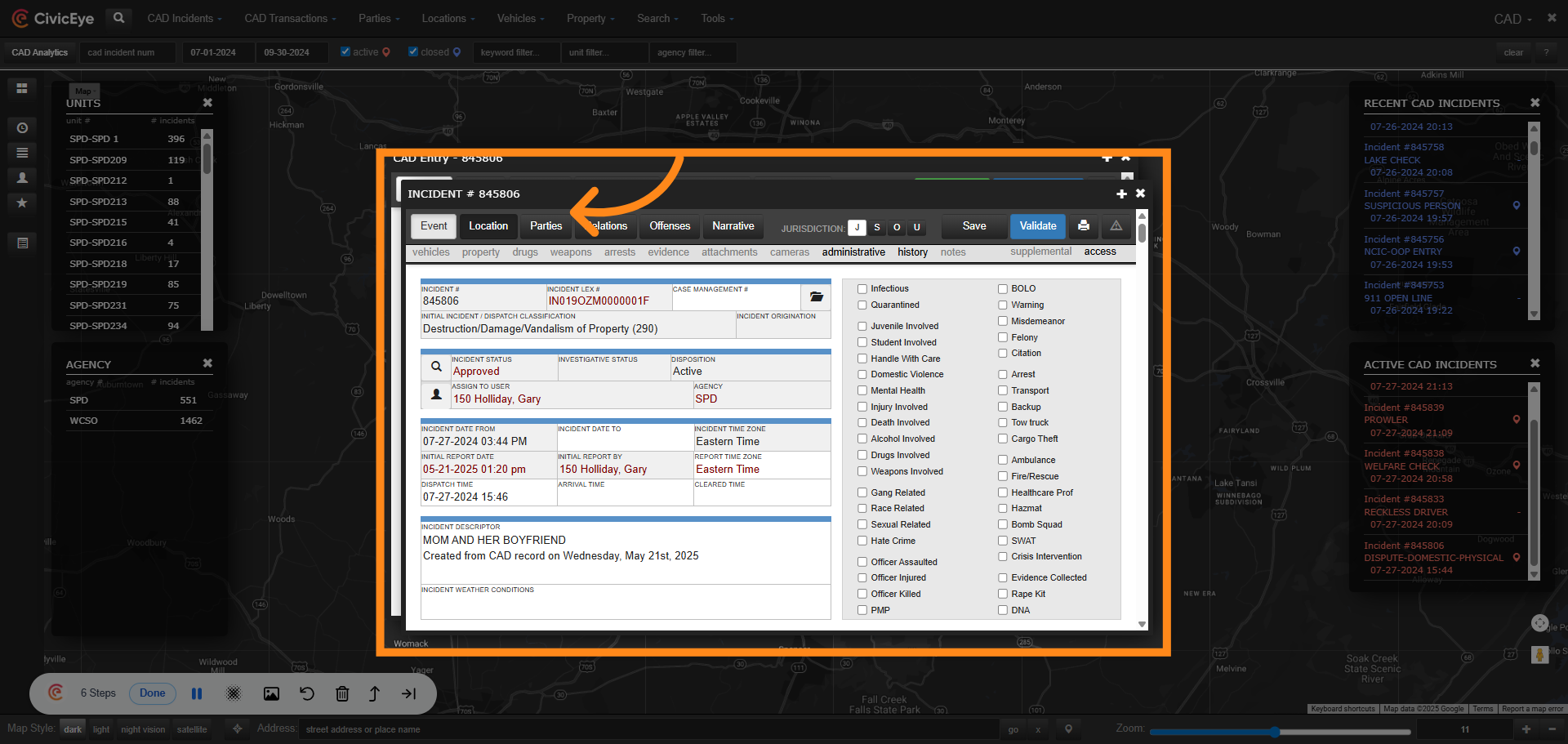
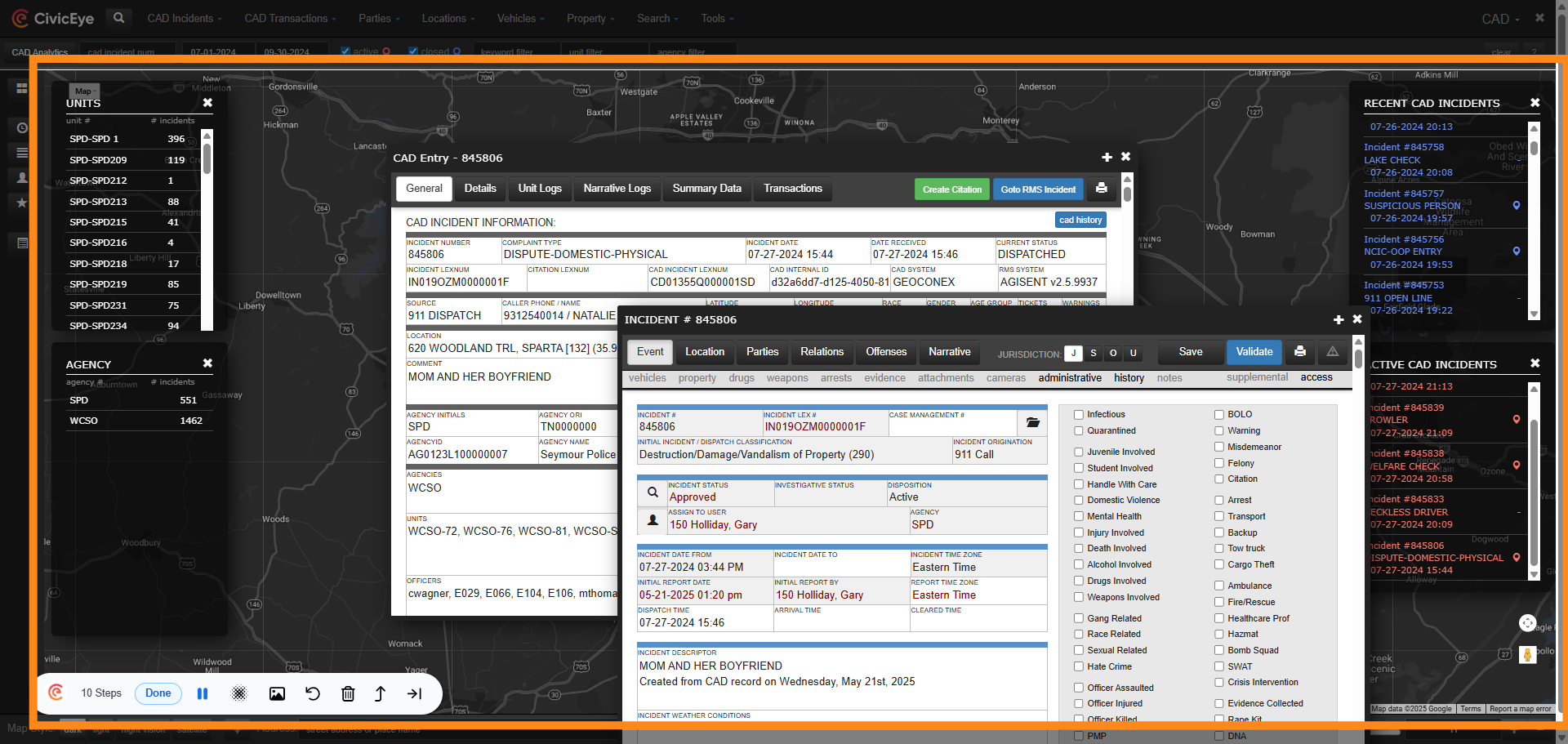
Selecting create RMS incident opened up a new report and populated data from the CAD card, to include dates and times, report number, initial incident type, comments, and assigned officer.
### 8. Location
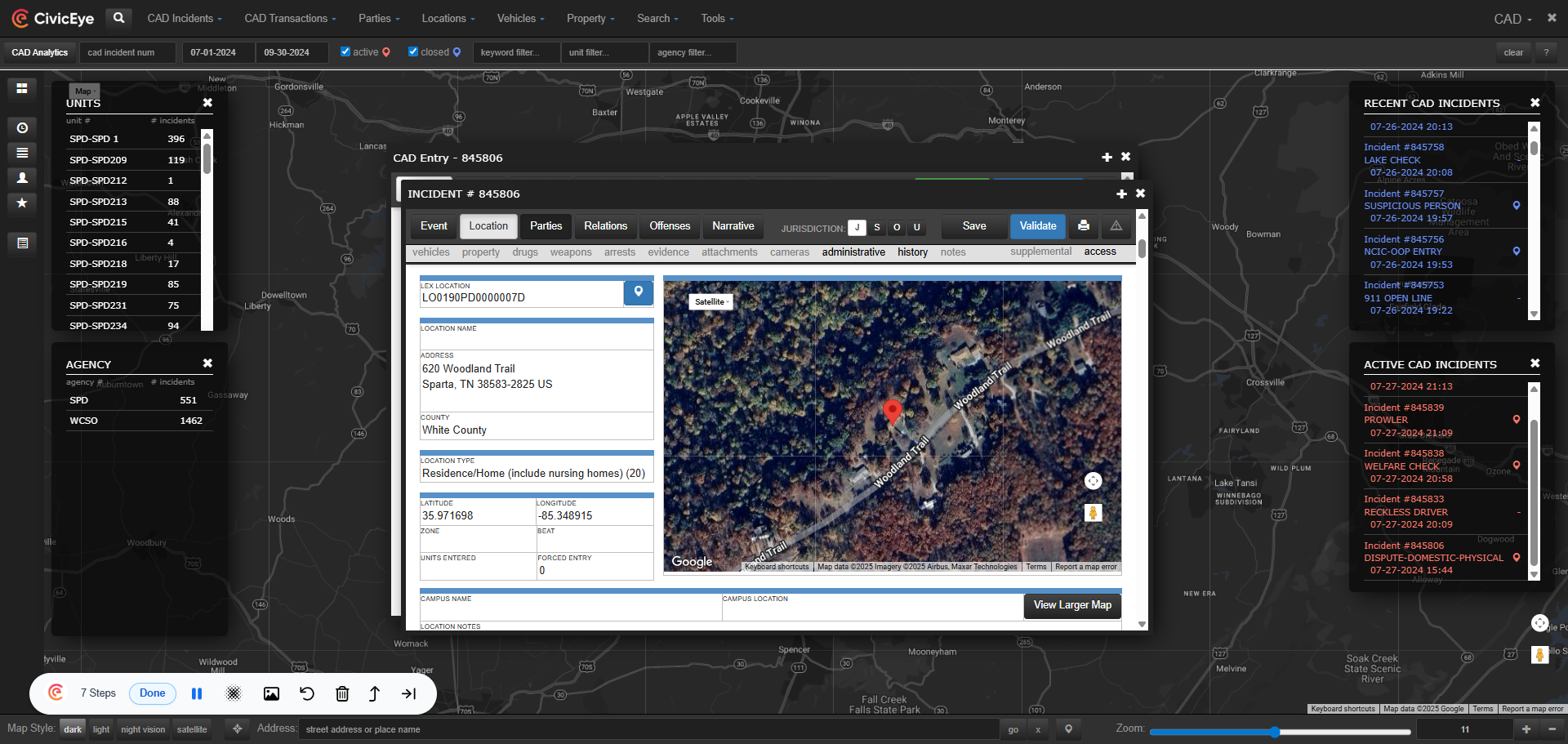
Location information has also populated. Be sure to search for location in the master index by using the blue map pin, and add the required LEX number.
### 9. Parties
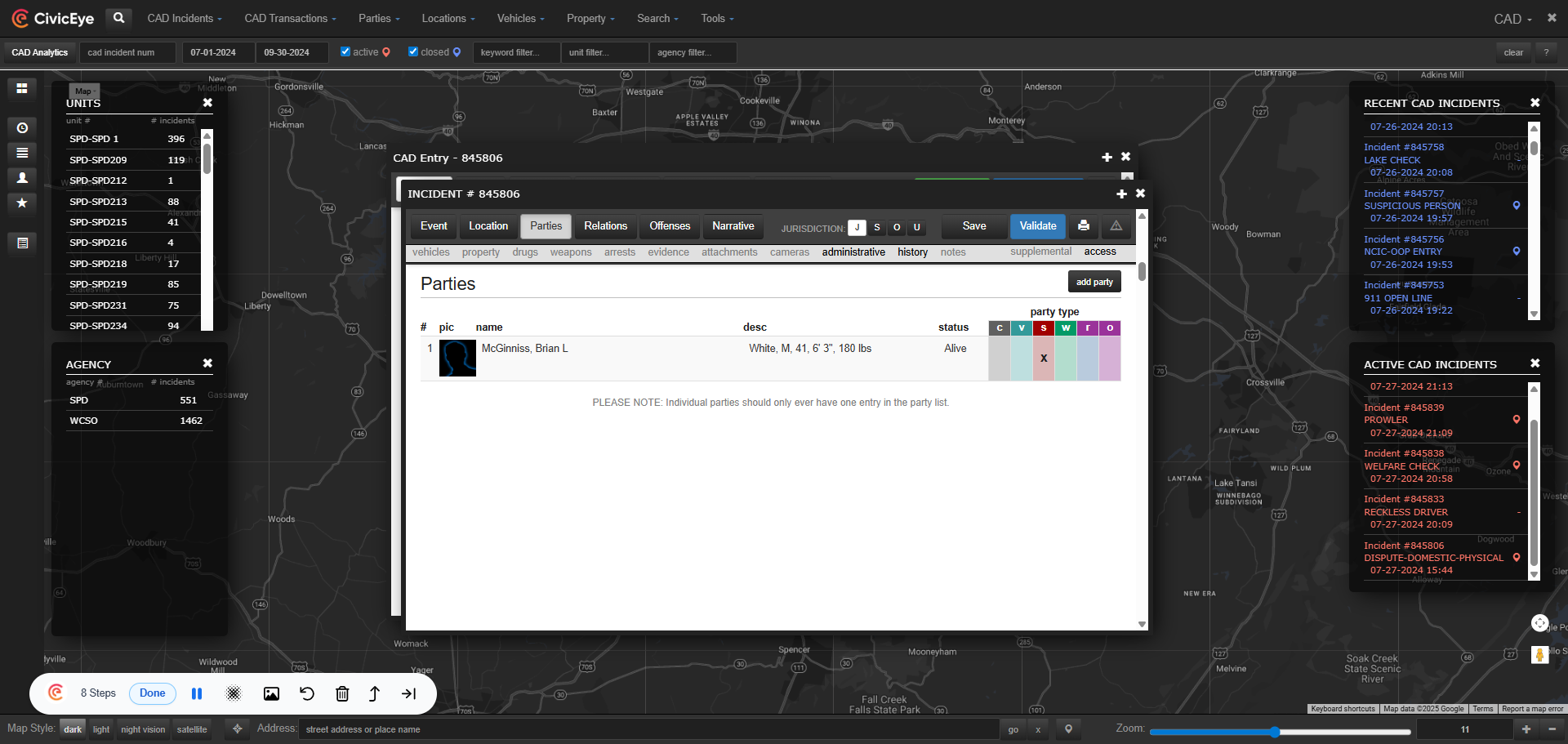
Persons name and information will also be populated from the CAD card to the incident report. The user will be asked what role the person has within the report, and will check the master index prior to starting a new persons entry in the database. Vehicle information will be transfered also. Remember, check all the data that auto populated to ensure it has a corresponding LEX number and is in the appropriate master index.
### 10. Incident Report
You have now originated an incident report from the CAD Module. Remember to check all populated data for LEX numbers and to ensure the information is included in the master index.
For furher questions regarding originating a report from the CAD Module, or any other CivicRMS issues, please call a client support manager at 877-778-5277, or email us at support@civiceye.com.
[Powered by **guidde**](https://www.guidde.com)
- [How to Request New Training Content](https://knowledgebase.civiceye.com/knowledge-base/how-to-request-new-training-content?hsLang=en)
- [CivicCase](https://knowledgebase.civiceye.com/knowledge-base/civiccase?hsLang=en#main-content)
- [Prosecutor and Admin Portals](https://knowledgebase.civiceye.com/knowledge-base/civiccase?hsLang=en#prosecutor-and-admin-portals)
- [CivicDocs](https://knowledgebase.civiceye.com/knowledge-base/civicdocs?hsLang=en#main-content)
- [Evidence Management](https://knowledgebase.civiceye.com/knowledge-base/civicdocs?hsLang=en#evidence-management)
- [User Access](https://knowledgebase.civiceye.com/knowledge-base/civicdocs?hsLang=en#user-access)
- [Defense Portal](https://knowledgebase.civiceye.com/knowledge-base/civicdocs?hsLang=en#defense-portal)
- [Law Enforcement Portal](https://knowledgebase.civiceye.com/knowledge-base/civicdocs?hsLang=en#law-enforcement-portal)
- [CivicRMS](https://knowledgebase.civiceye.com/knowledge-base/civicrms?hsLang=en#main-content)
- [Master Index](https://knowledgebase.civiceye.com/knowledge-base/civicrms?hsLang=en#master-index)
- [Incident Reports](https://knowledgebase.civiceye.com/knowledge-base/civicrms?hsLang=en#incident-reports)
- [NIBRS](https://knowledgebase.civiceye.com/knowledge-base/civicrms?hsLang=en#nibrs)
- [Property](https://knowledgebase.civiceye.com/knowledge-base/civicrms?hsLang=en#property)
- [Persons](https://knowledgebase.civiceye.com/knowledge-base/civicrms?hsLang=en#persons)
- [Arrest and Warrants](https://knowledgebase.civiceye.com/knowledge-base/civicrms?hsLang=en#arrest-and-warrants)
- [General](https://knowledgebase.civiceye.com/knowledge-base/civicrms?hsLang=en#general)
- [FAQs](https://knowledgebase.civiceye.com/knowledge-base/faqs?hsLang=en#main-content)
- [Support](https://knowledgebase.civiceye.com/knowledge-base/faqs?hsLang=en#support)
- [Training](https://knowledgebase.civiceye.com/knowledge-base/faqs?hsLang=en#training)
- [Support](https://knowledgebase.civiceye.com/knowledge-base/support?hsLang=en#main-content)
- [User Access / Permissions](https://knowledgebase.civiceye.com/knowledge-base/support?hsLang=en#user-access-permissions)
- [Getting started](https://knowledgebase.civiceye.com/knowledge-base/getting-started?hsLang=en#main-content)
- [CivicEye Personnel Module](https://knowledgebase.civiceye.com/knowledge-base/getting-started?hsLang=en#civiceye-personnel-module)
[.png?width=250&height=99&name=CivicEye_Identity_Secondary%20(4).png)](https://knowledgebase.civiceye.com/?hsLang=en)
The Platform for Public Safety
[mailto:help@civiceye.com](mailto:help@civiceye.com)
Copyright © 2025, CivicEye