---
title: Officer Activity Report
description: Officer Activity Report
---
[Skip to content](https://knowledgebase.civiceye.com/knowledge-base/officer-activity-report#main-content)
English
Show submenu for translations
[Customer Portal](https://portal.civiceye.com/tickets-view?hsLang=en)
.png?width=250&height=99&name=CivicEye_Identity_Secondary%20(4).png)
Open main navigation
Close main navigation
- English
Show submenu for translations
- [Customer Portal](https://portal.civiceye.com/tickets-view)
- [Contact us](https://www.civiceye.com/support/)
[Contact us](https://www.civiceye.com/support/)
How can we help you?
- There are no suggestions because the search field is empty.
1. [CivicEye Knowledge Base](https://knowledgebase.civiceye.com/knowledge-base?hsLang=en)
2. [CivicRMS](https://knowledgebase.civiceye.com/knowledge-base/civicrms?hsLang=en)
3. [General](https://knowledgebase.civiceye.com/knowledge-base/civicrms?hsLang=en#general)
August 24, 2026
# Officer Activity Report
## Learn how to create and submit an Officer Activity Report using CivicRMS. This guide covers every step from starting your shift to reviewing detailed activity logs.
# [Officer Activity Report](https://app.guidde.com/playbooks/8b6hWxshUep967VmwHnUqP)
Learn how to create and submit an Officer Activity Report using CivicRMS. This guide covers every step from starting your shift to reviewing detailed activity logs.
### Go to [training-rms.civiceye.com](https://training-rms.civiceye.com)
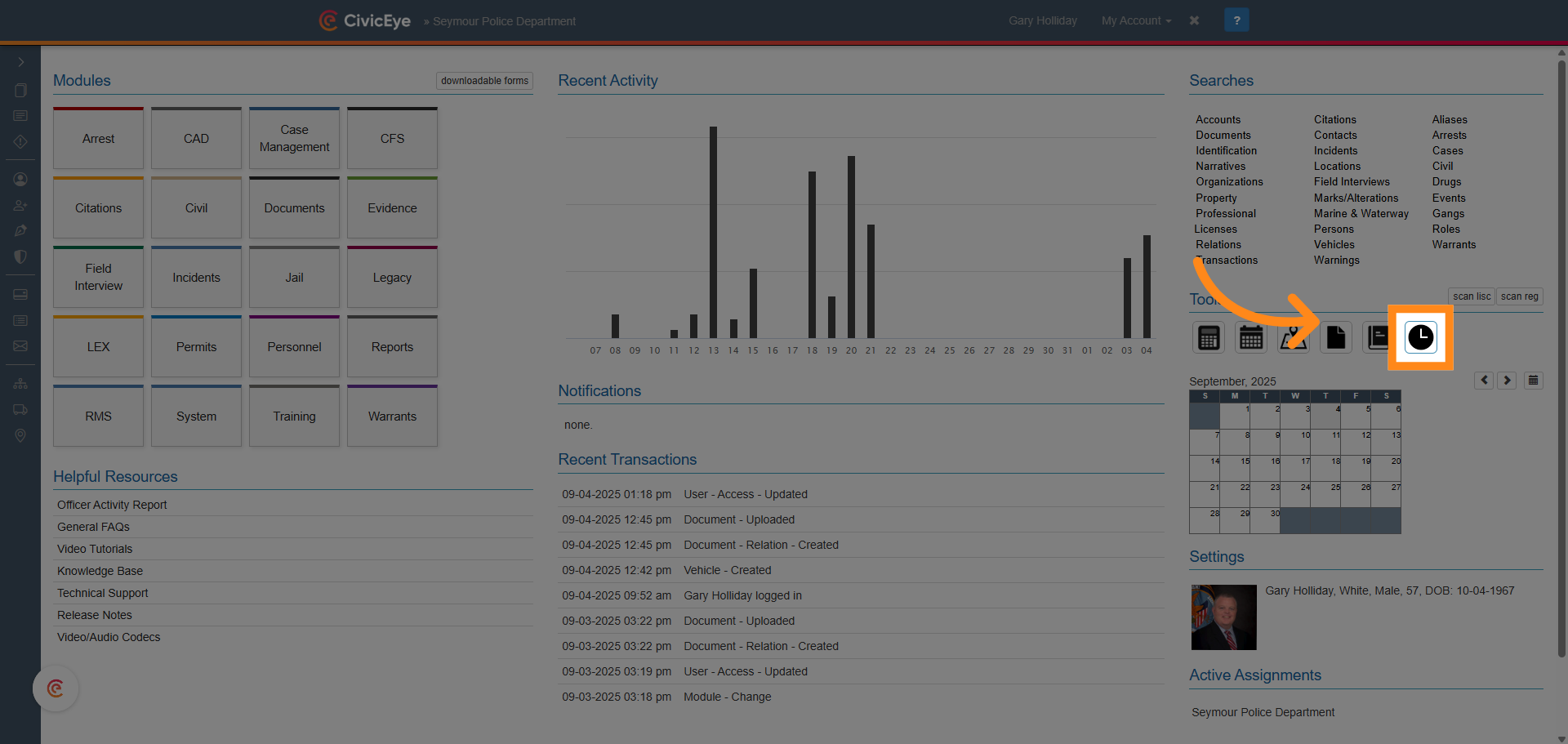
### 1. Click here
In the main CivicRMS dashboard, select the clock icon in tools. This provides user access to the officer activity report.
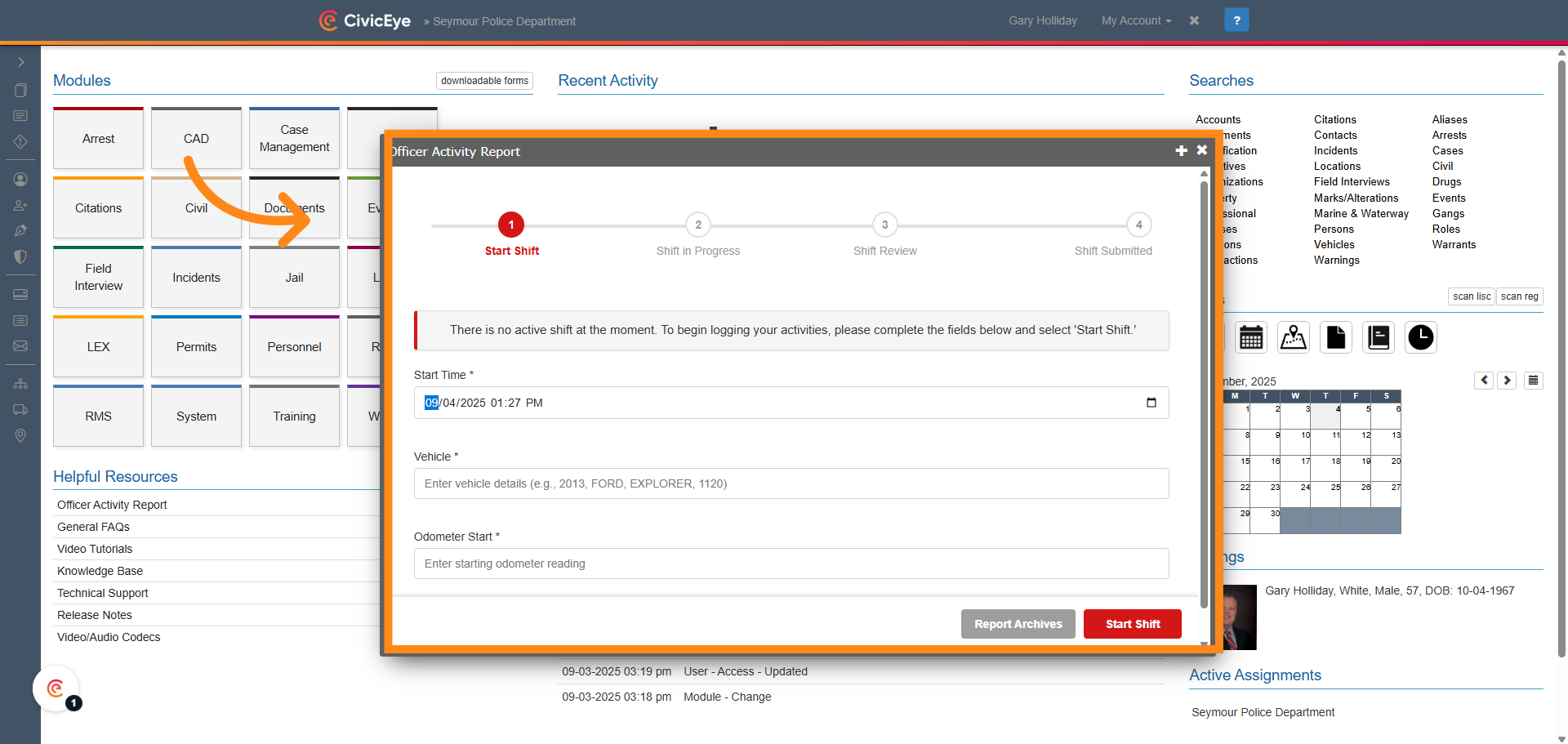
### 2. Dashboard
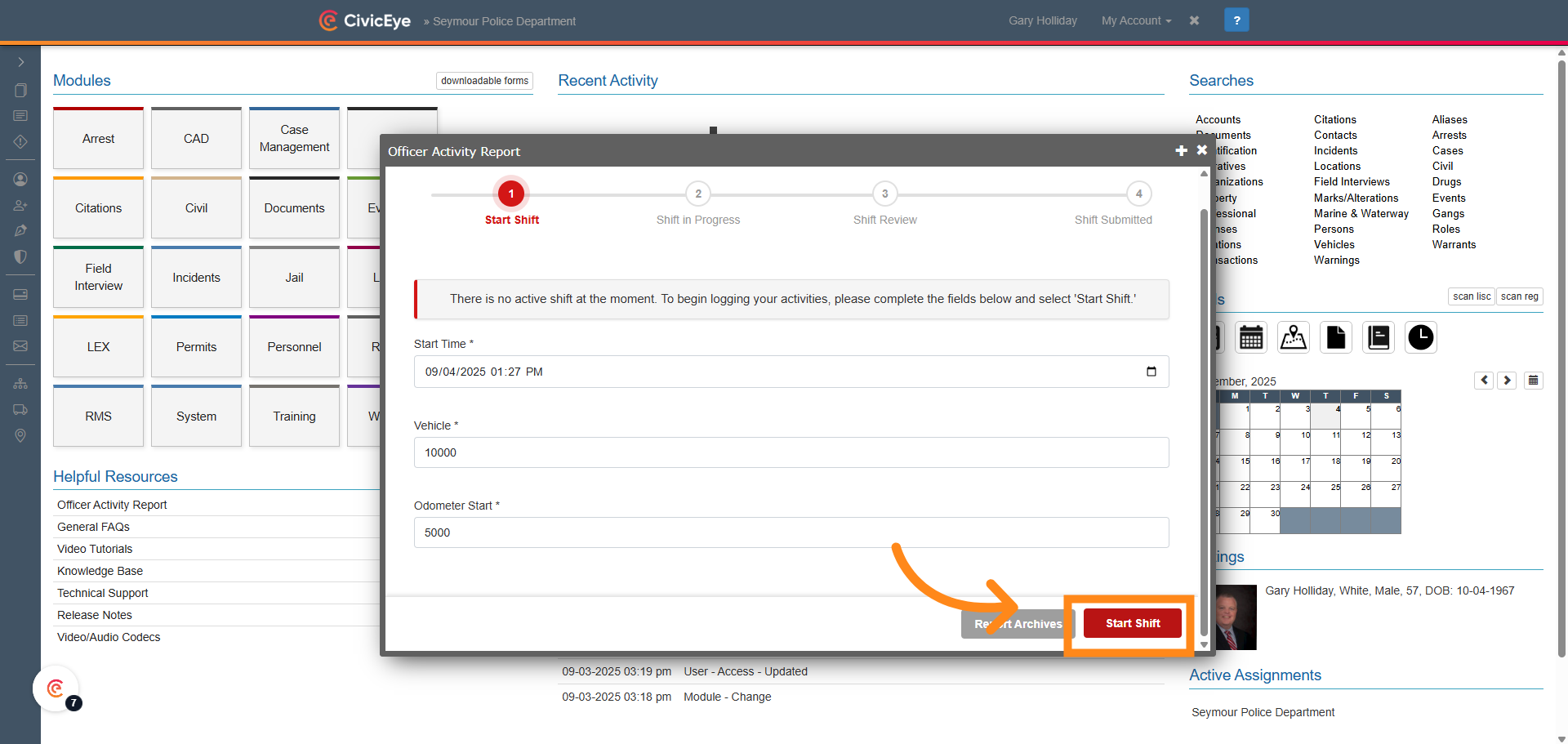
The Officer Activity Report dashboard provides the user the ability to begin their shift by adding shift start time, vehicle number, and starting odometer.
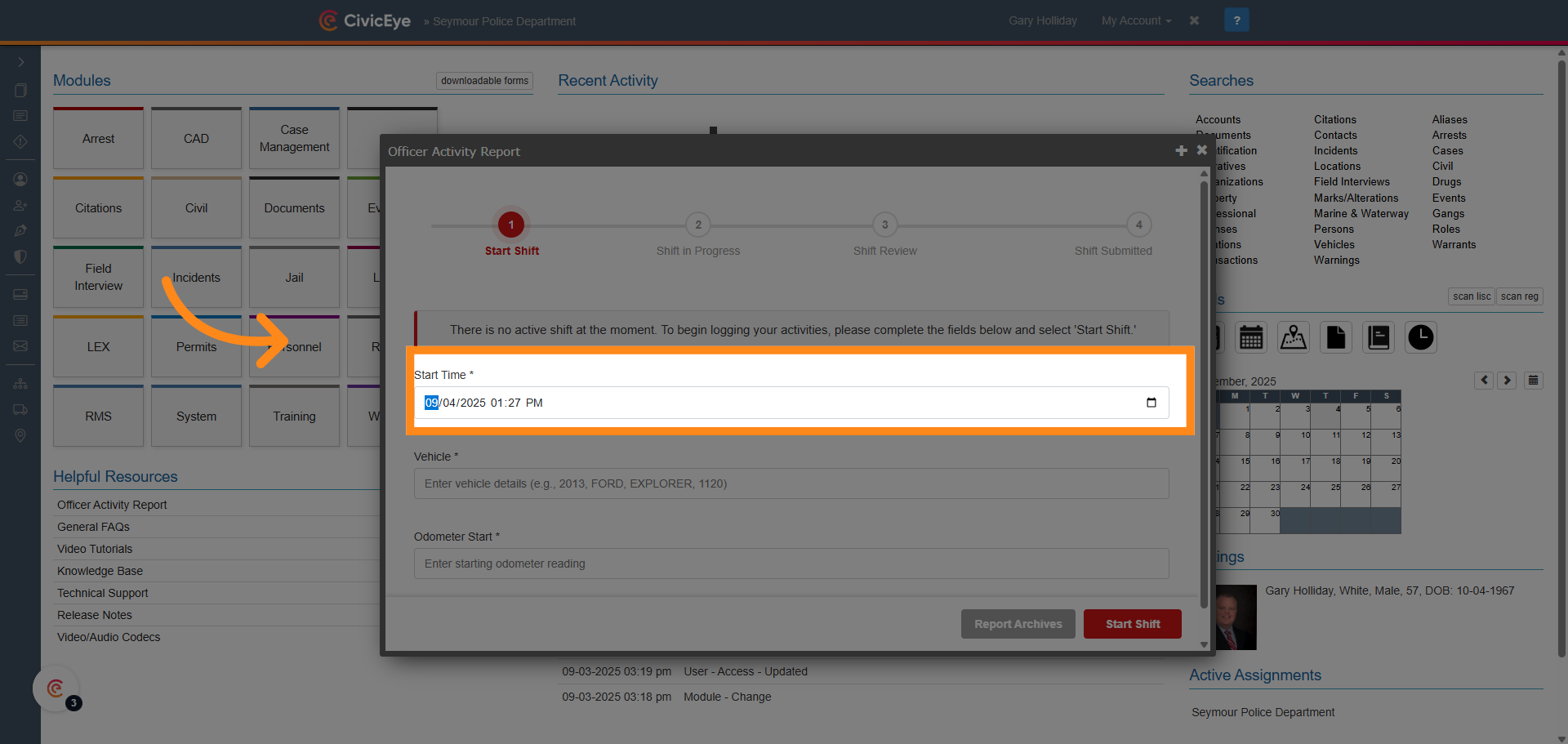
### 3. Select "Start Time"
Using the date and time pop up feature, select the starting date and time of the shift.
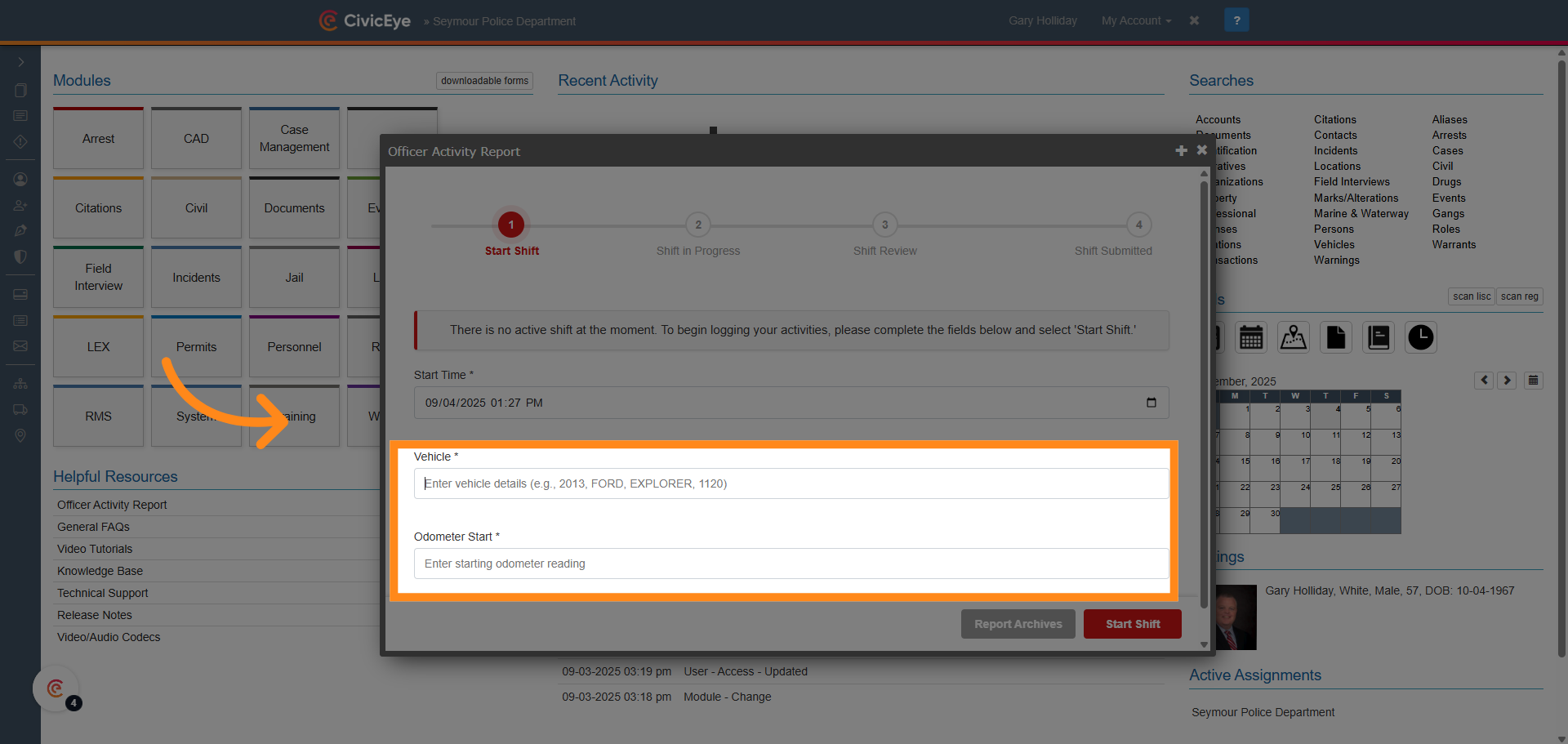
### 4. Input assigned vehicle and starting odometer
input the assigned vehicle and and starting odometer. You can use any identifier for the vehicle, such as make, model, year, or assigned fleet number.
### 5. Select "Start Shift"
Select the start shift tab to begin the shift.
### 6. Select "New Activity"
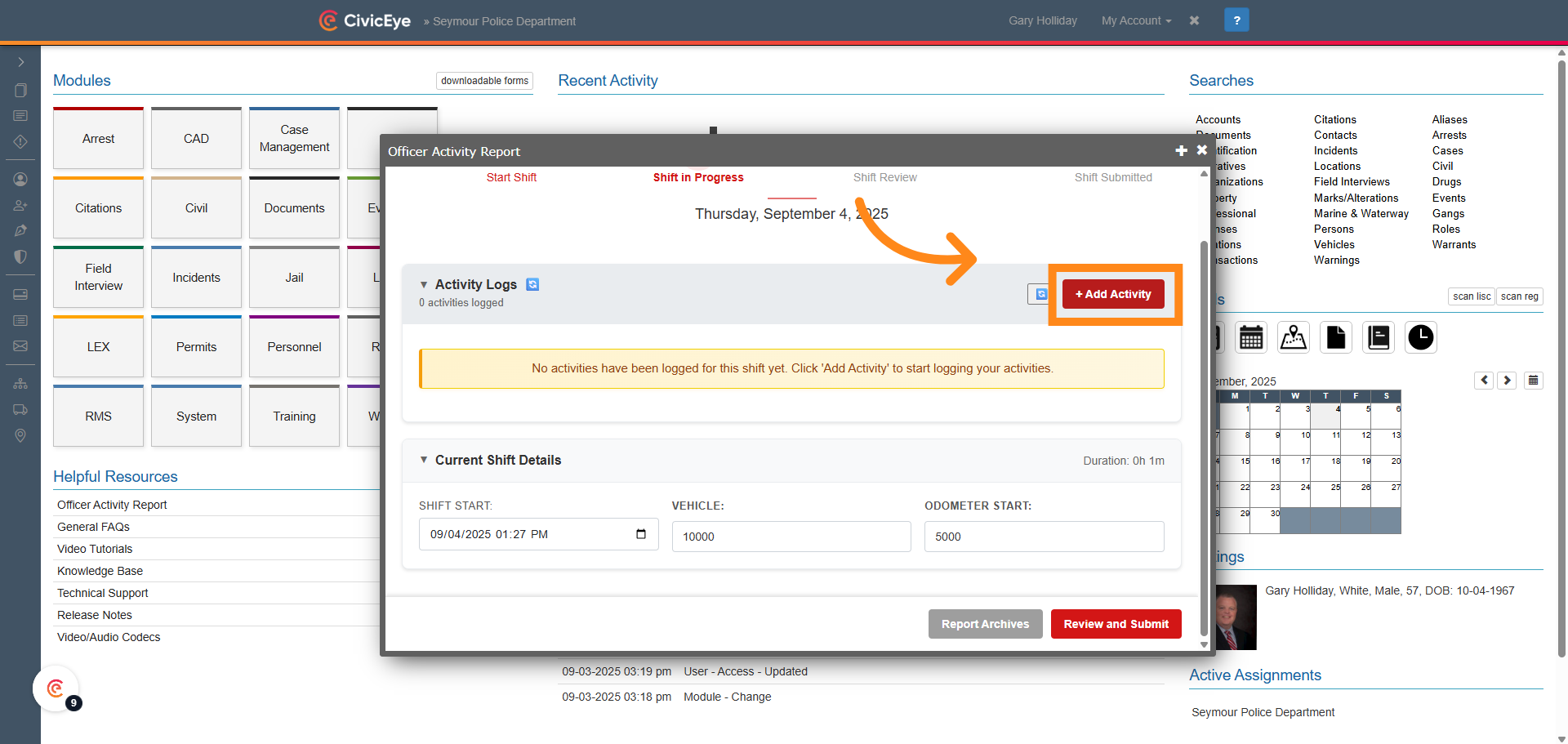
The Officer Activity Report is designed to allow the user to record job functions for a duty shift. When the user begins their shift the dashboard transitions to shift in progress. From here, the user can record their daily activity using the Add Activity tab.
### 7. Activity Details
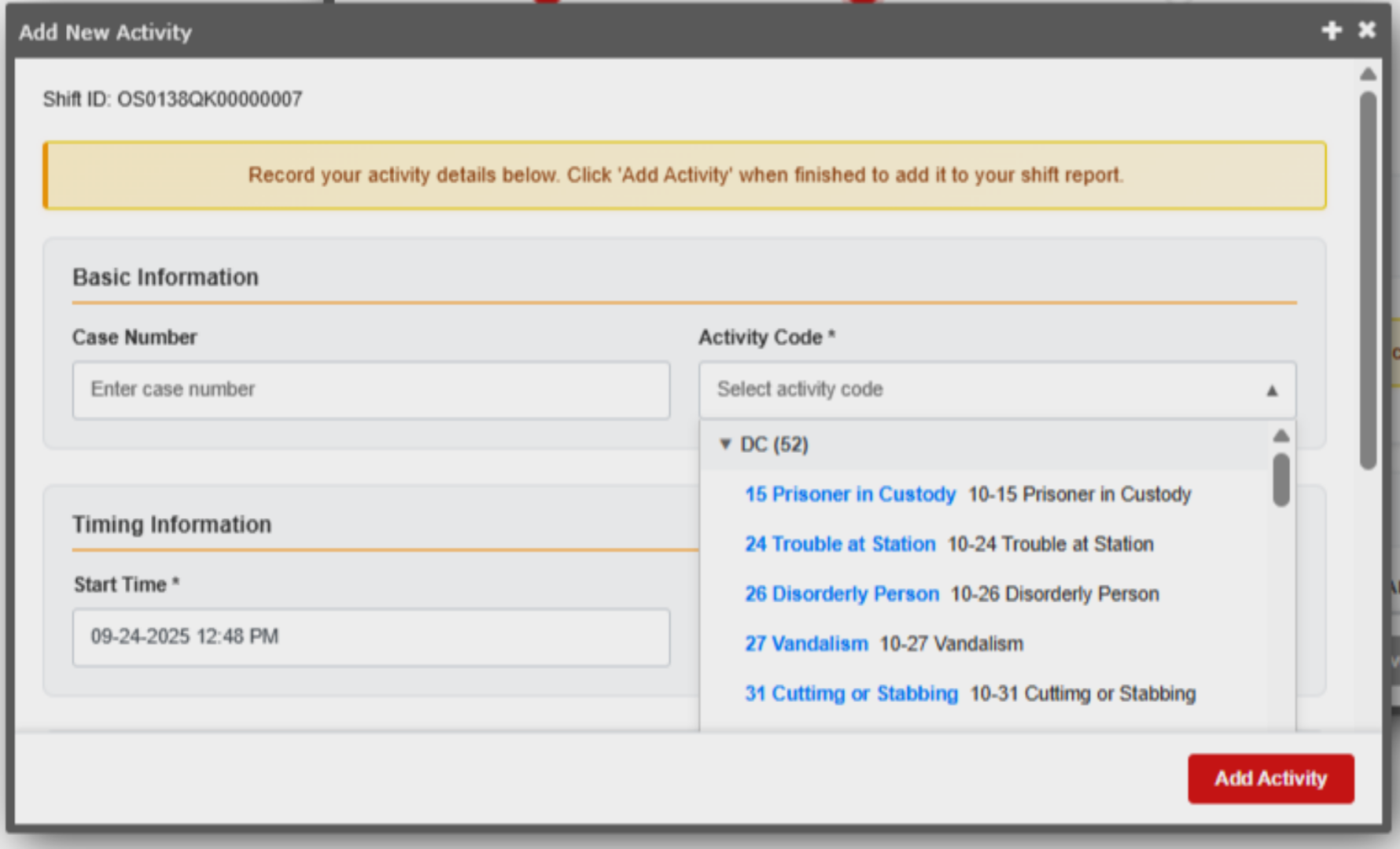
Selecting the Add Activity tab brings up the Add New Activity frame. The allows the user to enter the date and time of the activity, the case or report number, and the activity code. The activity code dropdown uses that same dispatch or initial incident code as the report.
### 8. Call Disposition
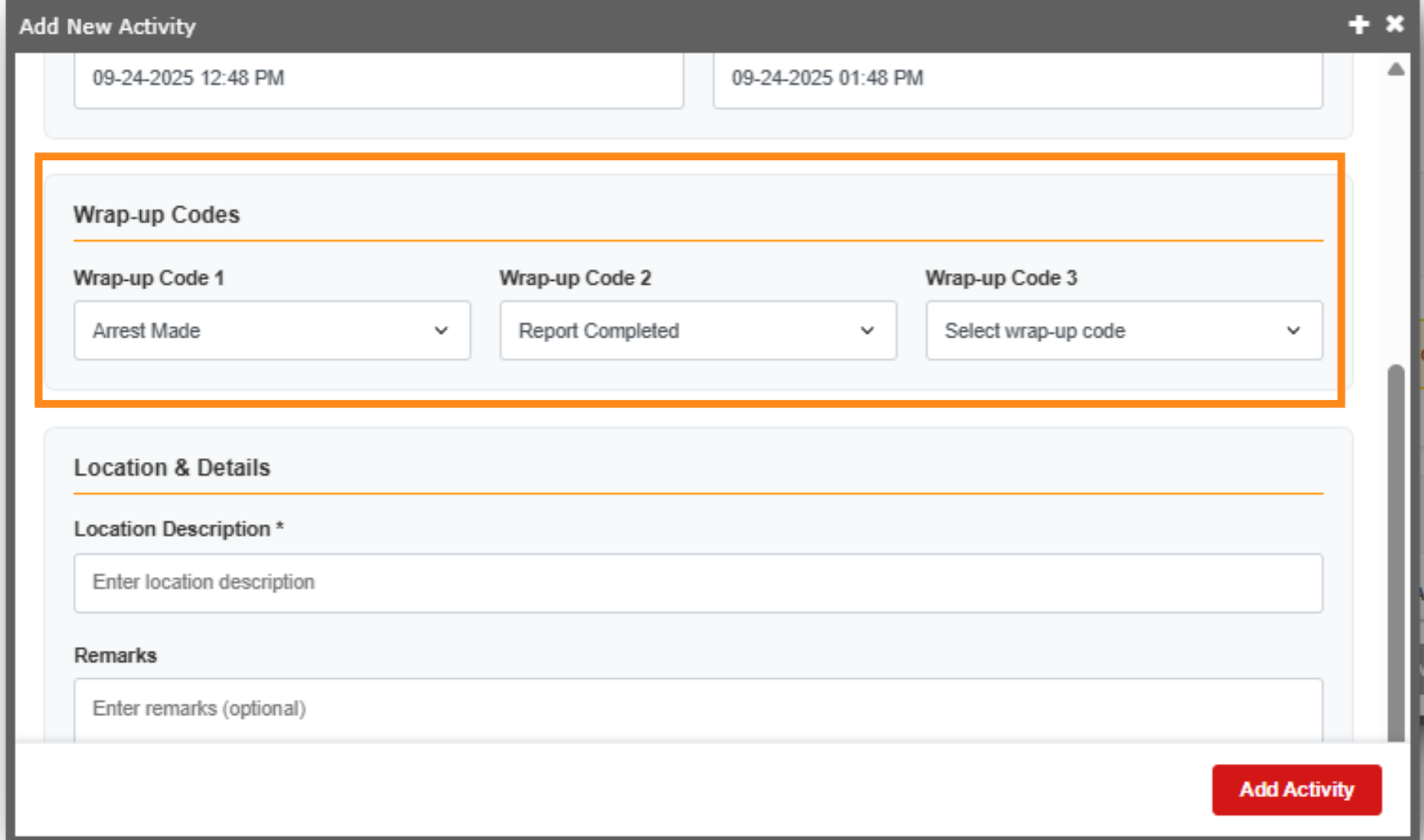
After input of the initial call type, date, and times, and report number, the user can scroll down and add the disposition, or wrap up codes, to the call They can also add the call location and any notes or remarks about the call. When all pertinent details have been added, select the Add Activity button. This records all the information into the log.
### 9. Activity Details
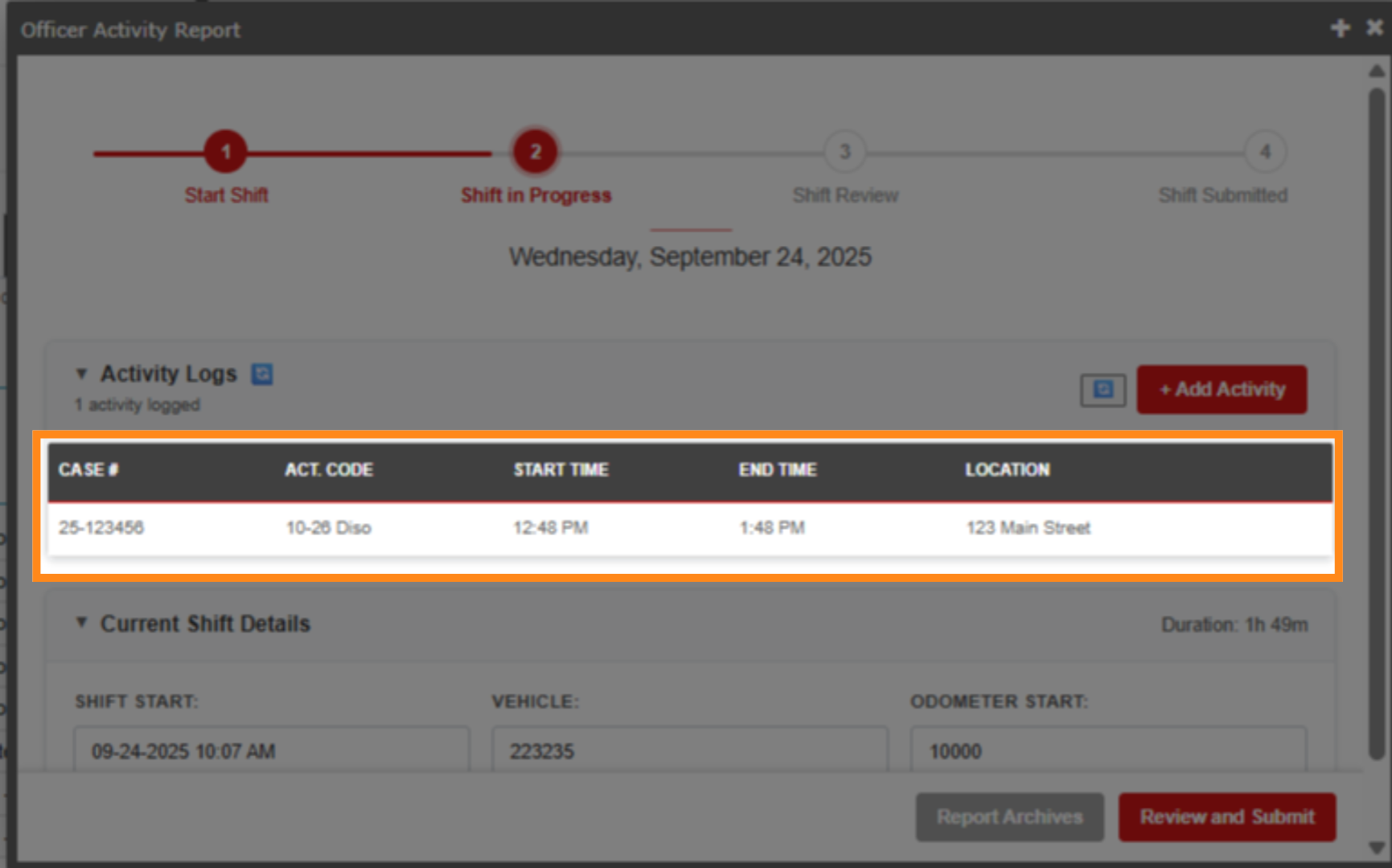
The activity details for the specific call have now been added to the daily activity report.
### 10. Review and Submit
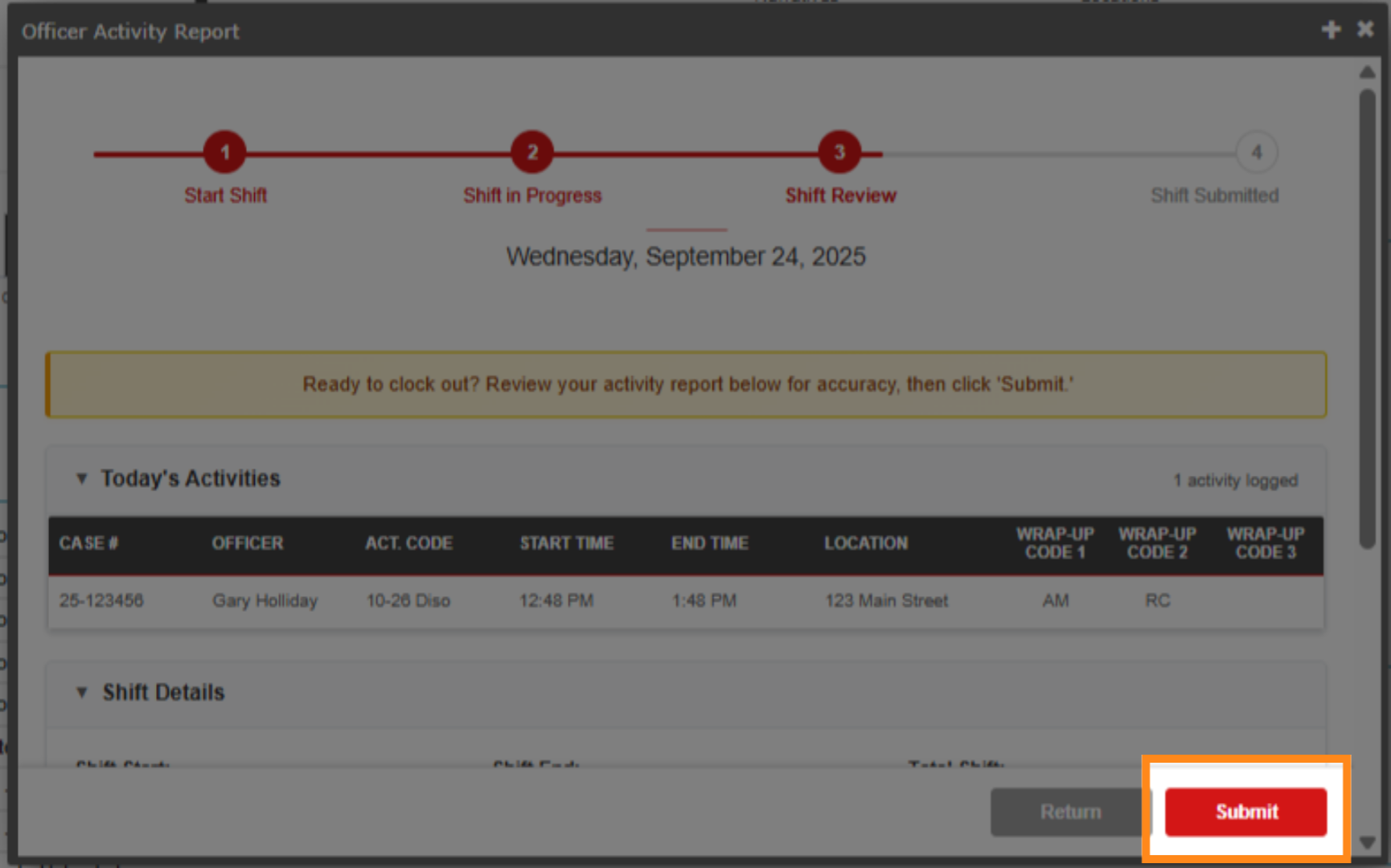
At the end of the duty shift, the user can now submit their daily activity report. The user will be prompted twice to review and submit, then submit the report.
### 11. Summary
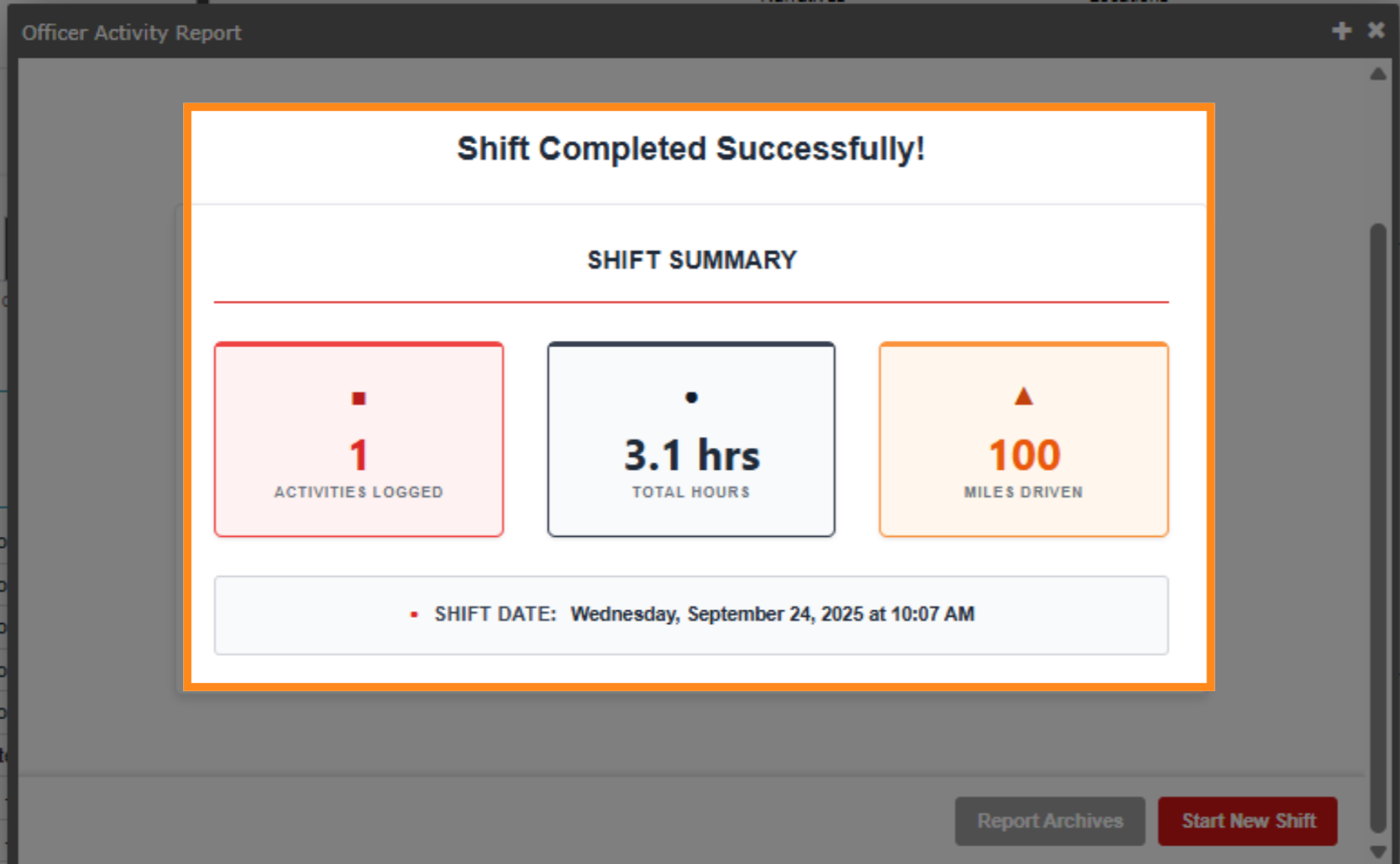
When the daily activity report is submitted, the user will be provided a shift summary which highlights the number of activities logged, the total hours worked, and the total miles entered.
### 12. Review and Real Time View
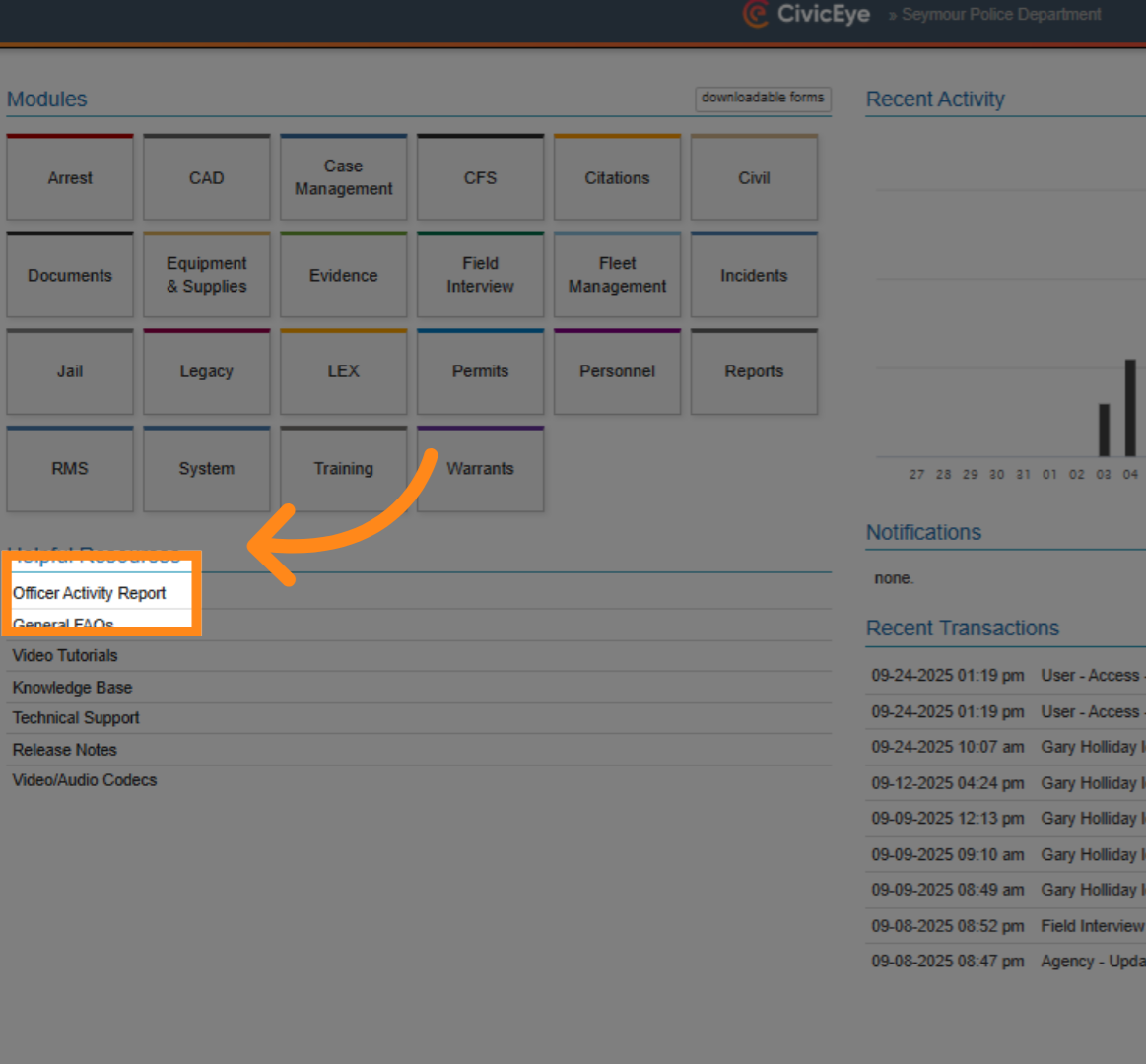
CivicRMS Officer Activity also allows the supervisor to review all submitted daily reports, and monitor officer activity in real time. From the main CivicRMS dashboard, in the Helpful Resources section, select Officer Activity Report.
### 13. Review and Real Time Monitoring
This frame provides supervisors the ability to review submitted reports by officer or by shift using the search banner at the top of the page. It also displays all real time activity for officers during their current shift.
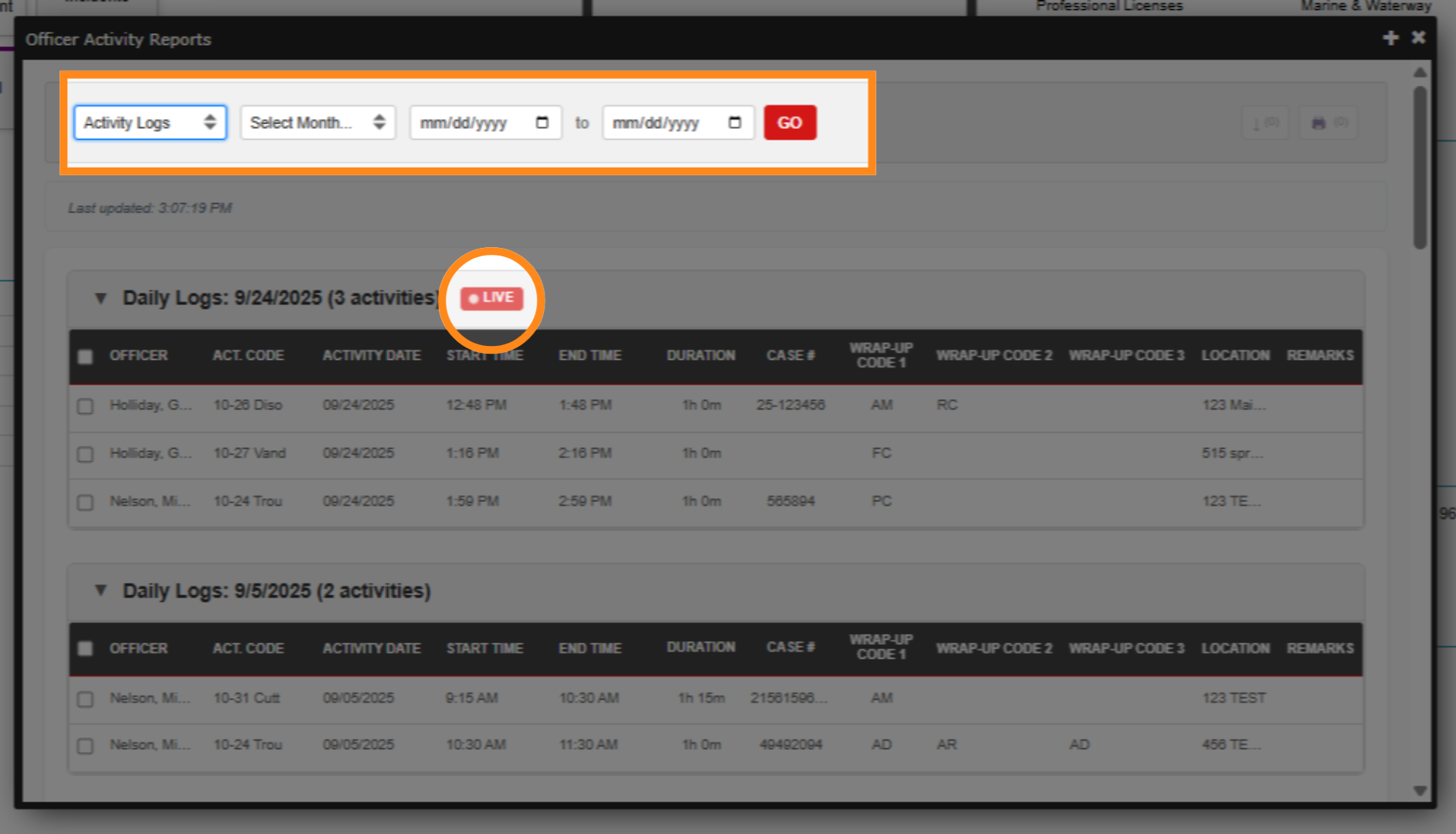
### 14. Supervisor review access and permission
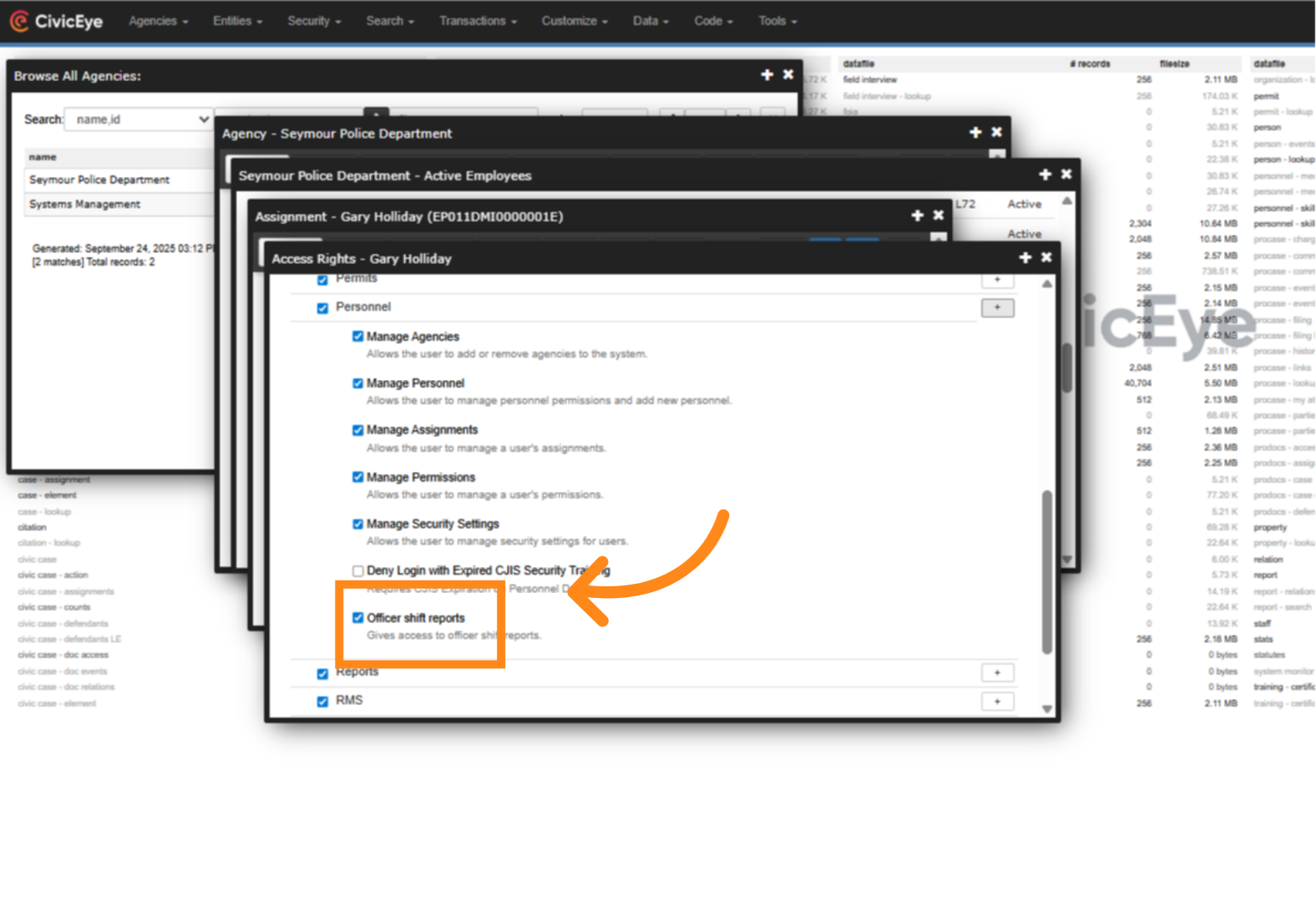
CivicRMS agency administrators can grant supervisors access to officer activity report review and management by accessing the supervisors employee assignment page, selecting the permissions tab, selecting the personnel module in modules and features, and granting access to the report in the personnel module permissions section.
### 15. Officer Activity Report
This training video has provided instructions on personnel use and supervisory review of the CivicRMS officer activity report.
### 16. Questions or Issues
For questions about this feature, or any other issue with CivicRMS, please call a CivicEye client support manager at 877-778-5277, or email us at support@civiceye.com.
[Powered by **guidde**](https://www.guidde.com)
- [How to Request New Training Content](https://knowledgebase.civiceye.com/knowledge-base/how-to-request-new-training-content?hsLang=en)
- [CivicCase](https://knowledgebase.civiceye.com/knowledge-base/civiccase?hsLang=en#main-content)
- [Prosecutor and Admin Portals](https://knowledgebase.civiceye.com/knowledge-base/civiccase?hsLang=en#prosecutor-and-admin-portals)
- [CivicDocs](https://knowledgebase.civiceye.com/knowledge-base/civicdocs?hsLang=en#main-content)
- [Evidence Management](https://knowledgebase.civiceye.com/knowledge-base/civicdocs?hsLang=en#evidence-management)
- [User Access](https://knowledgebase.civiceye.com/knowledge-base/civicdocs?hsLang=en#user-access)
- [Defense Portal](https://knowledgebase.civiceye.com/knowledge-base/civicdocs?hsLang=en#defense-portal)
- [Law Enforcement Portal](https://knowledgebase.civiceye.com/knowledge-base/civicdocs?hsLang=en#law-enforcement-portal)
- [CivicRMS](https://knowledgebase.civiceye.com/knowledge-base/civicrms?hsLang=en#main-content)
- [Master Index](https://knowledgebase.civiceye.com/knowledge-base/civicrms?hsLang=en#master-index)
- [Incident Reports](https://knowledgebase.civiceye.com/knowledge-base/civicrms?hsLang=en#incident-reports)
- [NIBRS](https://knowledgebase.civiceye.com/knowledge-base/civicrms?hsLang=en#nibrs)
- [Property](https://knowledgebase.civiceye.com/knowledge-base/civicrms?hsLang=en#property)
- [Persons](https://knowledgebase.civiceye.com/knowledge-base/civicrms?hsLang=en#persons)
- [Arrest and Warrants](https://knowledgebase.civiceye.com/knowledge-base/civicrms?hsLang=en#arrest-and-warrants)
- [General](https://knowledgebase.civiceye.com/knowledge-base/civicrms?hsLang=en#general)
- [FAQs](https://knowledgebase.civiceye.com/knowledge-base/faqs?hsLang=en#main-content)
- [Support](https://knowledgebase.civiceye.com/knowledge-base/faqs?hsLang=en#support)
- [Training](https://knowledgebase.civiceye.com/knowledge-base/faqs?hsLang=en#training)
- [Support](https://knowledgebase.civiceye.com/knowledge-base/support?hsLang=en#main-content)
- [User Access / Permissions](https://knowledgebase.civiceye.com/knowledge-base/support?hsLang=en#user-access-permissions)
- [Getting started](https://knowledgebase.civiceye.com/knowledge-base/getting-started?hsLang=en#main-content)
- [CivicEye Personnel Module](https://knowledgebase.civiceye.com/knowledge-base/getting-started?hsLang=en#civiceye-personnel-module)
[.png?width=250&height=99&name=CivicEye_Identity_Secondary%20(4).png)](https://knowledgebase.civiceye.com/?hsLang=en)
The Platform for Public Safety
[mailto:help@civiceye.com](mailto:help@civiceye.com)
Copyright © 2025, CivicEye