---
title: Editing an Approved Report in CivicRMS
description: Editing an approved report in CivicRMS.
---
[Skip to content](https://knowledgebase.civiceye.com/knowledge-base/editing-an-approved-report-in-civicrms#main-content)
English
Show submenu for translations
[Customer Portal](https://portal.civiceye.com/tickets-view?hsLang=en)
.png?width=250&height=99&name=CivicEye_Identity_Secondary%20(4).png)
Open main navigation
Close main navigation
- English
Show submenu for translations
- [Customer Portal](https://portal.civiceye.com/tickets-view)
- [Contact us](https://www.civiceye.com/support/)
[Contact us](https://www.civiceye.com/support/)
How can we help you?
- There are no suggestions because the search field is empty.
1. [CivicEye Knowledge Base](https://knowledgebase.civiceye.com/knowledge-base?hsLang=en)
2. [CivicRMS](https://knowledgebase.civiceye.com/knowledge-base/civicrms?hsLang=en)
3. [Incident Reports](https://knowledgebase.civiceye.com/knowledge-base/civicrms?hsLang=en#incident-reports)
August 24, 2026
# Editing an Approved Report in CivicRMS
## Approved incident reports in CivicRMS can not be edited. This ensures the integrity of reported information following supervisory review and approval. At times it will be necessary to revise or edit an approved report, which will require the report to be reopened.
# [Streamline Incident Report Management in CivicEye](https://app.guidde.com/playbooks/pMm6BoeWXuSqQS52YZ221F)
This training video will provide users the steps necessary to reopen an approved report in CivicRMS.
### Go to [training-rms.civiceye.com](https://training-rms.civiceye.com)
### 1. Introduction
Approved incident reports in CivicRMS can not be edited. This ensures the integrity of reported information following supervisory review and approval. At times it will be necessary to revise or edit an approved report, which will require the report to be reopened.
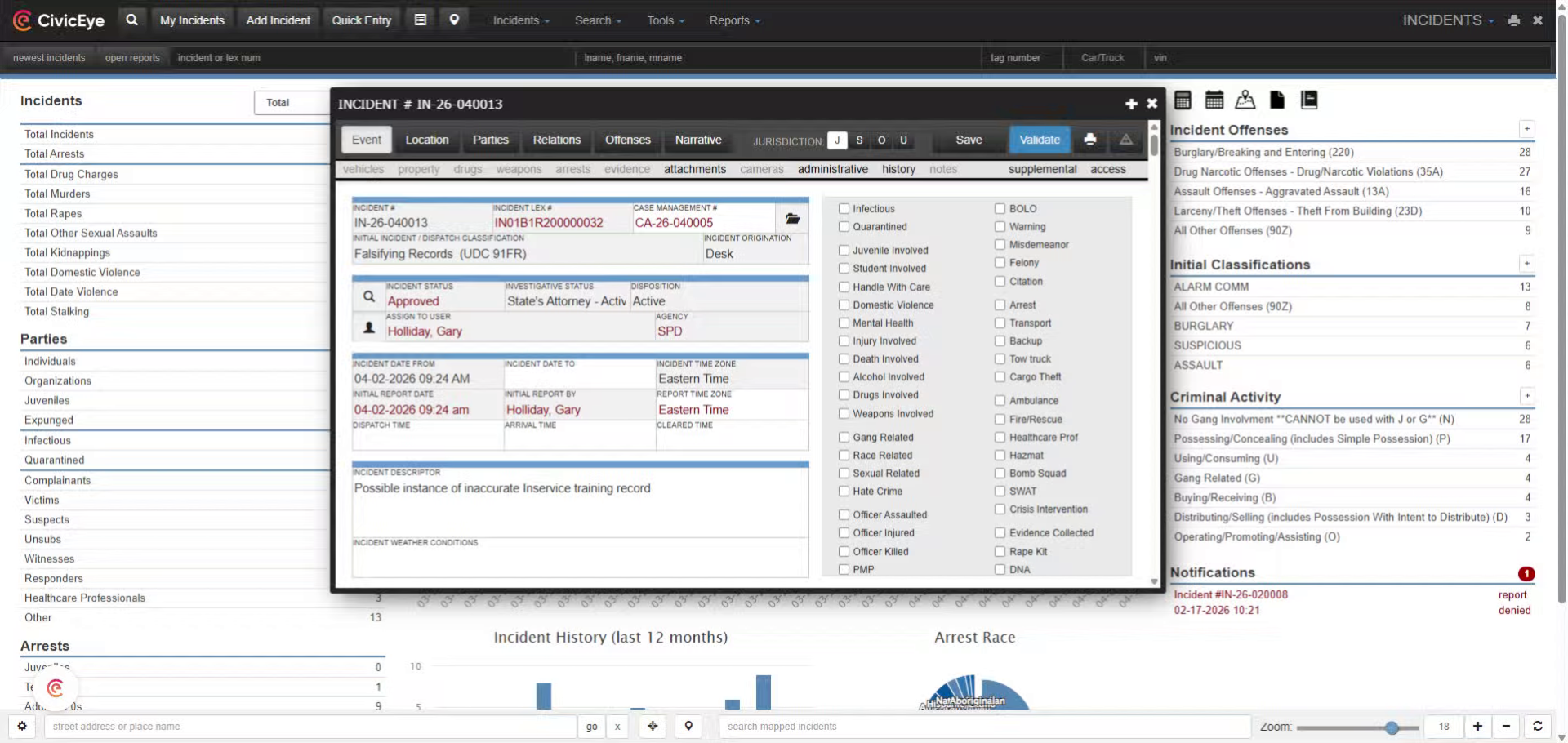
### 2. Access Incident Management
Access the incident report that needs to be reopened, and select the Administrative tab to open the administrative page.
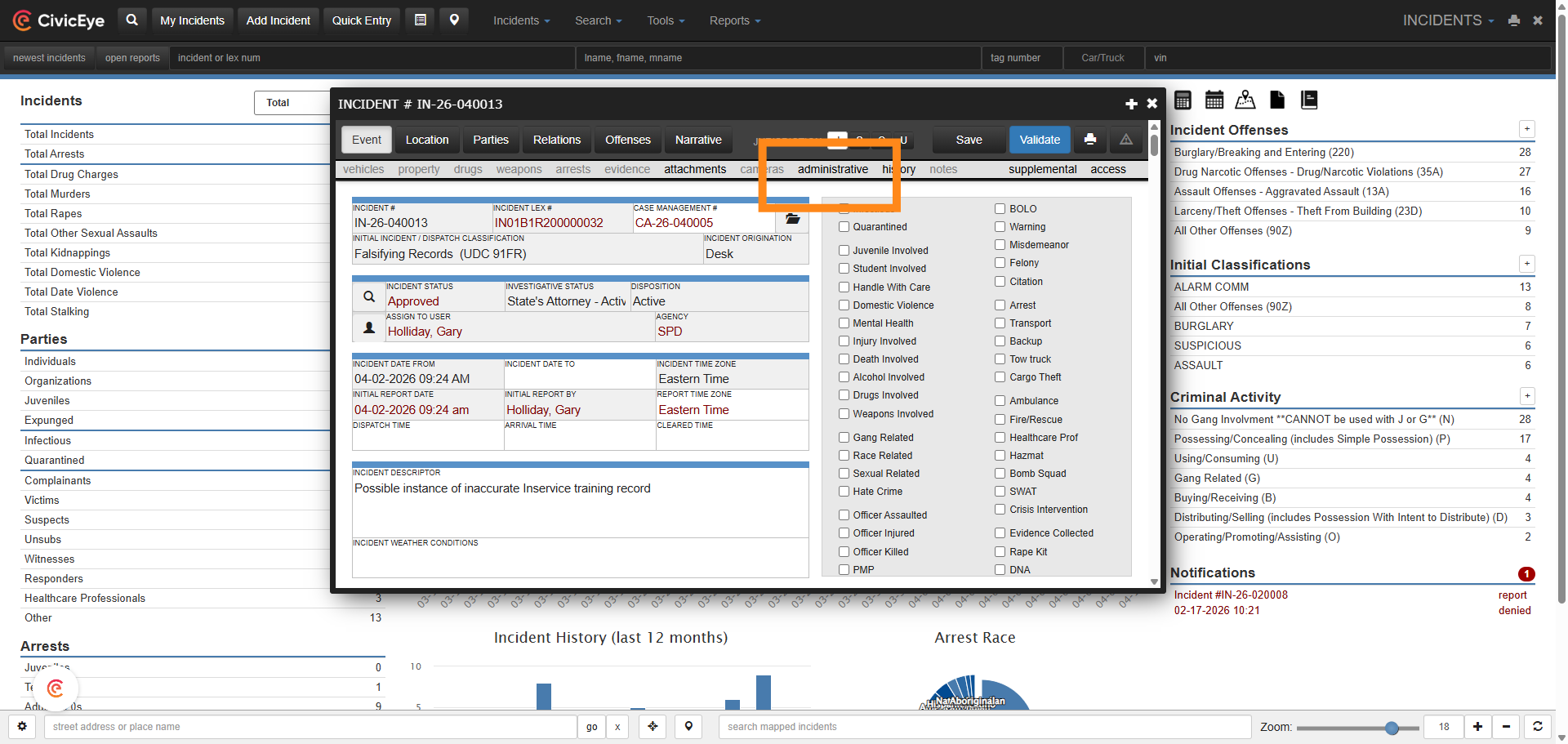
### 3. Modify Incident Details
The administrative page provides users the ability to approve, reopen, deny, or clear incident reports. The status of the report is visible in the status box at the top of the page.
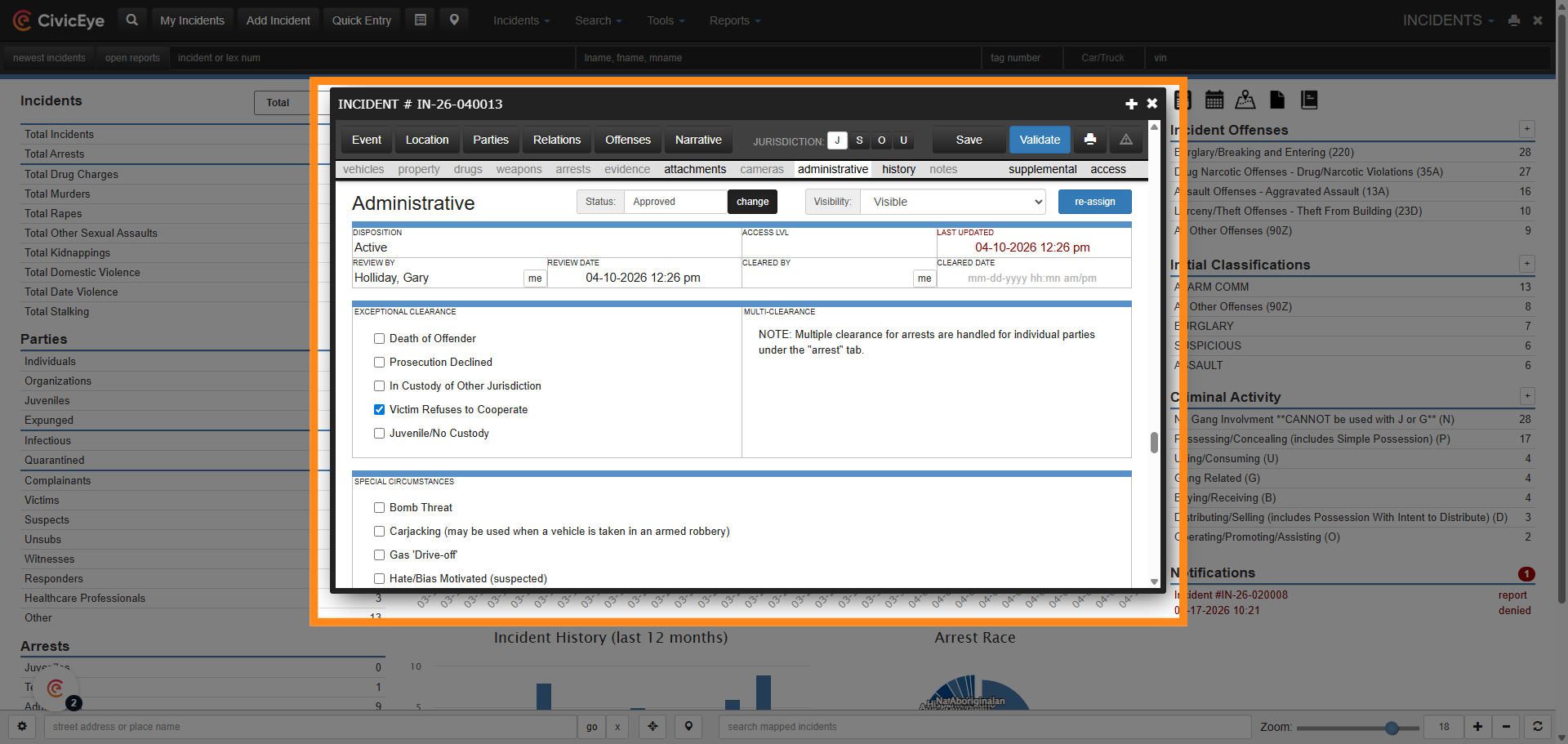
### 4. Modify Incident Details
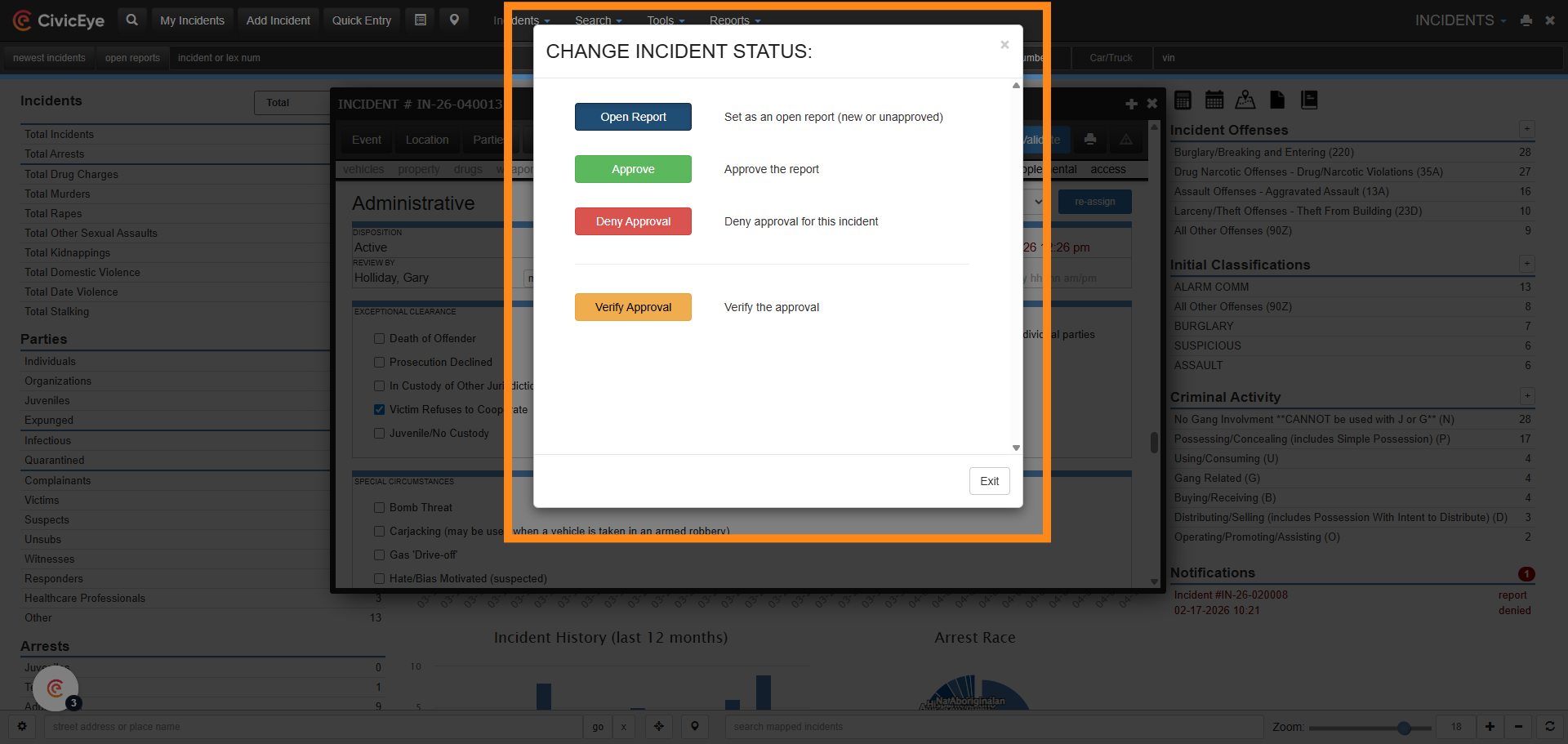
To change the status, or reopen, an incident report, select the change button.
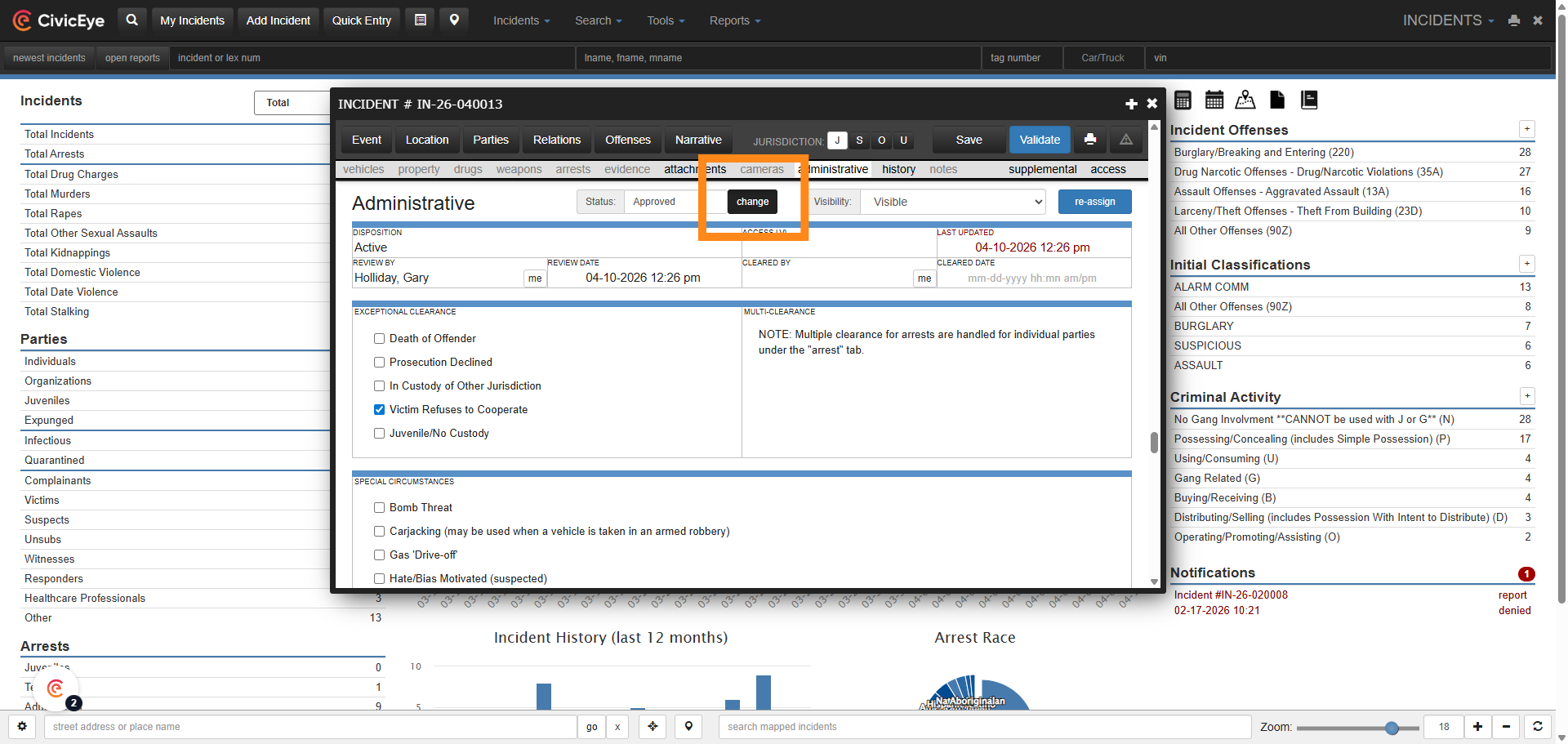
### 5. Open Incident Report
Selecting the change button opens the Change Incident Status Page. This allows the user to change the status of the report to open. The report can now be edited or revised as needed.
### 6. Reopened Report
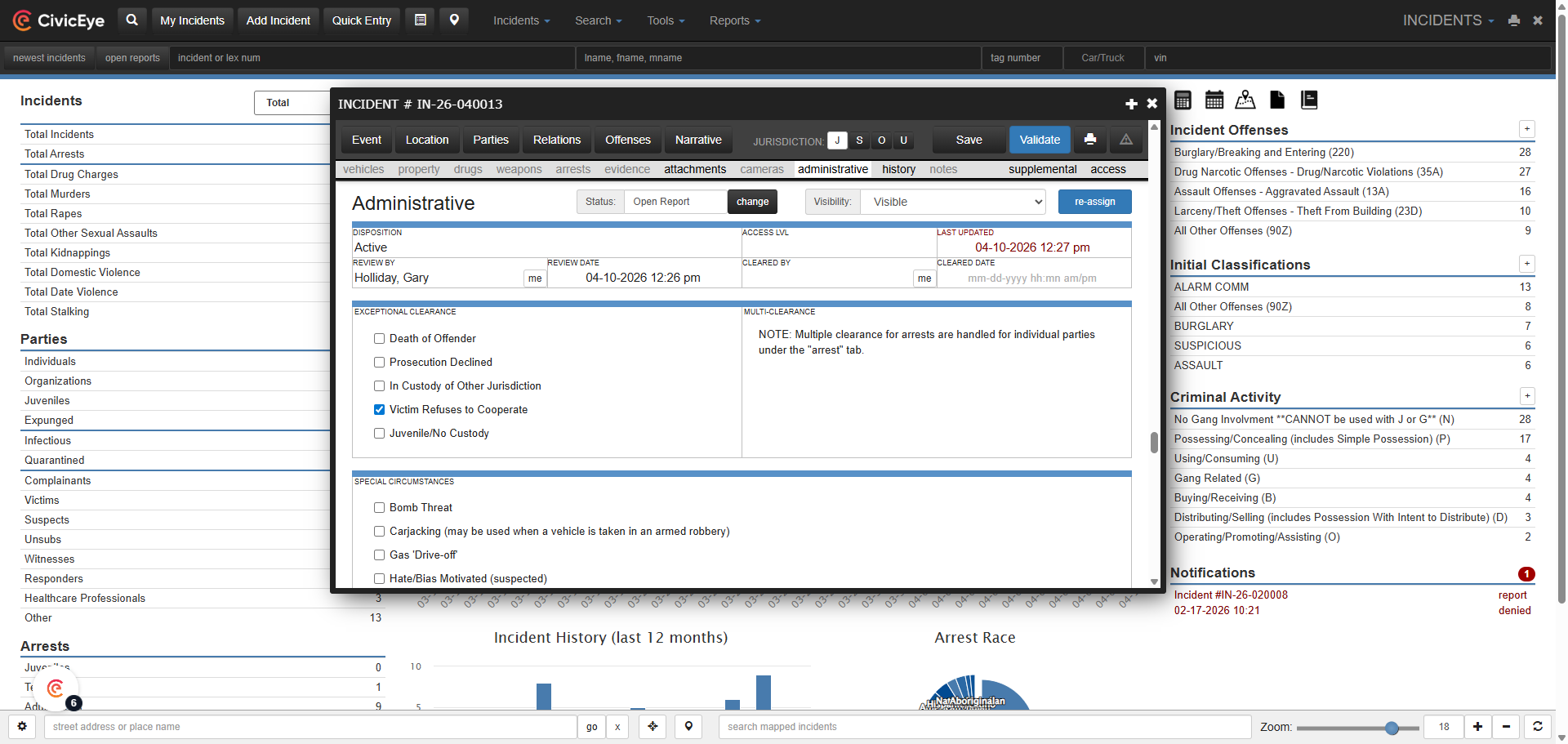
Once changes are made to the incident report, the user can now resubmit for supervisory review. Reopened reports must be reviewed and validated before they can be approved.
### 7. Access Event Section
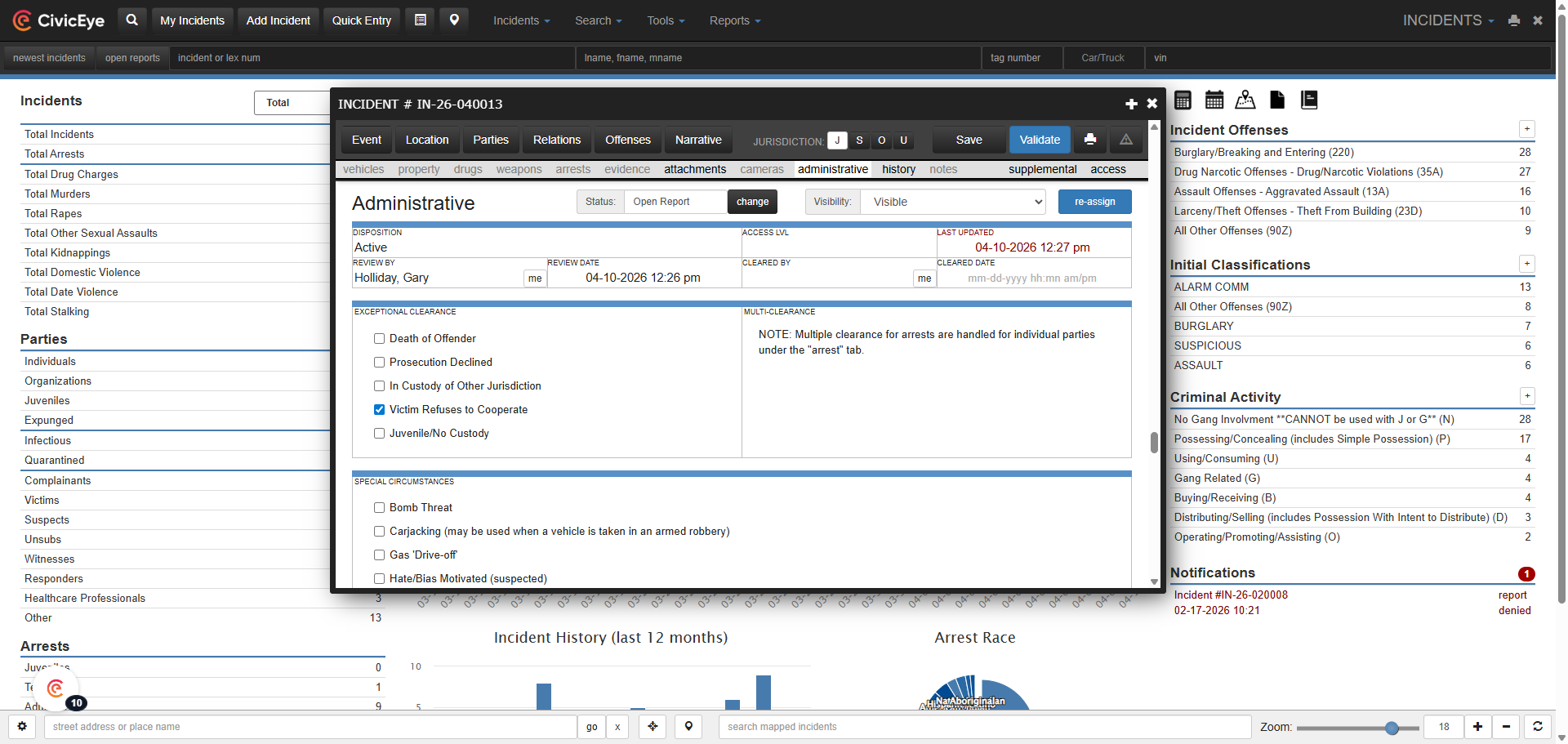
This training video has provided the steps necessary to reopen an incident report. Remember, the reopened report must be reviewed and approved by a supervisor.
Thank you for watching this CivicRMS training video. For more questions regarding report approval, or other issues, feel free to contact CivicEye at 877-778-5277 or email us at support@civiceye.com.
[Powered by **guidde**](https://www.guidde.com)
- [How to Request New Training Content](https://knowledgebase.civiceye.com/knowledge-base/how-to-request-new-training-content?hsLang=en)
- [CivicCase](https://knowledgebase.civiceye.com/knowledge-base/civiccase?hsLang=en#main-content)
- [Prosecutor and Admin Portals](https://knowledgebase.civiceye.com/knowledge-base/civiccase?hsLang=en#prosecutor-and-admin-portals)
- [CivicDocs](https://knowledgebase.civiceye.com/knowledge-base/civicdocs?hsLang=en#main-content)
- [Evidence Management](https://knowledgebase.civiceye.com/knowledge-base/civicdocs?hsLang=en#evidence-management)
- [User Access](https://knowledgebase.civiceye.com/knowledge-base/civicdocs?hsLang=en#user-access)
- [Defense Portal](https://knowledgebase.civiceye.com/knowledge-base/civicdocs?hsLang=en#defense-portal)
- [Law Enforcement Portal](https://knowledgebase.civiceye.com/knowledge-base/civicdocs?hsLang=en#law-enforcement-portal)
- [CivicRMS](https://knowledgebase.civiceye.com/knowledge-base/civicrms?hsLang=en#main-content)
- [Master Index](https://knowledgebase.civiceye.com/knowledge-base/civicrms?hsLang=en#master-index)
- [Incident Reports](https://knowledgebase.civiceye.com/knowledge-base/civicrms?hsLang=en#incident-reports)
- [NIBRS](https://knowledgebase.civiceye.com/knowledge-base/civicrms?hsLang=en#nibrs)
- [Property](https://knowledgebase.civiceye.com/knowledge-base/civicrms?hsLang=en#property)
- [Persons](https://knowledgebase.civiceye.com/knowledge-base/civicrms?hsLang=en#persons)
- [Arrest and Warrants](https://knowledgebase.civiceye.com/knowledge-base/civicrms?hsLang=en#arrest-and-warrants)
- [General](https://knowledgebase.civiceye.com/knowledge-base/civicrms?hsLang=en#general)
- [FAQs](https://knowledgebase.civiceye.com/knowledge-base/faqs?hsLang=en#main-content)
- [Support](https://knowledgebase.civiceye.com/knowledge-base/faqs?hsLang=en#support)
- [Training](https://knowledgebase.civiceye.com/knowledge-base/faqs?hsLang=en#training)
- [Support](https://knowledgebase.civiceye.com/knowledge-base/support?hsLang=en#main-content)
- [User Access / Permissions](https://knowledgebase.civiceye.com/knowledge-base/support?hsLang=en#user-access-permissions)
- [Getting started](https://knowledgebase.civiceye.com/knowledge-base/getting-started?hsLang=en#main-content)
- [CivicEye Personnel Module](https://knowledgebase.civiceye.com/knowledge-base/getting-started?hsLang=en#civiceye-personnel-module)
[.png?width=250&height=99&name=CivicEye_Identity_Secondary%20(4).png)](https://knowledgebase.civiceye.com/?hsLang=en)
The Platform for Public Safety
[mailto:help@civiceye.com](mailto:help@civiceye.com)
Copyright © 2025, CivicEye