---
title: CivicRMS Report Approval
description: CivicRMS Incident Report Approval
---
[Skip to content](https://knowledgebase.civiceye.com/knowledge-base/civicrms-report-approval#main-content)
English
Show submenu for translations
[Customer Portal](https://portal.civiceye.com/tickets-view?hsLang=en)
.png?width=250&height=99&name=CivicEye_Identity_Secondary%20(4).png)
Open main navigation
Close main navigation
- English
Show submenu for translations
- [Customer Portal](https://portal.civiceye.com/tickets-view)
- [Contact us](https://www.civiceye.com/support/)
[Contact us](https://www.civiceye.com/support/)
How can we help you?
- There are no suggestions because the search field is empty.
1. [CivicEye Knowledge Base](https://knowledgebase.civiceye.com/knowledge-base?hsLang=en)
2. [CivicRMS](https://knowledgebase.civiceye.com/knowledge-base/civicrms?hsLang=en)
3. [Incident Reports](https://knowledgebase.civiceye.com/knowledge-base/civicrms?hsLang=en#incident-reports)
August 24, 2026
# CivicRMS Report Approval
## This guide provides a clear walkthrough for approving incident reports in CivicRMS.
# [CivicRMS Report Approval](https://app.guidde.com/playbooks/4CYsqH6y4d9V2p45Q3E6rK)
This guide provides a clear walkthrough for approving incident reports in CivicRMS.
### Go to [training-rms.civiceye.com](https://training-rms.civiceye.com)
### 1. Introduction
Follow these steps for supervisory review and approval of incident reports in CivicRMS.
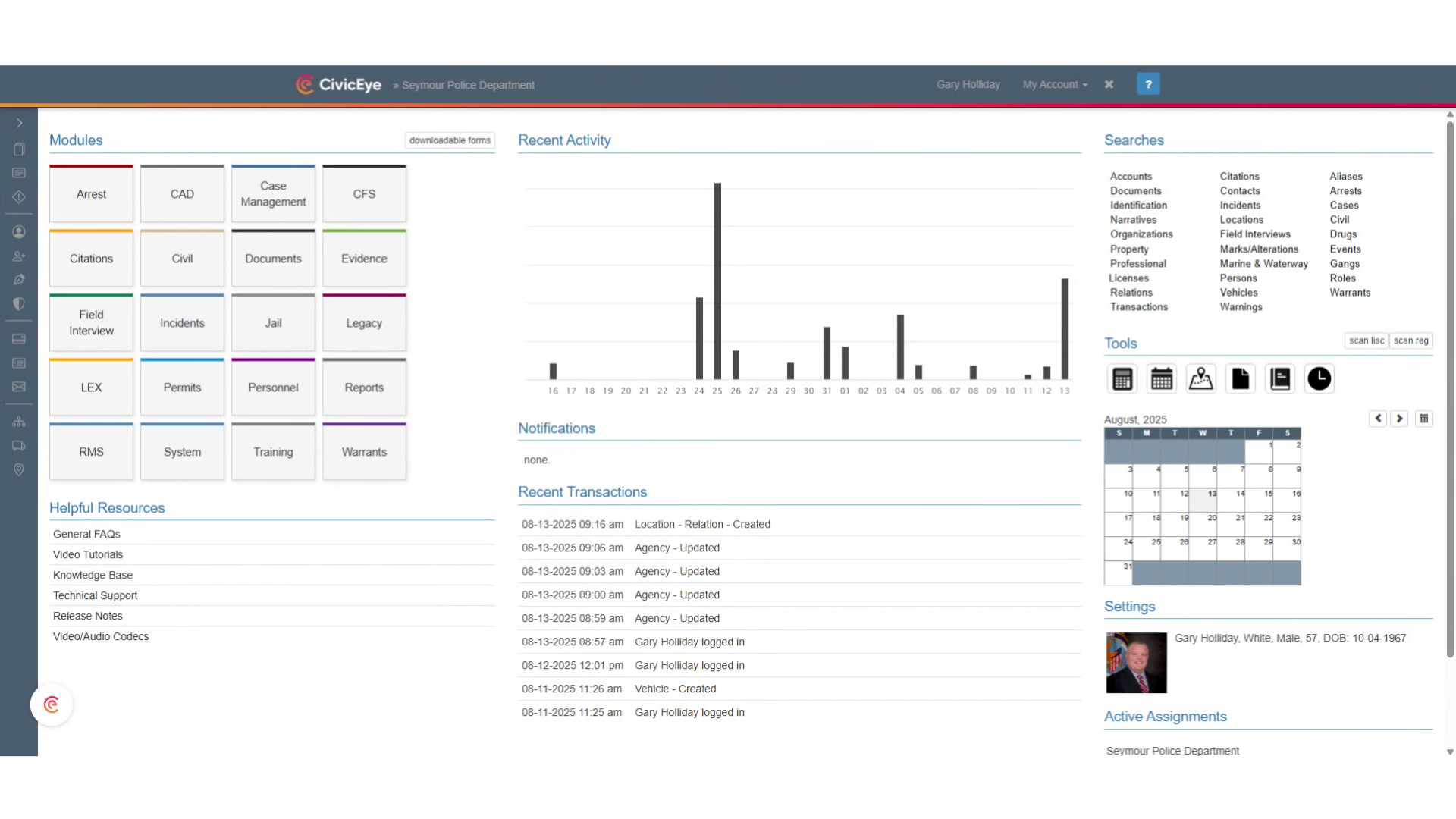
### 2. Select the Incident Module
In the main dashboard, select the Incident Module.
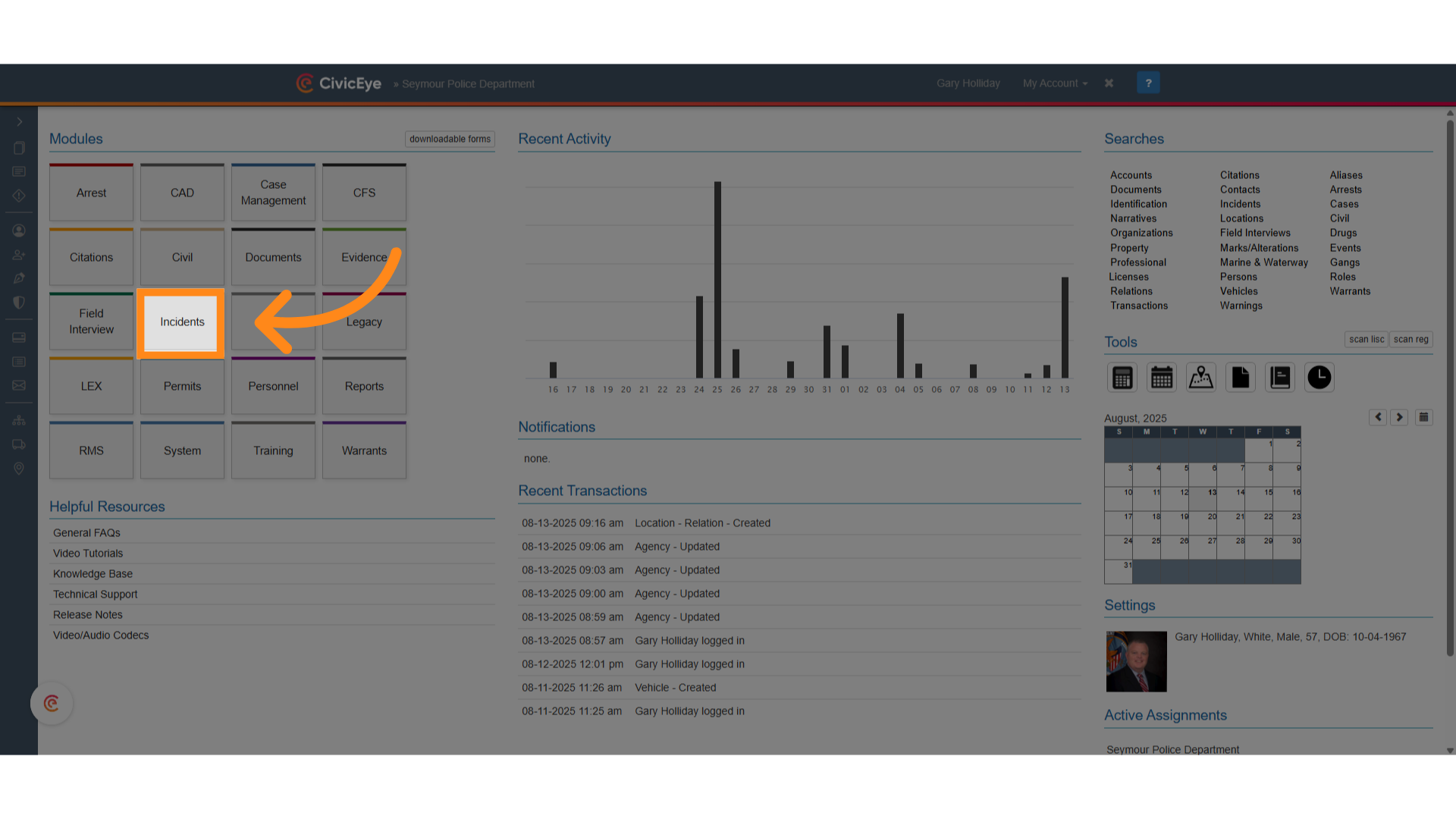
### 3. Click "My Incidents"
In the Incident Module dashboard, select My Incidents. Incidents submitted to you for review and approval will be found in your my incident queue.
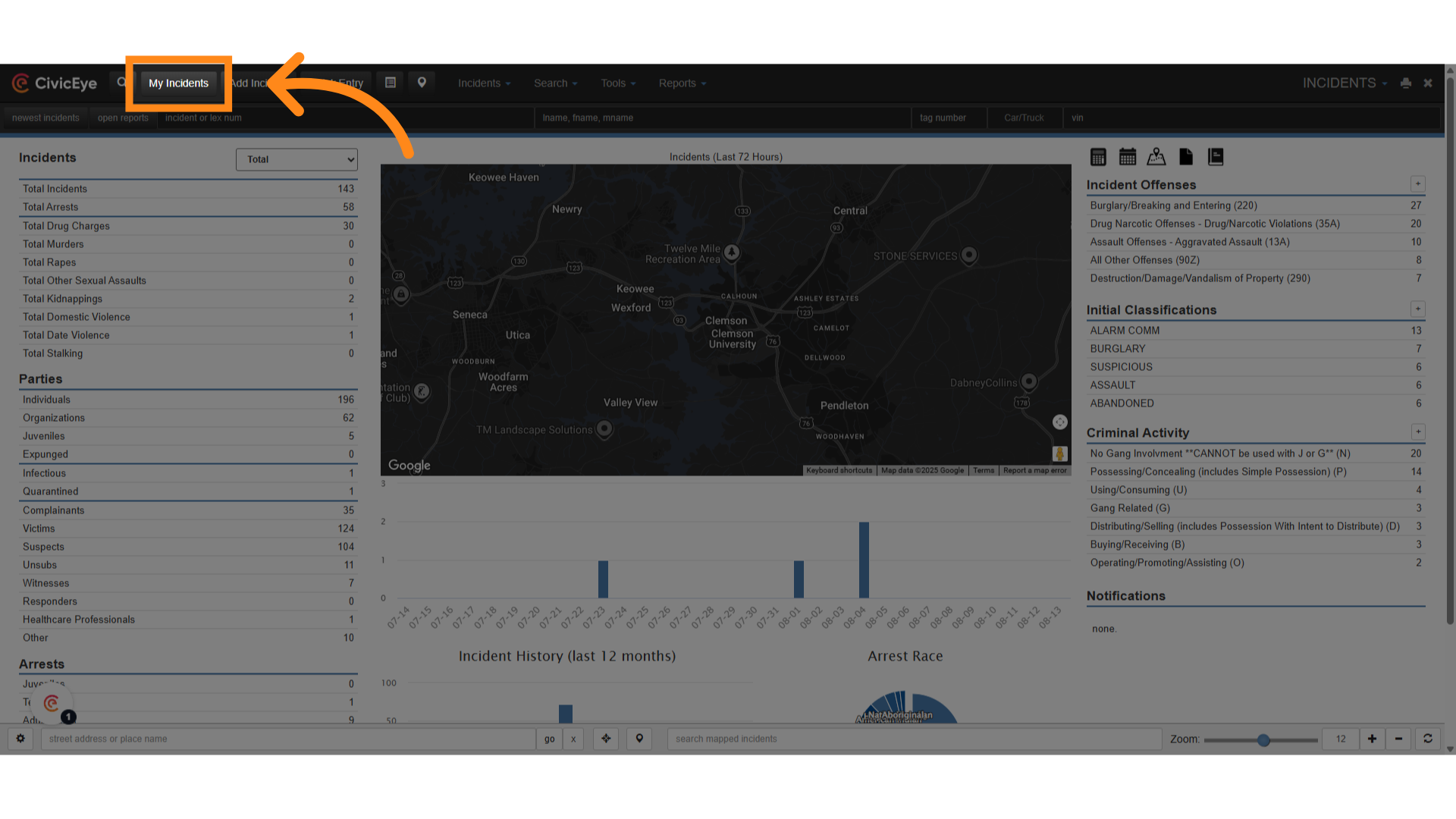
### 4. Change view status to pending
To access reports submitted for approval, access the status dropdown and change the view to pending.
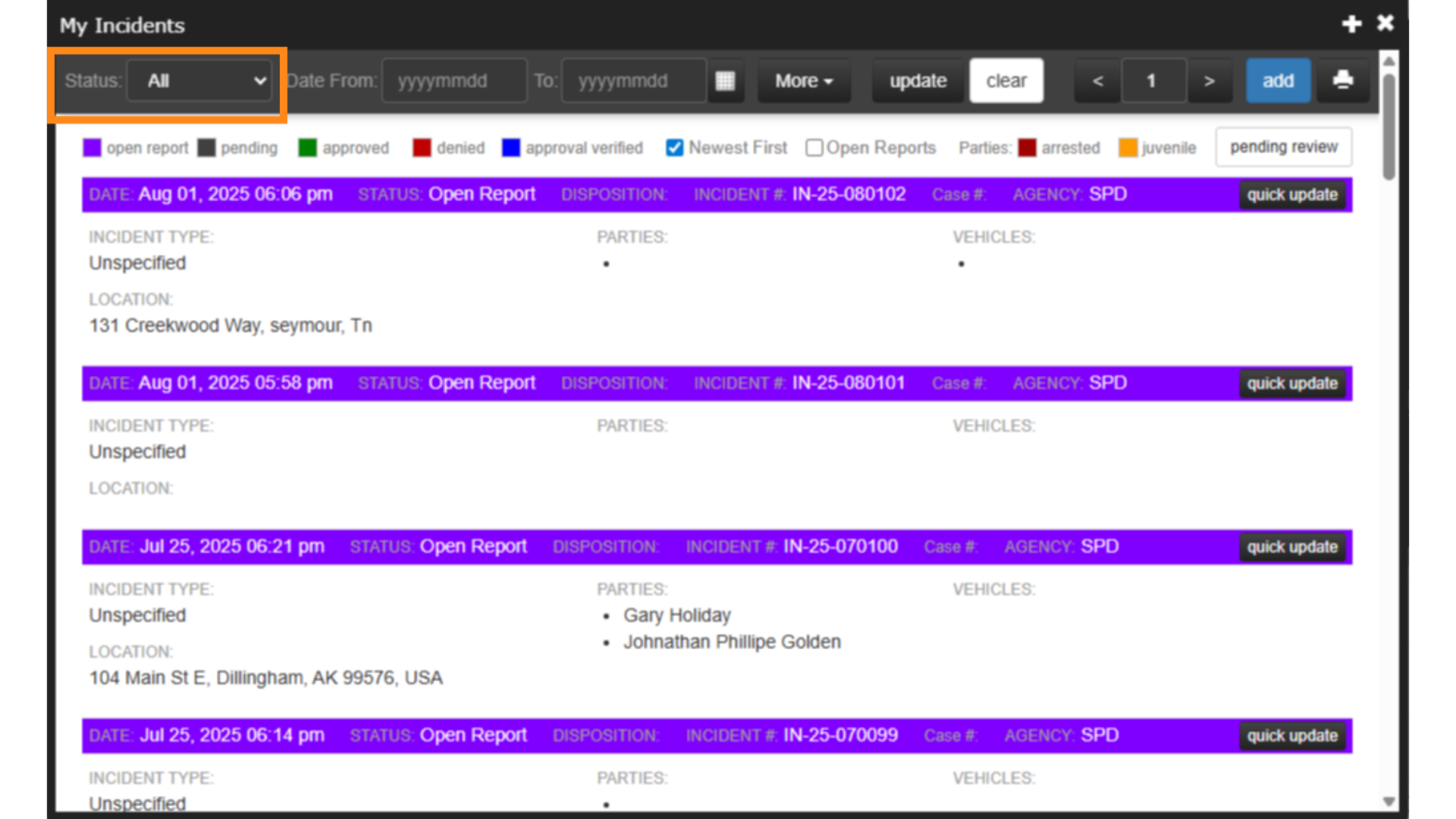
### 5. Pending Reports
You now have access to all pending reports assigned to you for review.
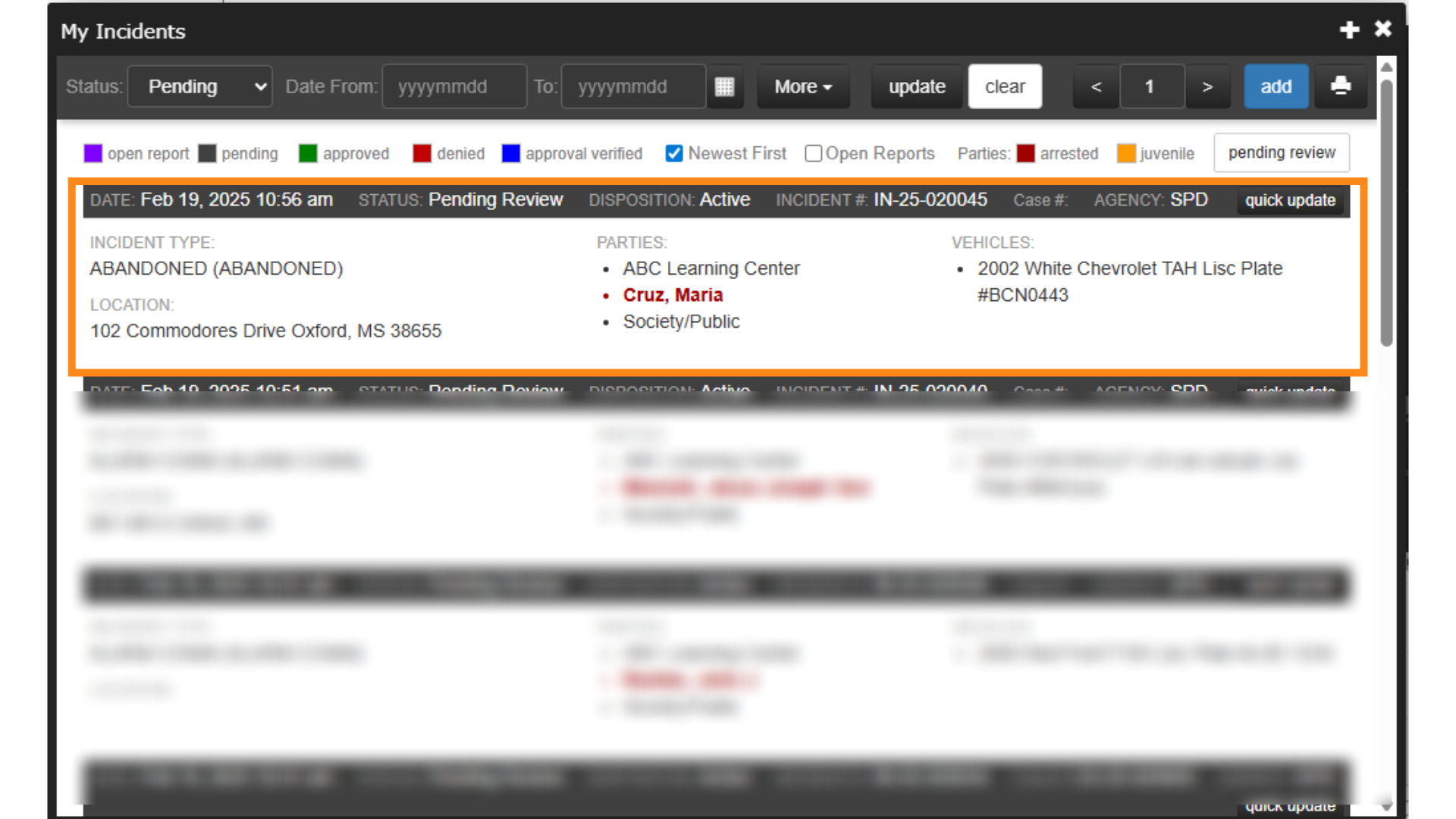
### 6. Select Report
Select the specific report you wish to review from the pending list.
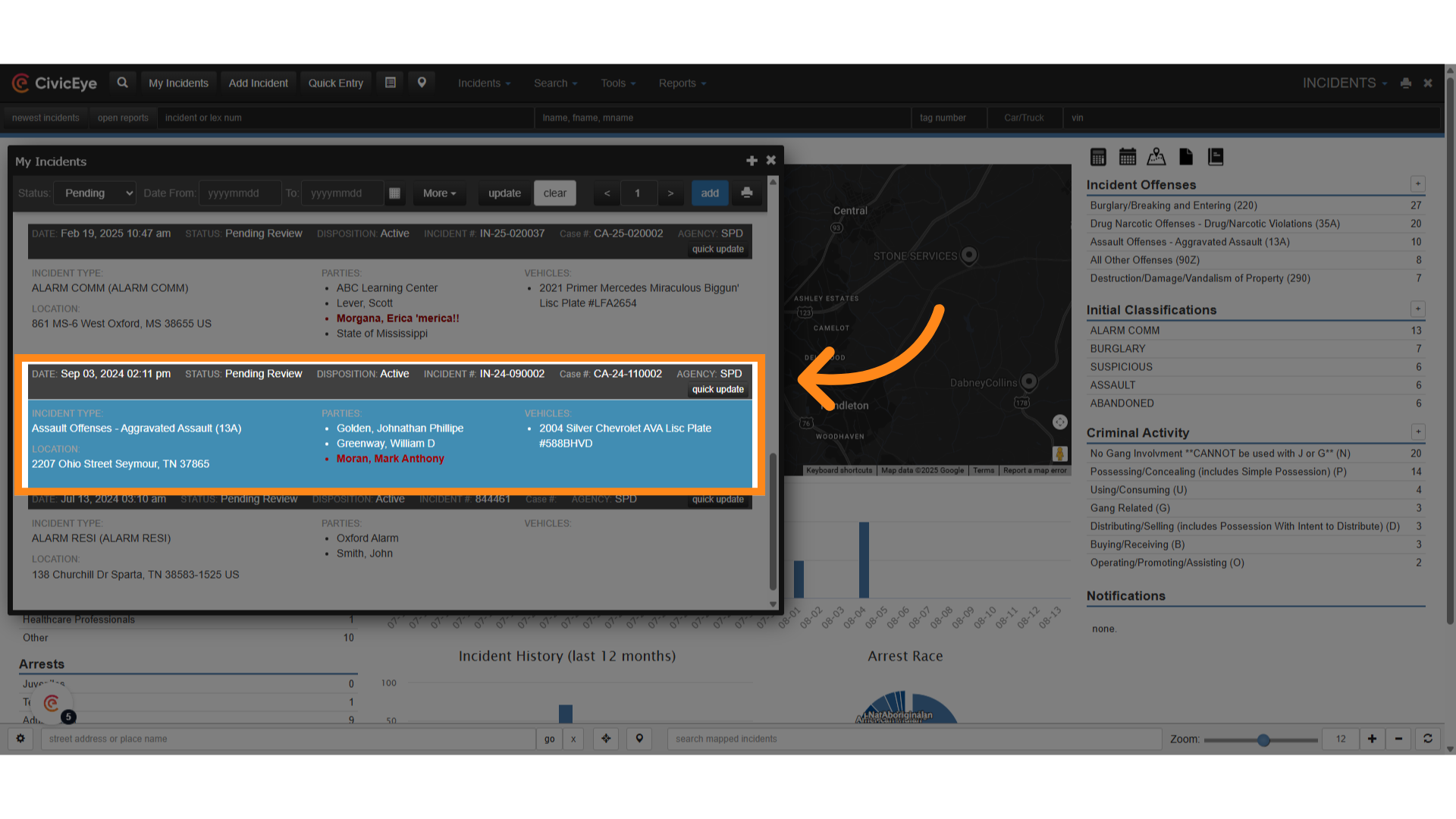
### 7. Click "administrative"
Access the administrative tab within the incident report to manage your review and approval.
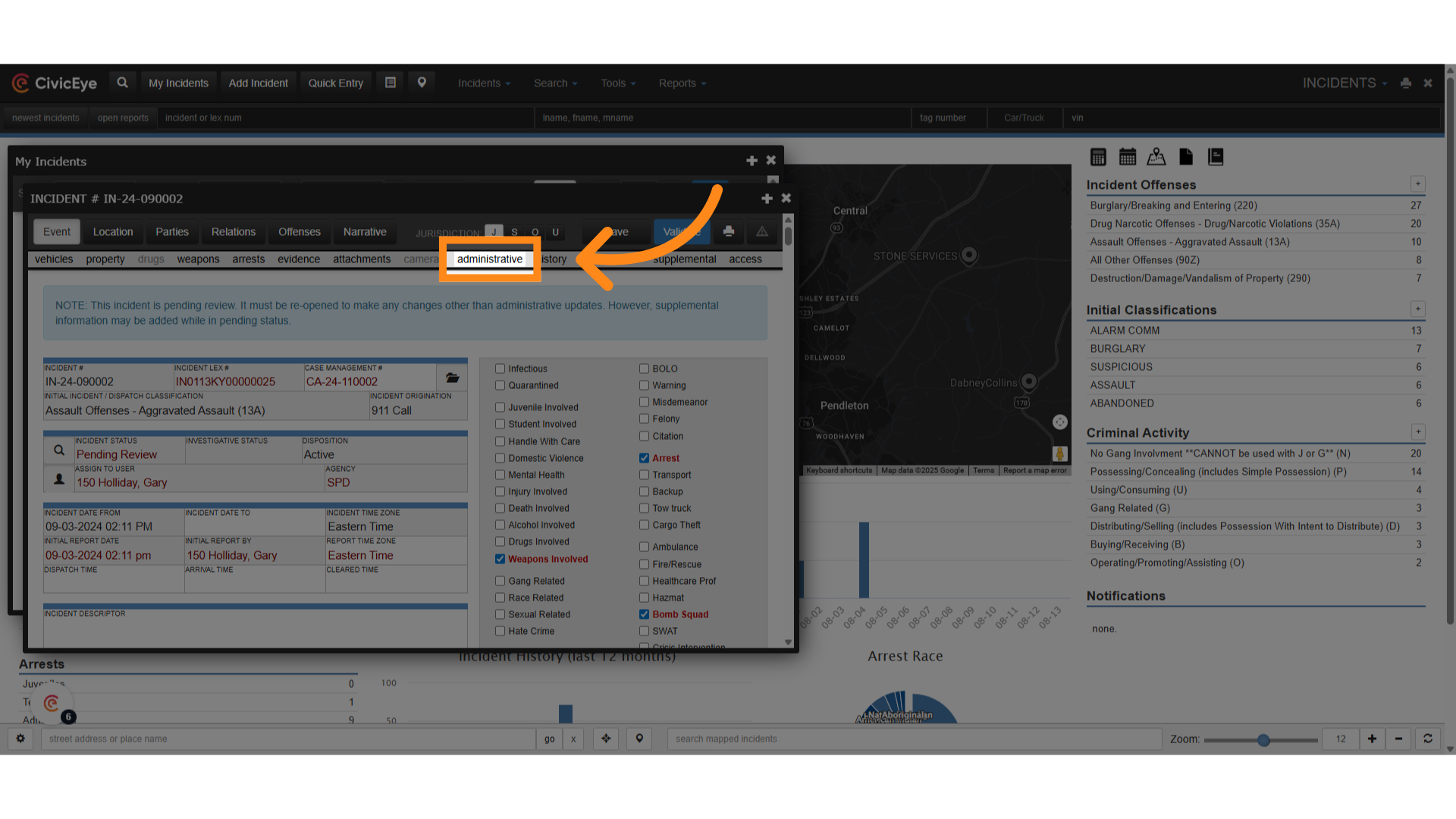
### 8. Validate
Select the Validate tab to perform a NIBRS validation.
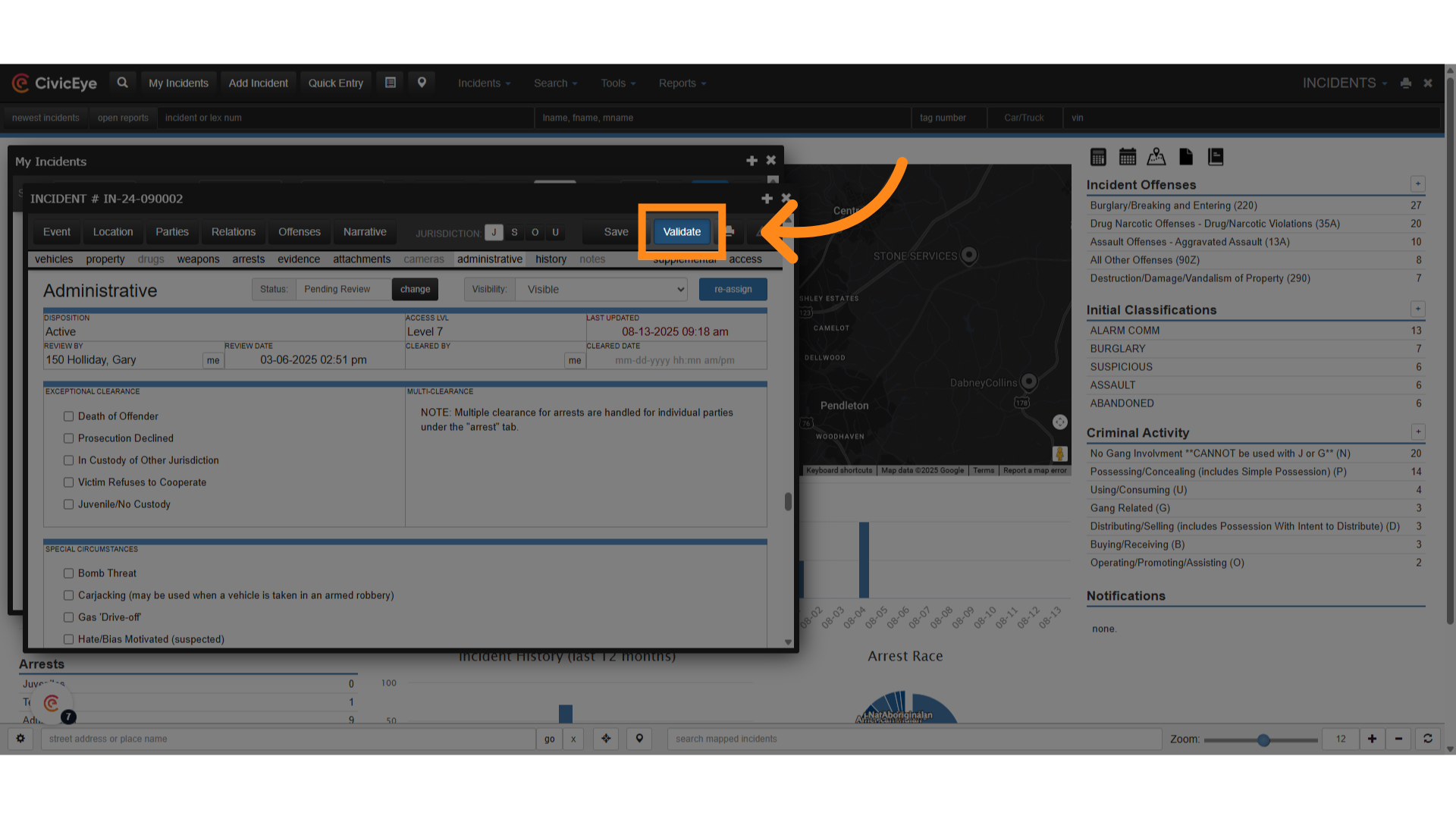
### 9. Error Free
Incident reports should be free of any NIBRS errors prior to approval.
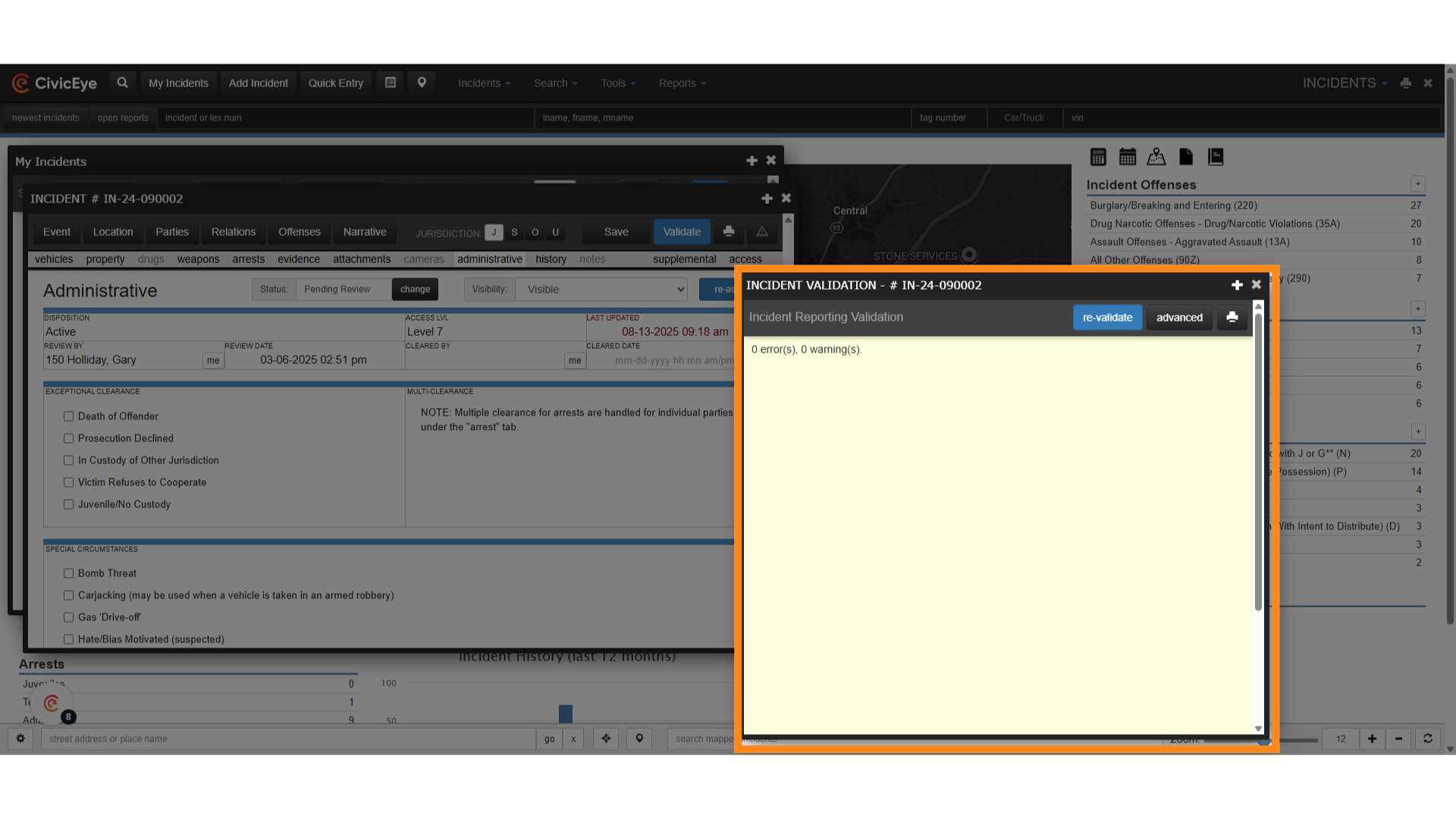
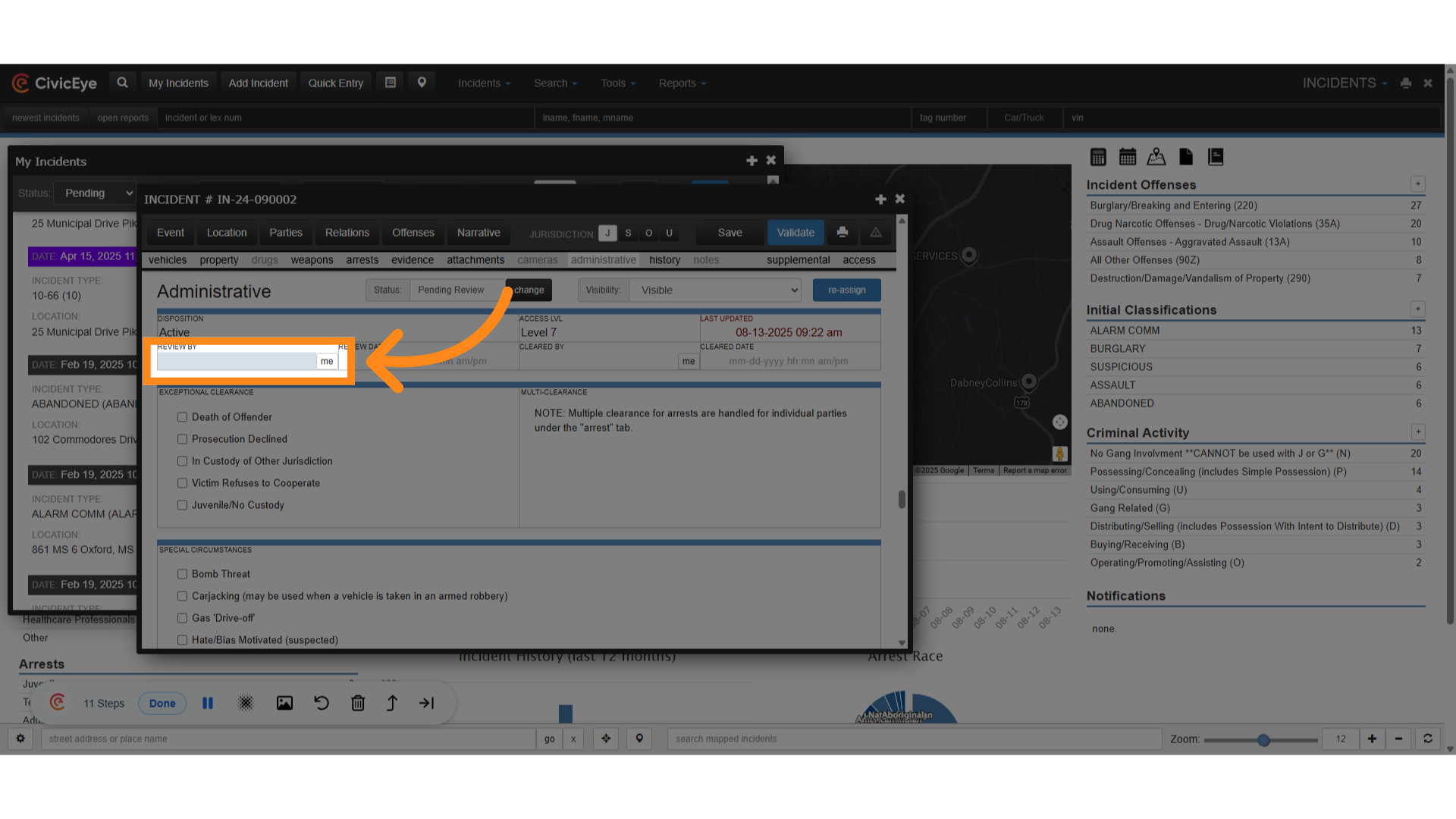
### 10. Approving Supervisor
Once the report has been reviewed and meets all agency approval guidelines, access the reviewing officer drop down to select your name, or select the "me" button.
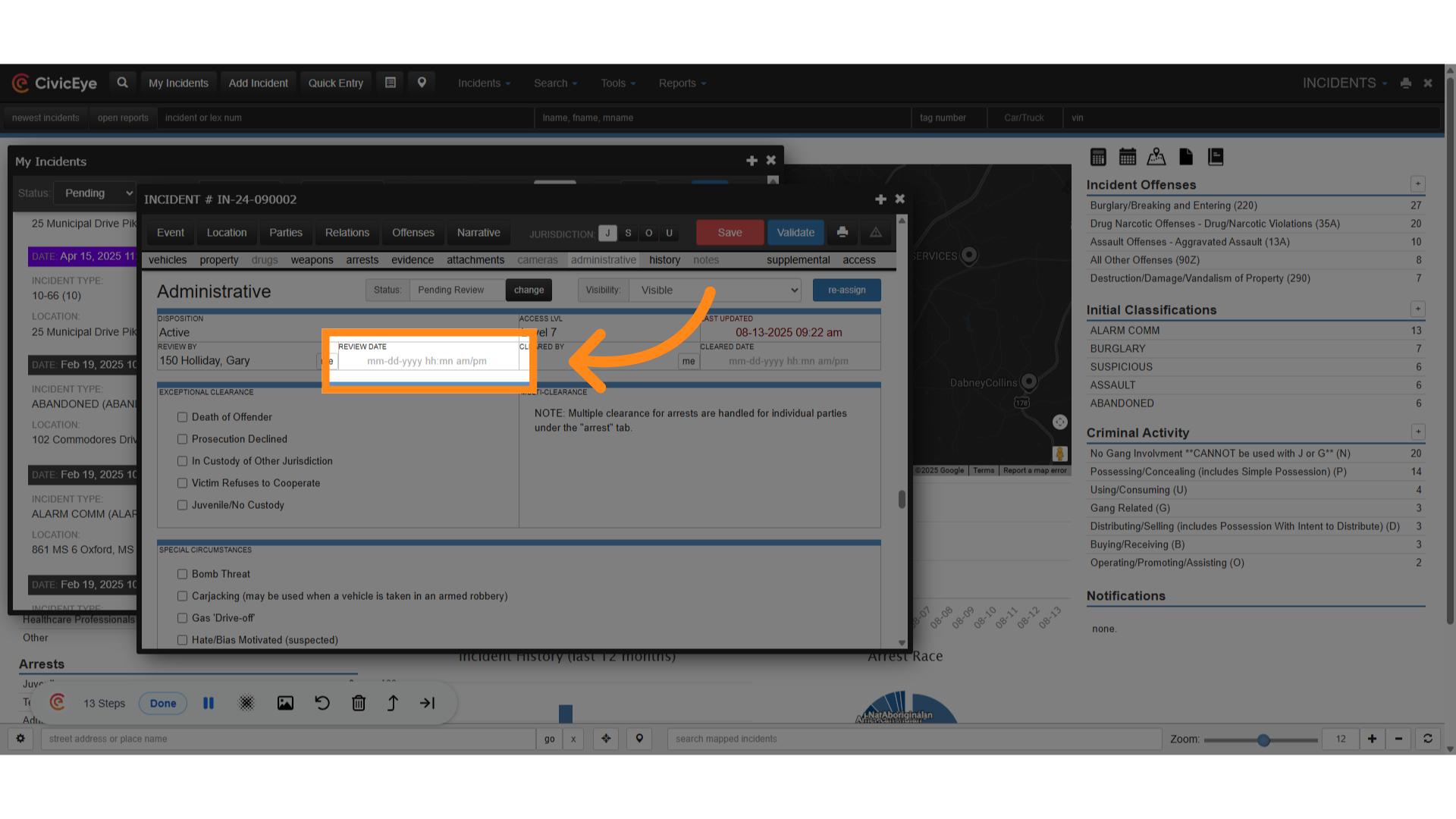
### 11. Select Review Date and Time
Next, select the review date and time.
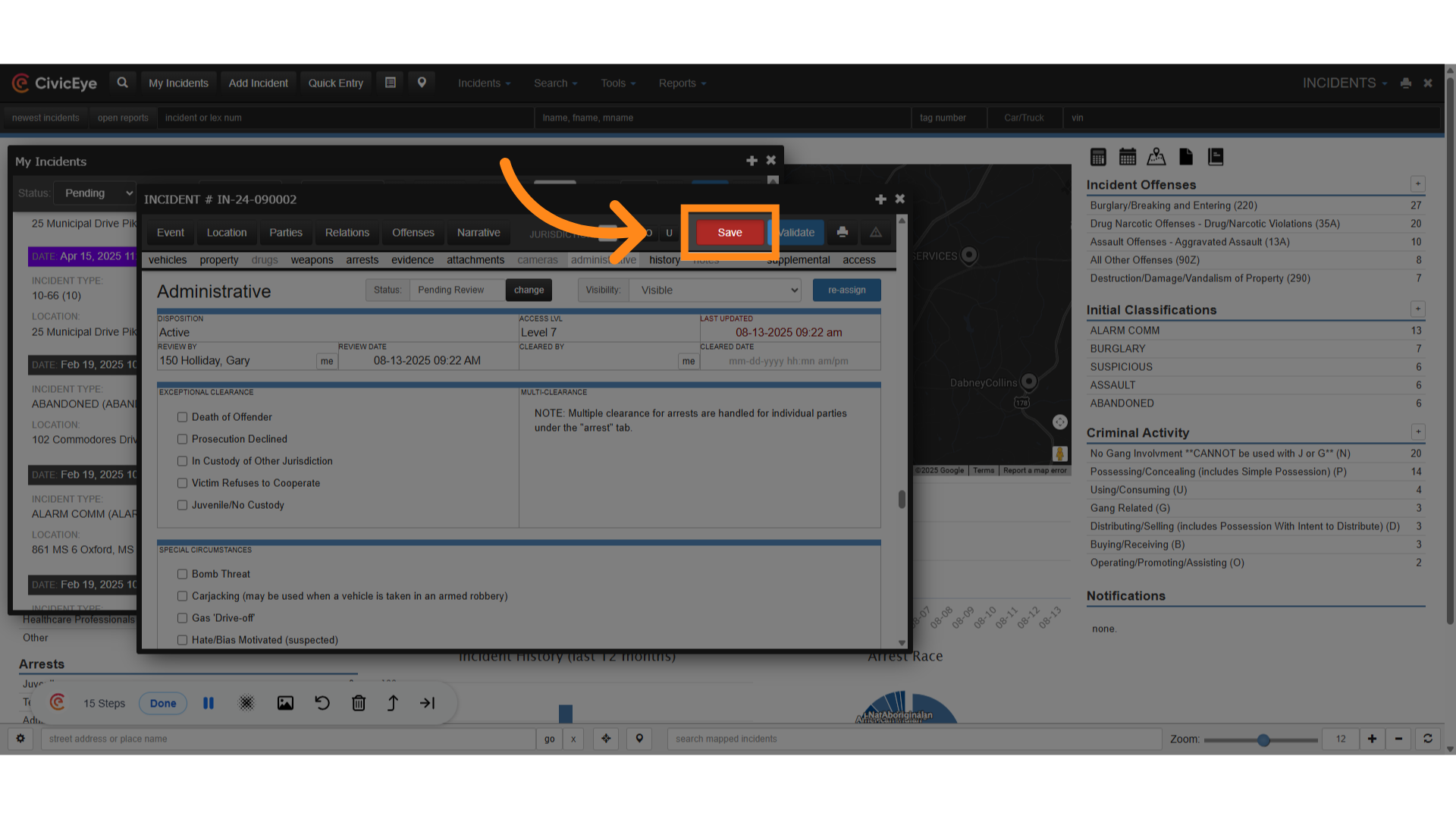
### 12. Click "Save"
Confirm your updates by selecting the Save button.
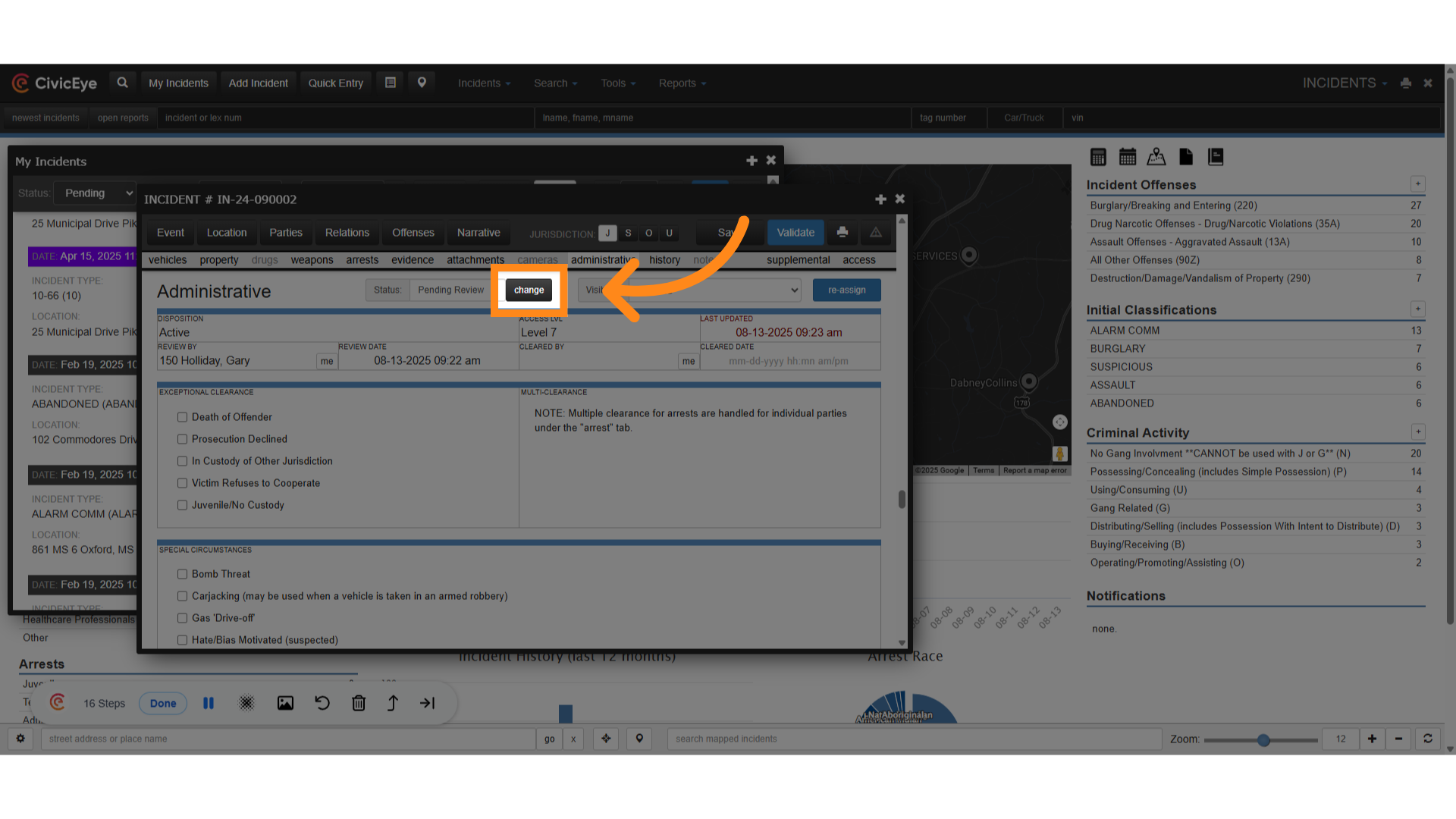
### 13. Select Change
The final step in report approval is changing the status of the report. Select the change button to access the report status list.
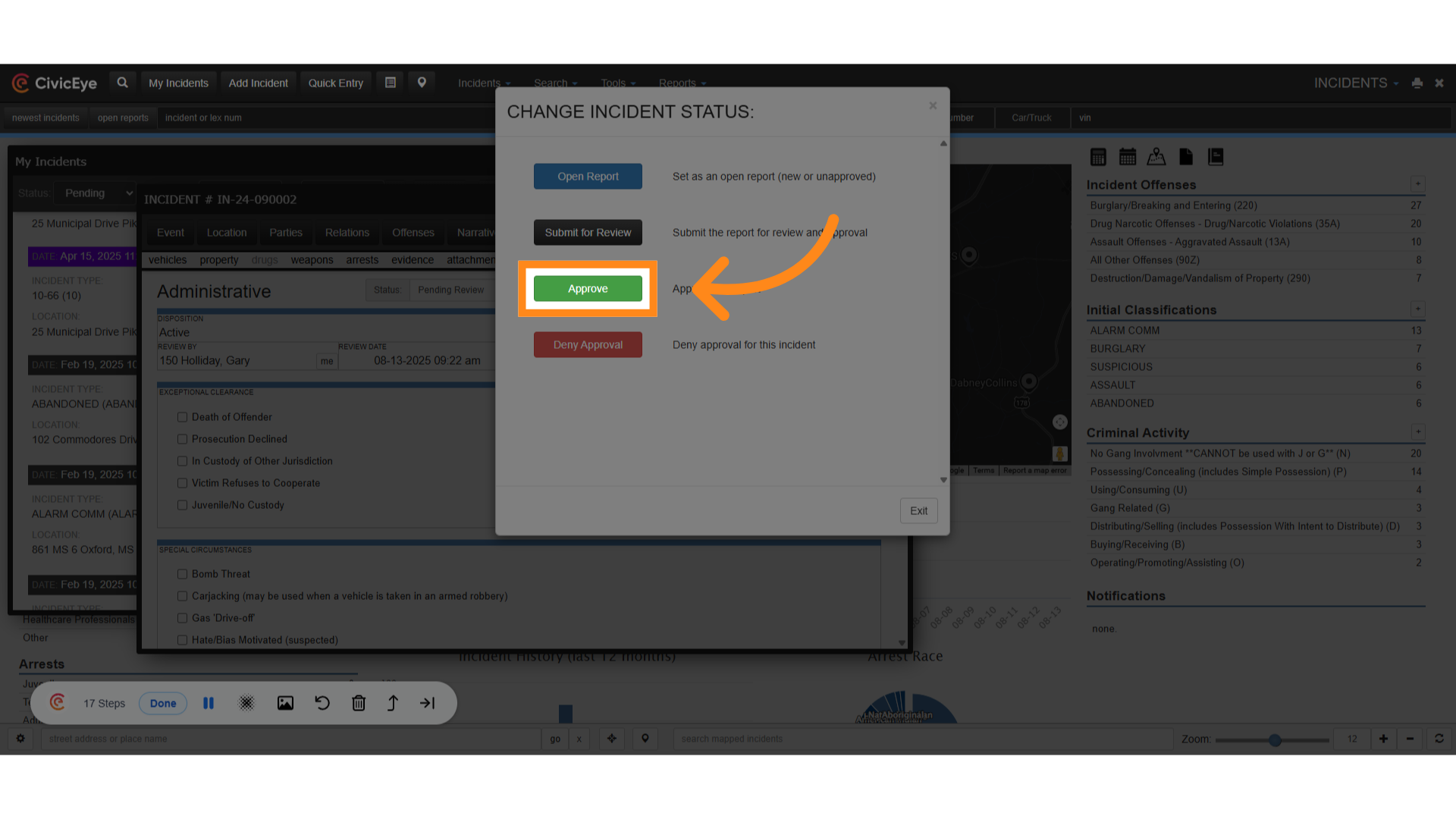
### 14. Approve Report
Select the green Approve button. This is the final step in the approval process. This also allows the report to be submitted to your state NIBRS agency in your next NIBRS submission.
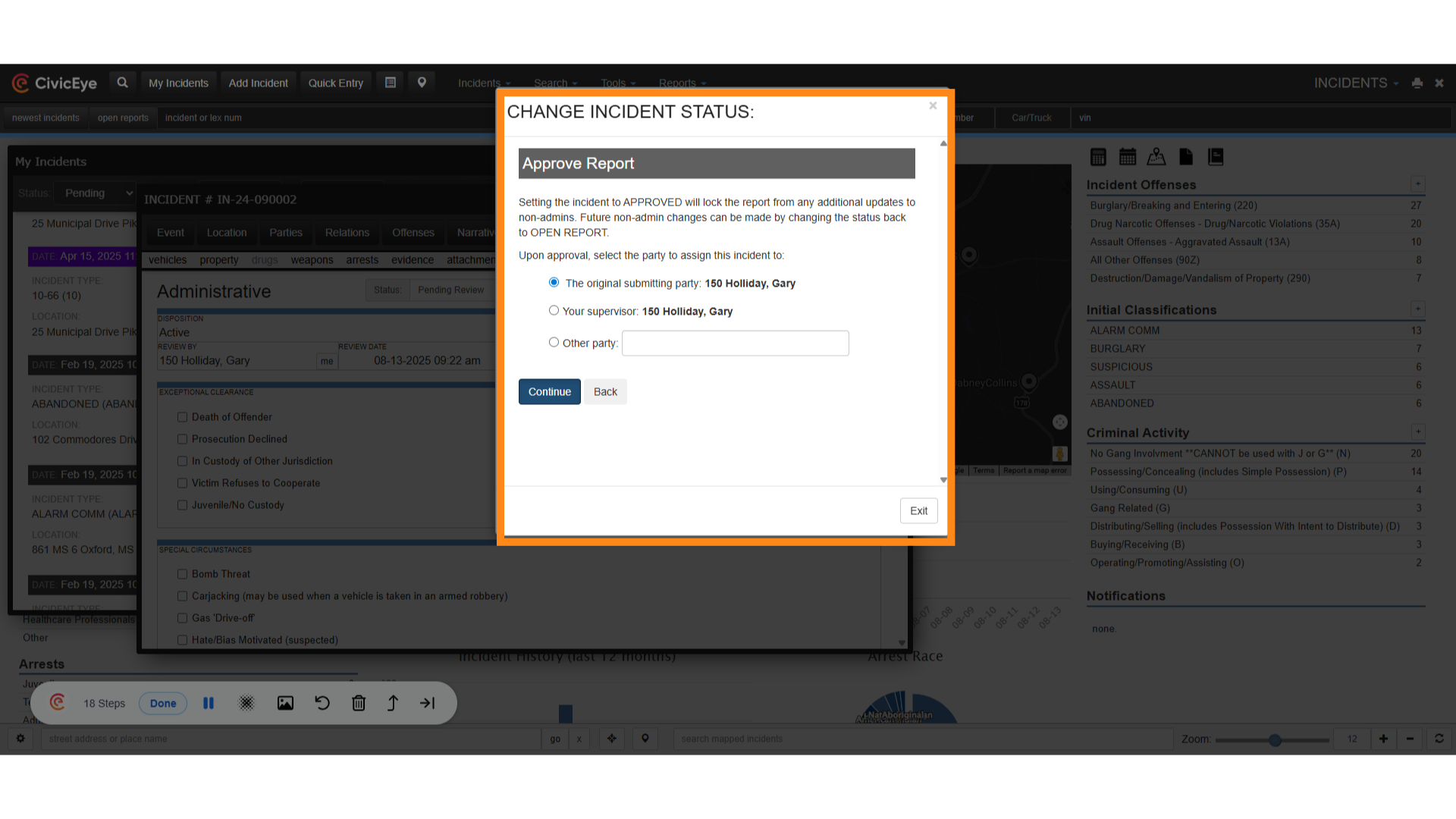
### 15. Report Routing
Based on your agencies S.O.P. it may be necessary to route the approved report to the originating officer or to your supervisor. This final frame will allow you to route the report to the proper user.
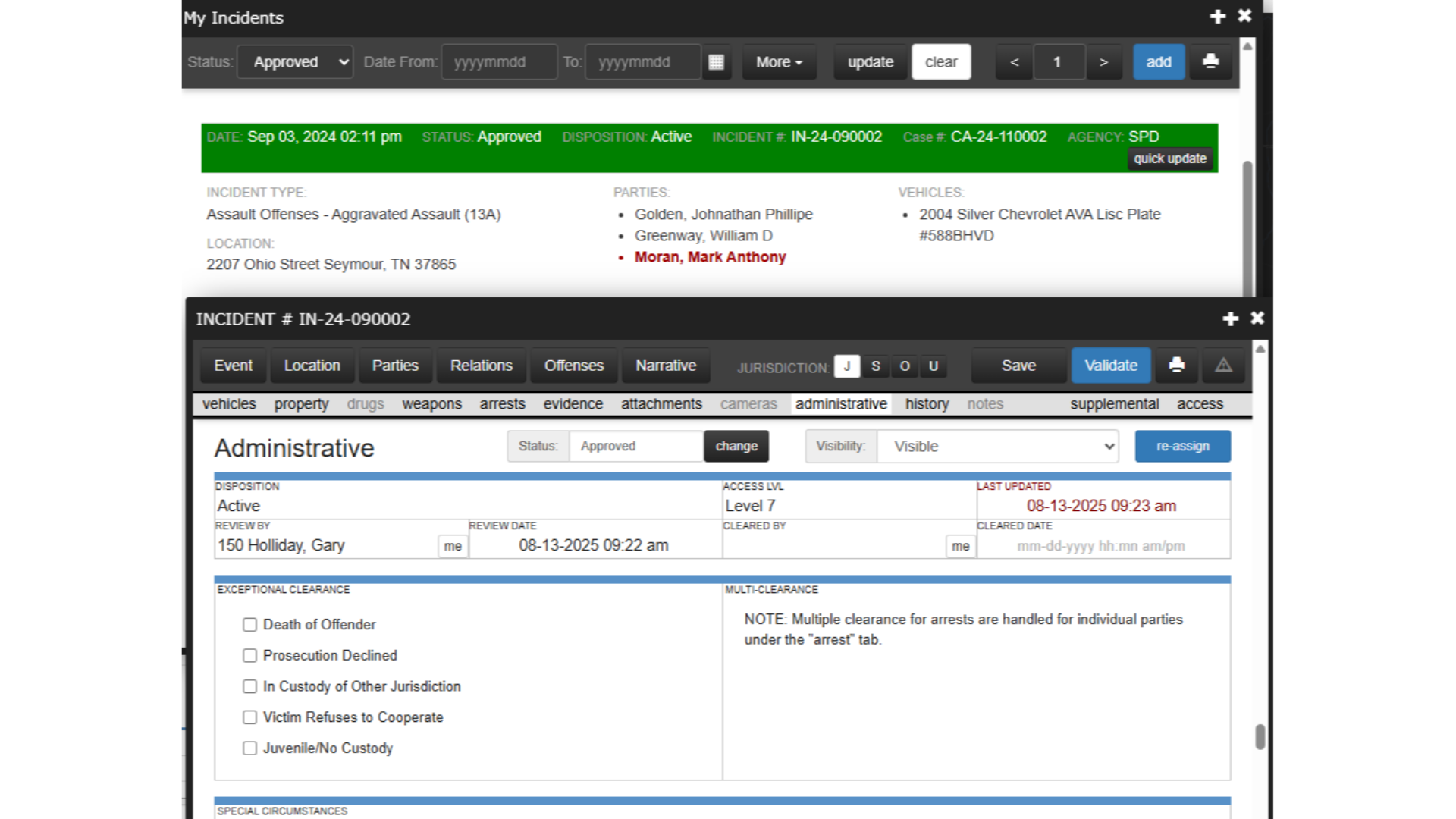
### 16. Approved Report
This report has now been reviewed, validated, approved and routed to the appropriate personnel. Be sure that you follow your departments S.O.P. and administrative guidelines on report approval.
This guide walked you through accessing, updating, validating, and approving incident reports in CivicRMS. You learned how to manage report statuses, edit details, and complete the approval workflow efficiently. If you have any questions about the approval process, or any other issues, feel free to call Client Support at 877-778-5277 or contact us at support@civiceye.com.
[Powered by **guidde**](https://www.guidde.com)
- [How to Request New Training Content](https://knowledgebase.civiceye.com/knowledge-base/how-to-request-new-training-content?hsLang=en)
- [CivicCase](https://knowledgebase.civiceye.com/knowledge-base/civiccase?hsLang=en#main-content)
- [Prosecutor and Admin Portals](https://knowledgebase.civiceye.com/knowledge-base/civiccase?hsLang=en#prosecutor-and-admin-portals)
- [CivicDocs](https://knowledgebase.civiceye.com/knowledge-base/civicdocs?hsLang=en#main-content)
- [Evidence Management](https://knowledgebase.civiceye.com/knowledge-base/civicdocs?hsLang=en#evidence-management)
- [User Access](https://knowledgebase.civiceye.com/knowledge-base/civicdocs?hsLang=en#user-access)
- [Defense Portal](https://knowledgebase.civiceye.com/knowledge-base/civicdocs?hsLang=en#defense-portal)
- [Law Enforcement Portal](https://knowledgebase.civiceye.com/knowledge-base/civicdocs?hsLang=en#law-enforcement-portal)
- [CivicRMS](https://knowledgebase.civiceye.com/knowledge-base/civicrms?hsLang=en#main-content)
- [Master Index](https://knowledgebase.civiceye.com/knowledge-base/civicrms?hsLang=en#master-index)
- [Incident Reports](https://knowledgebase.civiceye.com/knowledge-base/civicrms?hsLang=en#incident-reports)
- [NIBRS](https://knowledgebase.civiceye.com/knowledge-base/civicrms?hsLang=en#nibrs)
- [Property](https://knowledgebase.civiceye.com/knowledge-base/civicrms?hsLang=en#property)
- [Persons](https://knowledgebase.civiceye.com/knowledge-base/civicrms?hsLang=en#persons)
- [Arrest and Warrants](https://knowledgebase.civiceye.com/knowledge-base/civicrms?hsLang=en#arrest-and-warrants)
- [General](https://knowledgebase.civiceye.com/knowledge-base/civicrms?hsLang=en#general)
- [FAQs](https://knowledgebase.civiceye.com/knowledge-base/faqs?hsLang=en#main-content)
- [Support](https://knowledgebase.civiceye.com/knowledge-base/faqs?hsLang=en#support)
- [Training](https://knowledgebase.civiceye.com/knowledge-base/faqs?hsLang=en#training)
- [Support](https://knowledgebase.civiceye.com/knowledge-base/support?hsLang=en#main-content)
- [User Access / Permissions](https://knowledgebase.civiceye.com/knowledge-base/support?hsLang=en#user-access-permissions)
- [Getting started](https://knowledgebase.civiceye.com/knowledge-base/getting-started?hsLang=en#main-content)
- [CivicEye Personnel Module](https://knowledgebase.civiceye.com/knowledge-base/getting-started?hsLang=en#civiceye-personnel-module)
[.png?width=250&height=99&name=CivicEye_Identity_Secondary%20(4).png)](https://knowledgebase.civiceye.com/?hsLang=en)
The Platform for Public Safety
[mailto:help@civiceye.com](mailto:help@civiceye.com)
Copyright © 2025, CivicEye