---
title: Add User Defined Codes in Civiceye for Agencies
description: Add User Defined Codes in Civiceye for Agencies
---
[Skip to content](https://knowledgebase.civiceye.com/knowledge-base/add-user-defined-codes-in-civiceye-for-agencies#main-content)
English
Show submenu for translations
[Customer Portal](https://portal.civiceye.com/tickets-view?hsLang=en)
.png?width=250&height=99&name=CivicEye_Identity_Secondary%20(4).png)
Open main navigation
Close main navigation
- English
Show submenu for translations
- [Customer Portal](https://portal.civiceye.com/tickets-view)
- [Contact us](https://www.civiceye.com/support/)
[Contact us](https://www.civiceye.com/support/)
How can we help you?
- There are no suggestions because the search field is empty.
1. [CivicEye Knowledge Base](https://knowledgebase.civiceye.com/knowledge-base?hsLang=en)
2. [CivicRMS](https://knowledgebase.civiceye.com/knowledge-base/civicrms?hsLang=en)
3. [General](https://knowledgebase.civiceye.com/knowledge-base/civicrms?hsLang=en#general)
August 24, 2026
# Add User Defined Codes in Civiceye for Agencies
## This tutorial guides you through adding User Defined Codes (UDCs) in CivicRMS
# [Add User Defined Codes in Civiceye for Agencies](https://app.guidde.com/playbooks/bxa53UrMPxQKazRbcVADY5)
This tutorial guides you through adding User Defined Codes (UDCs) in CivicRMS
### Go to [training-rms.civiceye.com](https://training-rms.civiceye.com)
### 1. Introduction
By completing these steps, you will learn how to create and add user defined codes in CivicRMS. User defined codes allow agencies to identify non-criminal incidents which require reports. These types of calls would include non suspicious deaths, disturbances, damaged property, and overdoses.
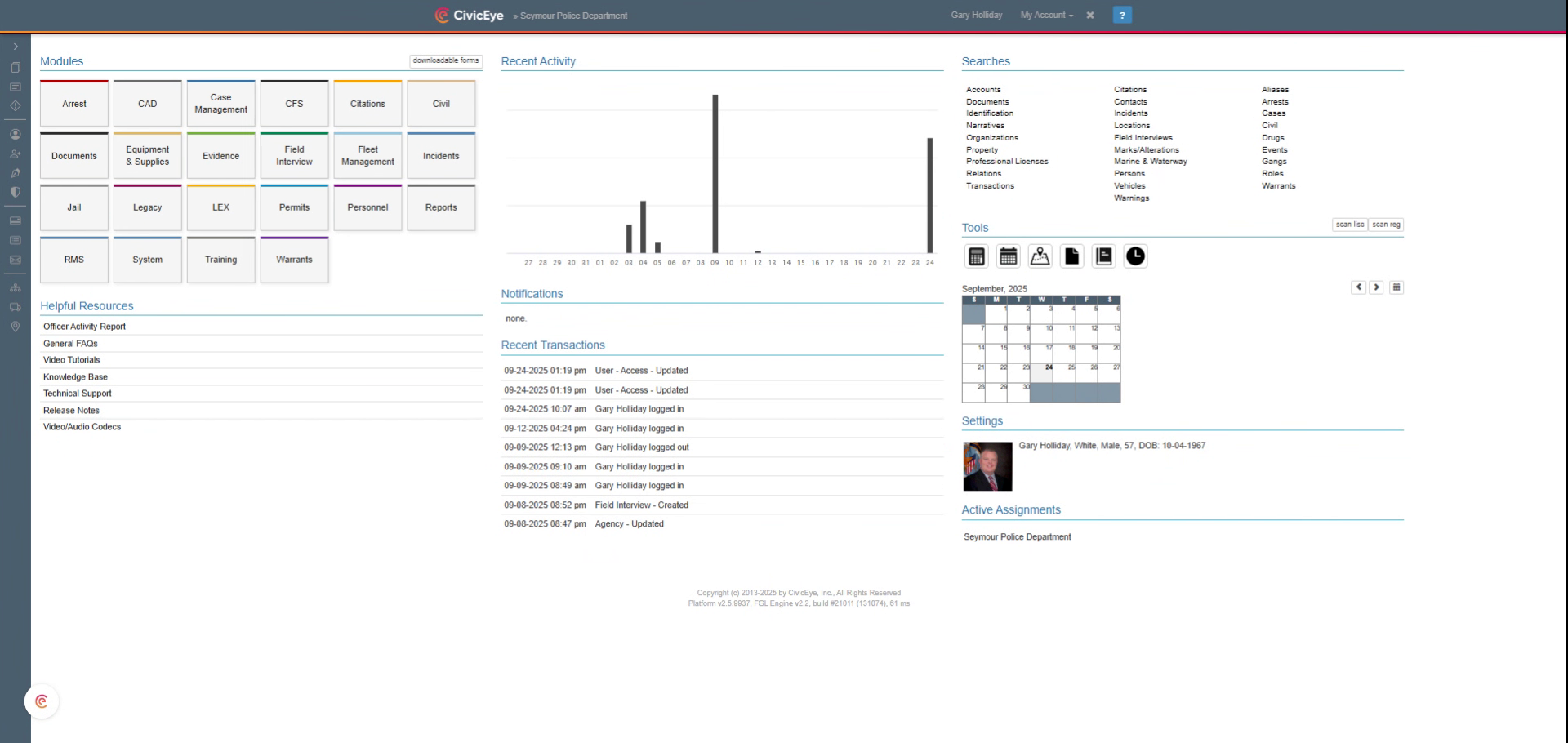
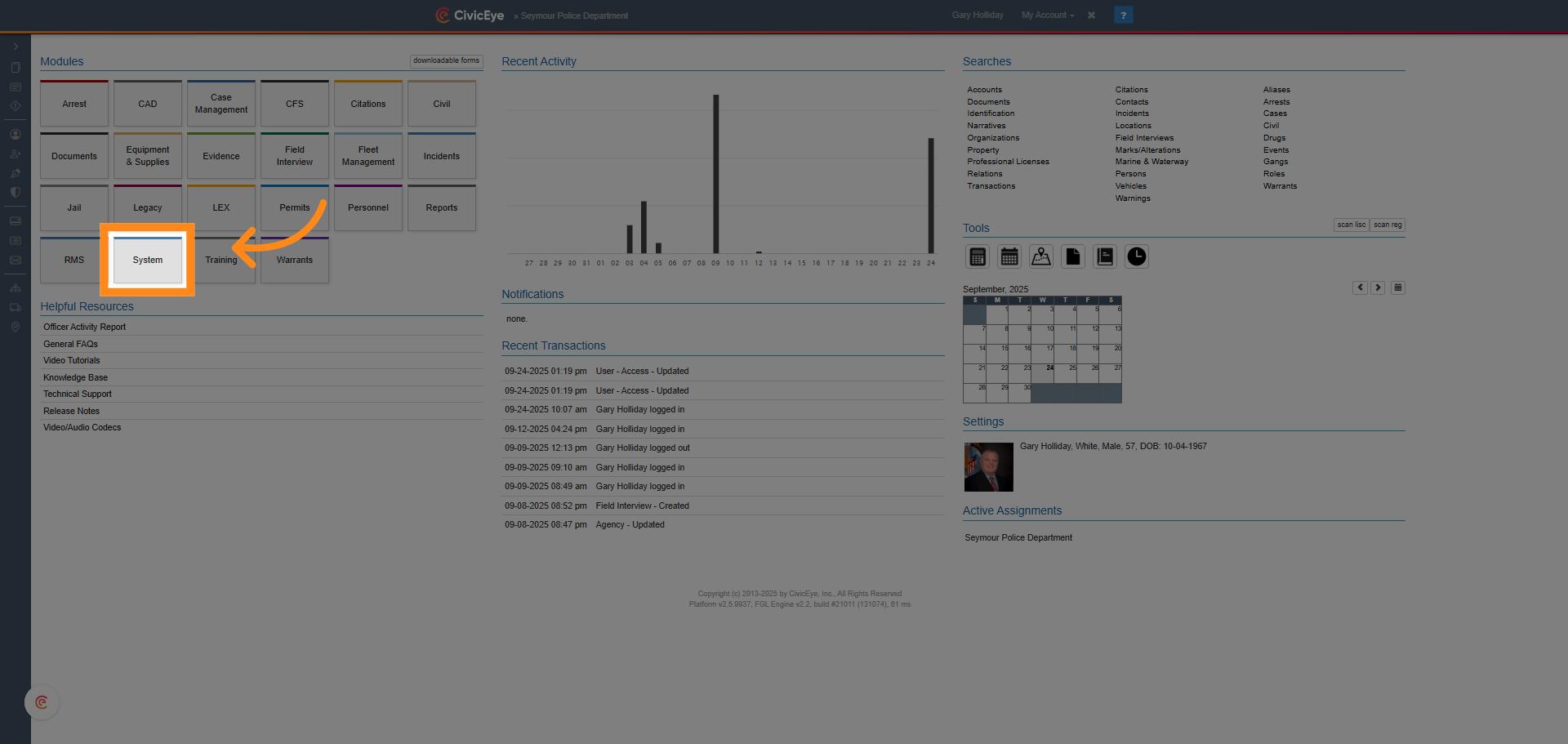
### 2. Select the System Module
User Defined Codes are added to CivicRMS in the agency configuration page. Select the System Module from the main dashboard.
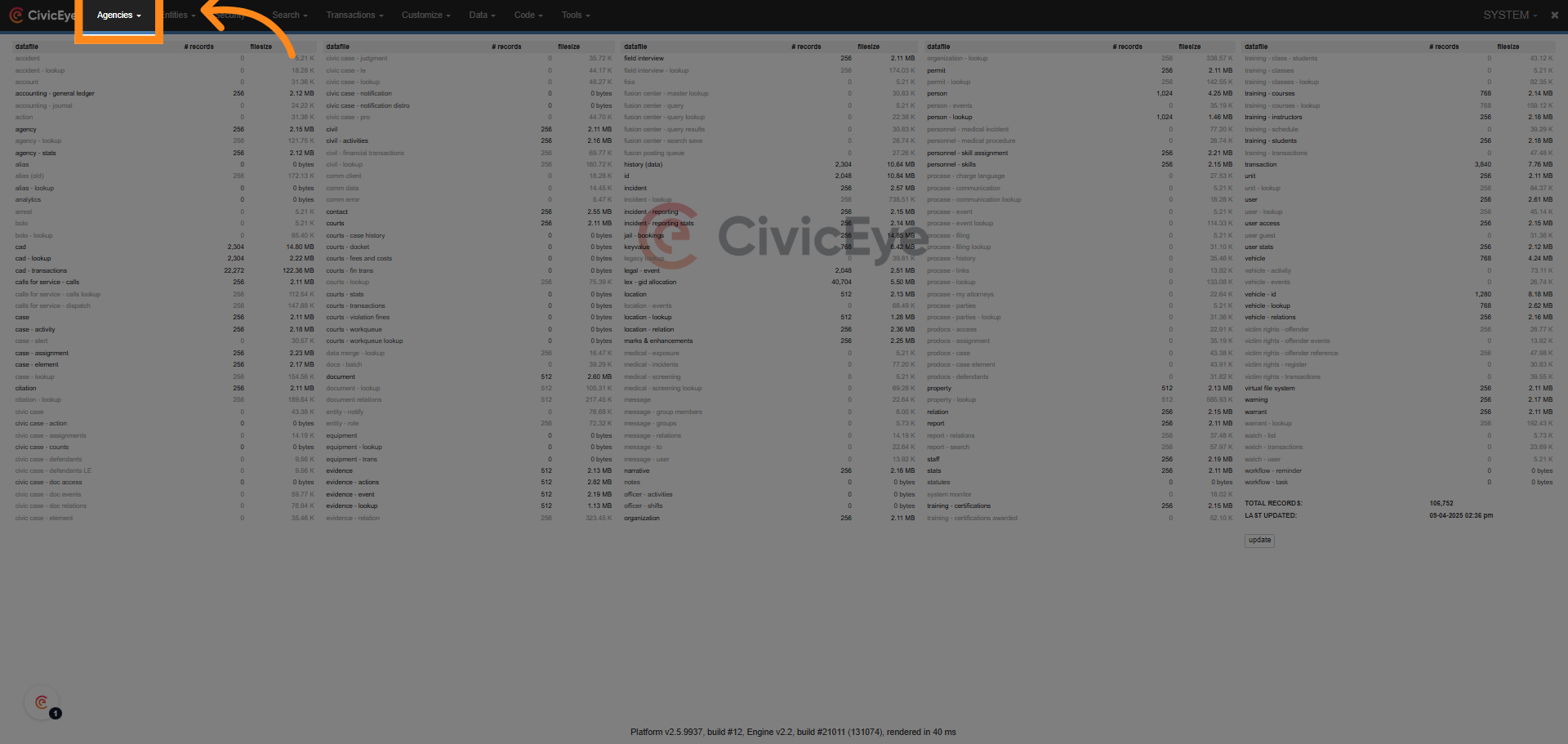
### 3. Select the Agencies Tab
In the System Module dashboard, select the Agencies tab.
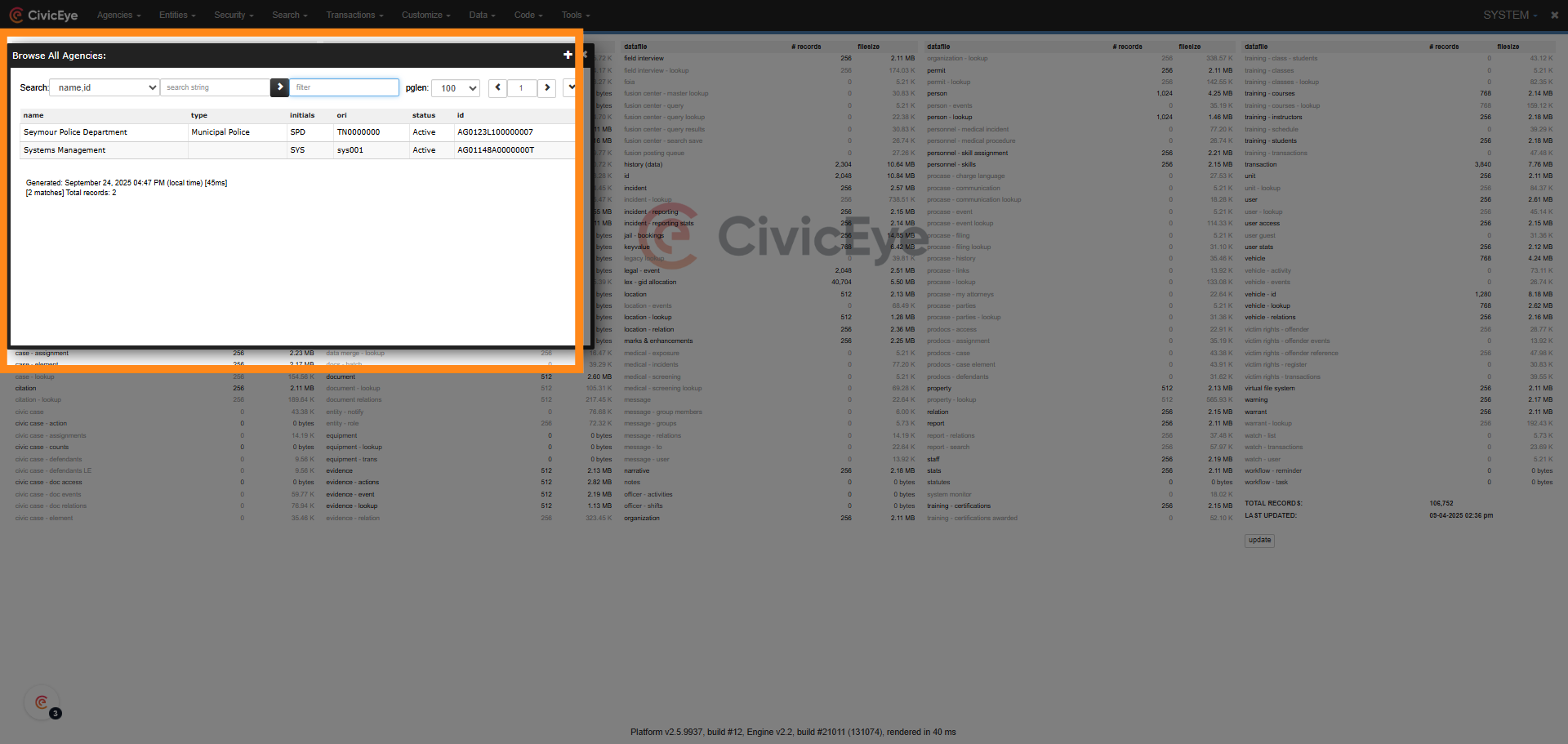
### 4. Select the proper agency
Selecting the Agencies tab will allow the user to select their agency, or browse all the agencies via a dropdown. Select the proper agency.
### 5. Agency Configuration Page
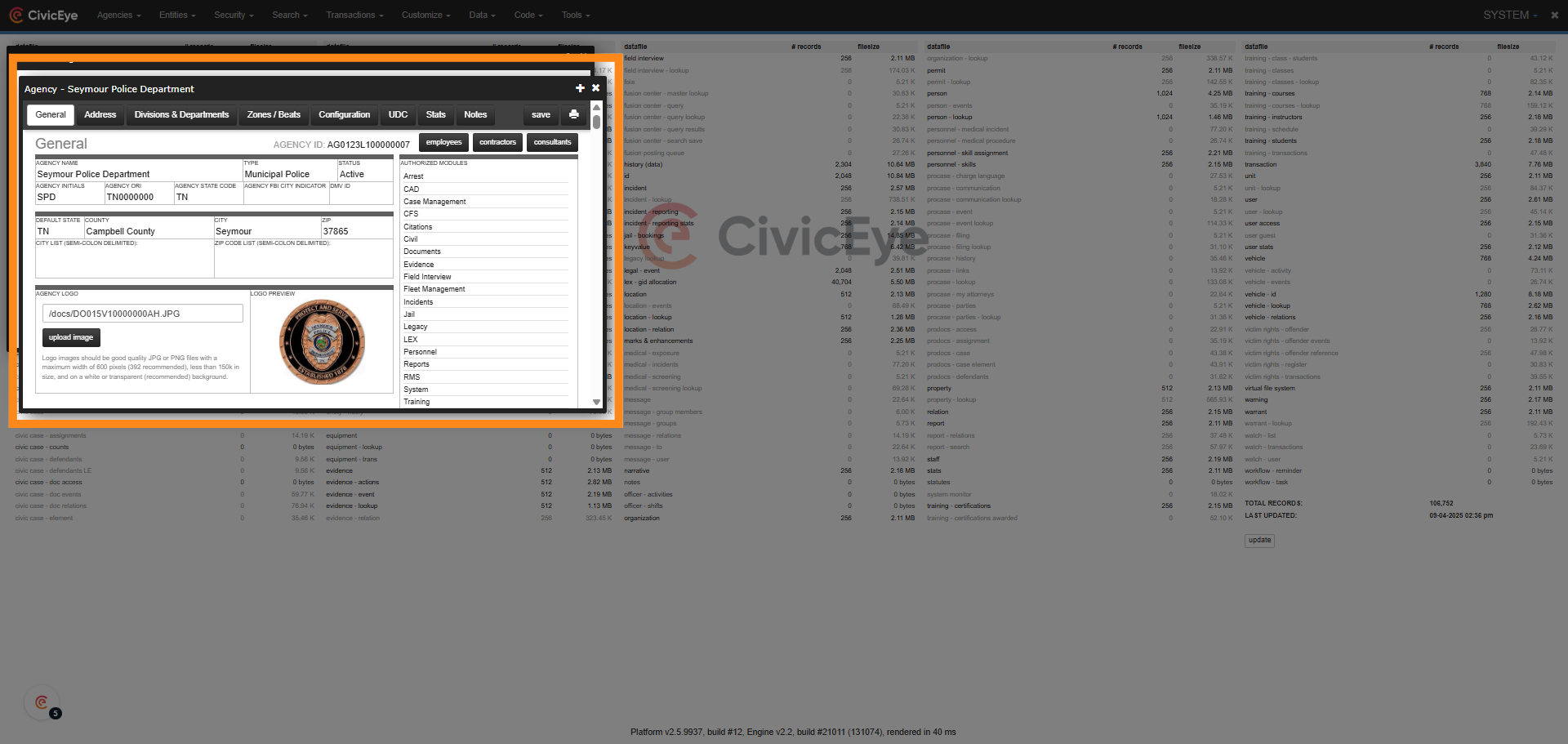
Selecting an agency will bring up the agency configuration page. This is the page that allows CivicRMS agency administrators to add or edit department specific information and data.
### 6. Select UDC
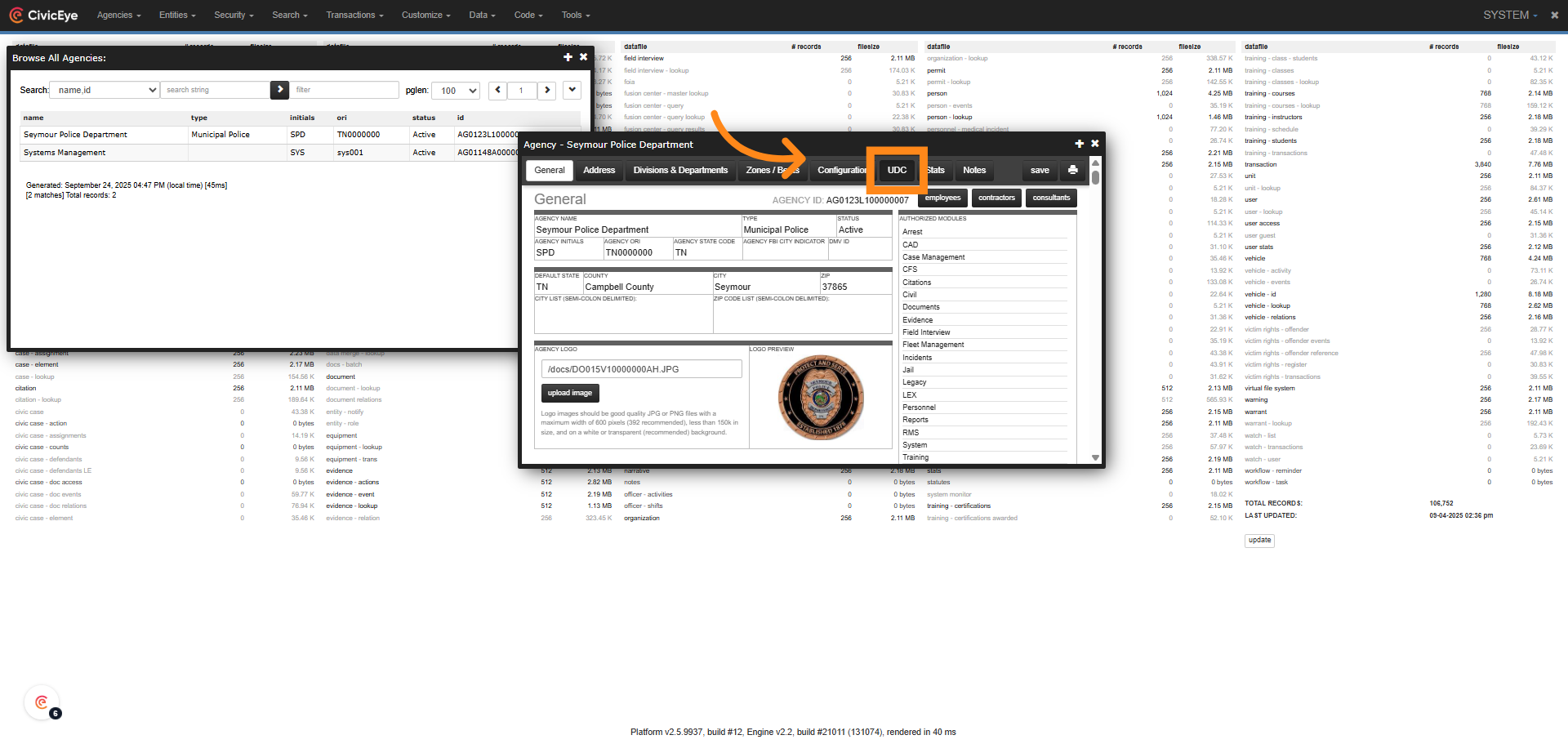
Access the UDC (User Defined Codes) section by selecting the UDC tab.
### 7. UDC Section
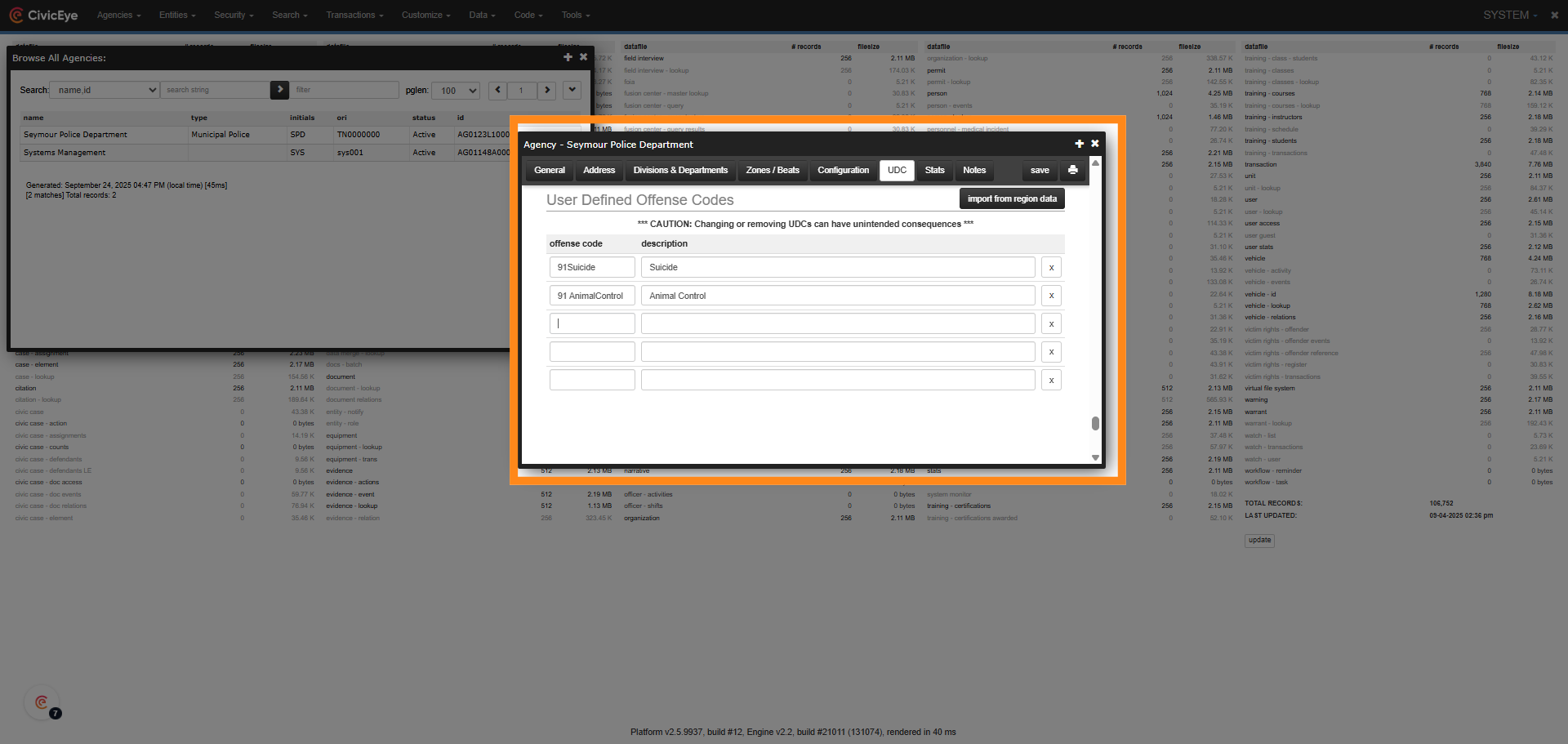
Selecting the UDC tab will bring up the UDC section. This is where user defined codes can be entered. All user defined codes must begin with the number 91. CivicRMS recognizes 91 as a non NIBRS code and will not apply validation rules or attempt to submit these incidents for state reporting.
### 8. Add New UDC
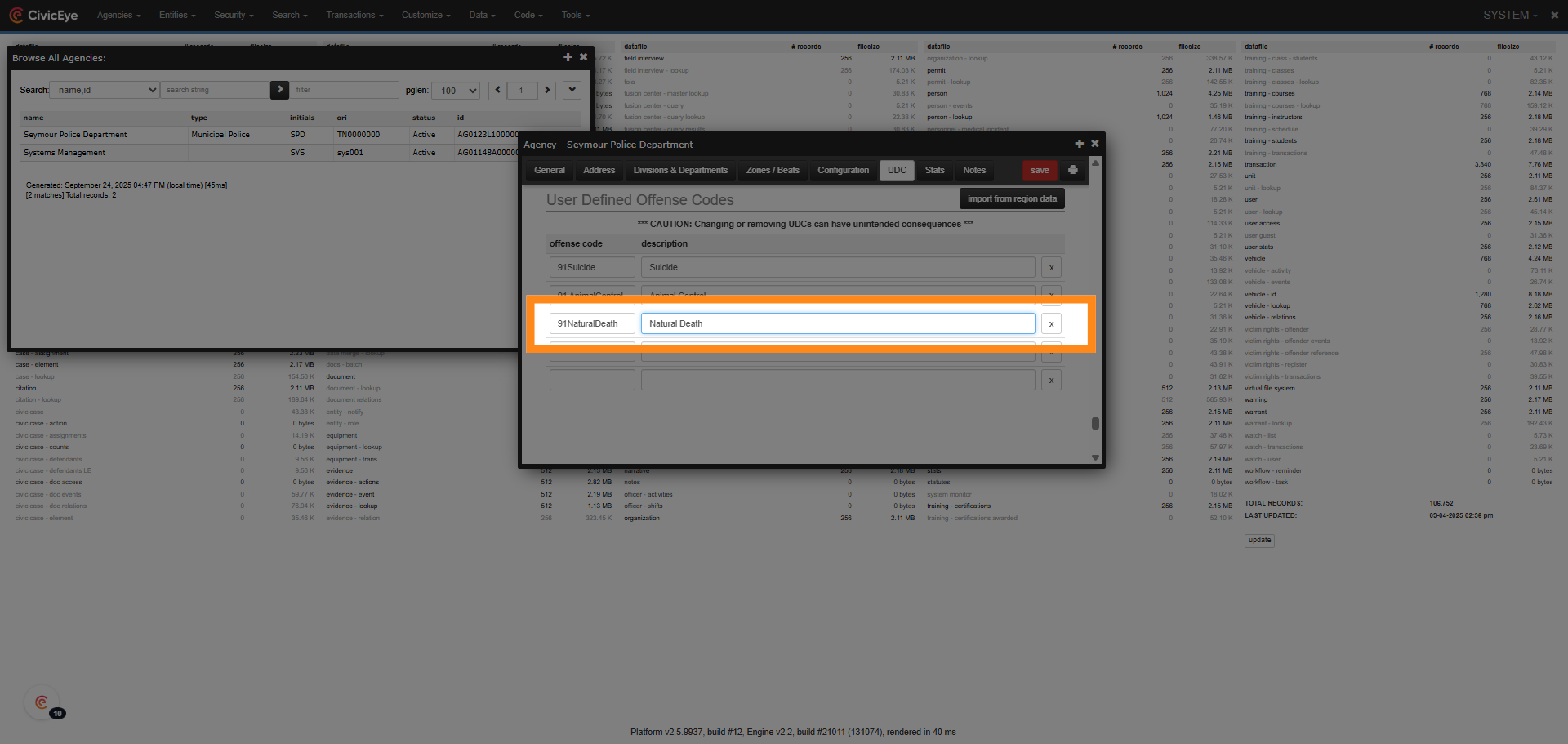
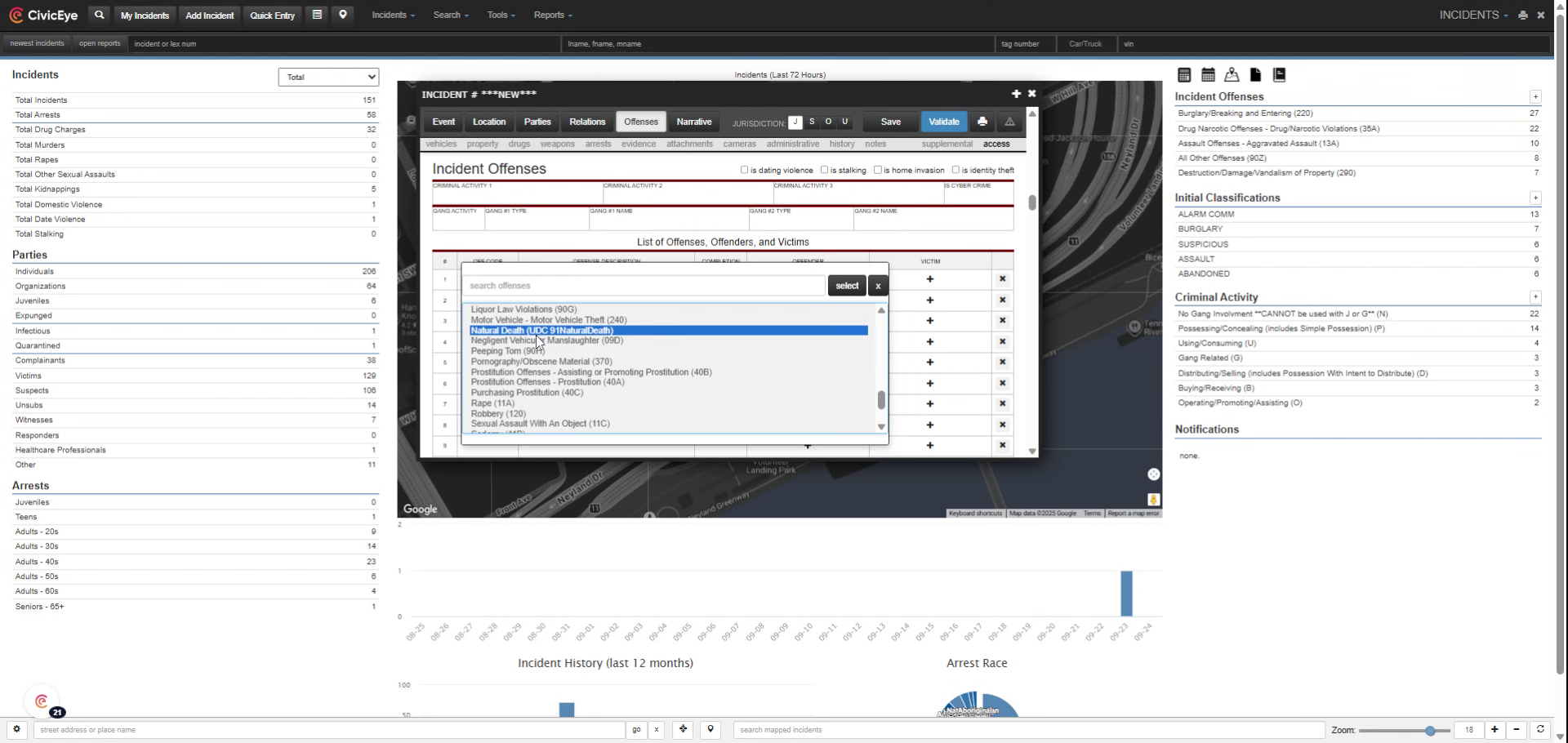
The administrative user adding the UDC will add data in two sections. The first is under the offense code column. In this example we have added 91NaturalDeath. We will then add the new UDC in the Description column. In this case we have added Natural Death. Both column must be filled. Once the new code is added, select save.
### 9. Offense Section
To ensure the new UDC is functioning, open an incident report and check for the new code in the offense section. UDC's are accessible in the offense NIBRS dropdown.
### 10. A Word of Caution
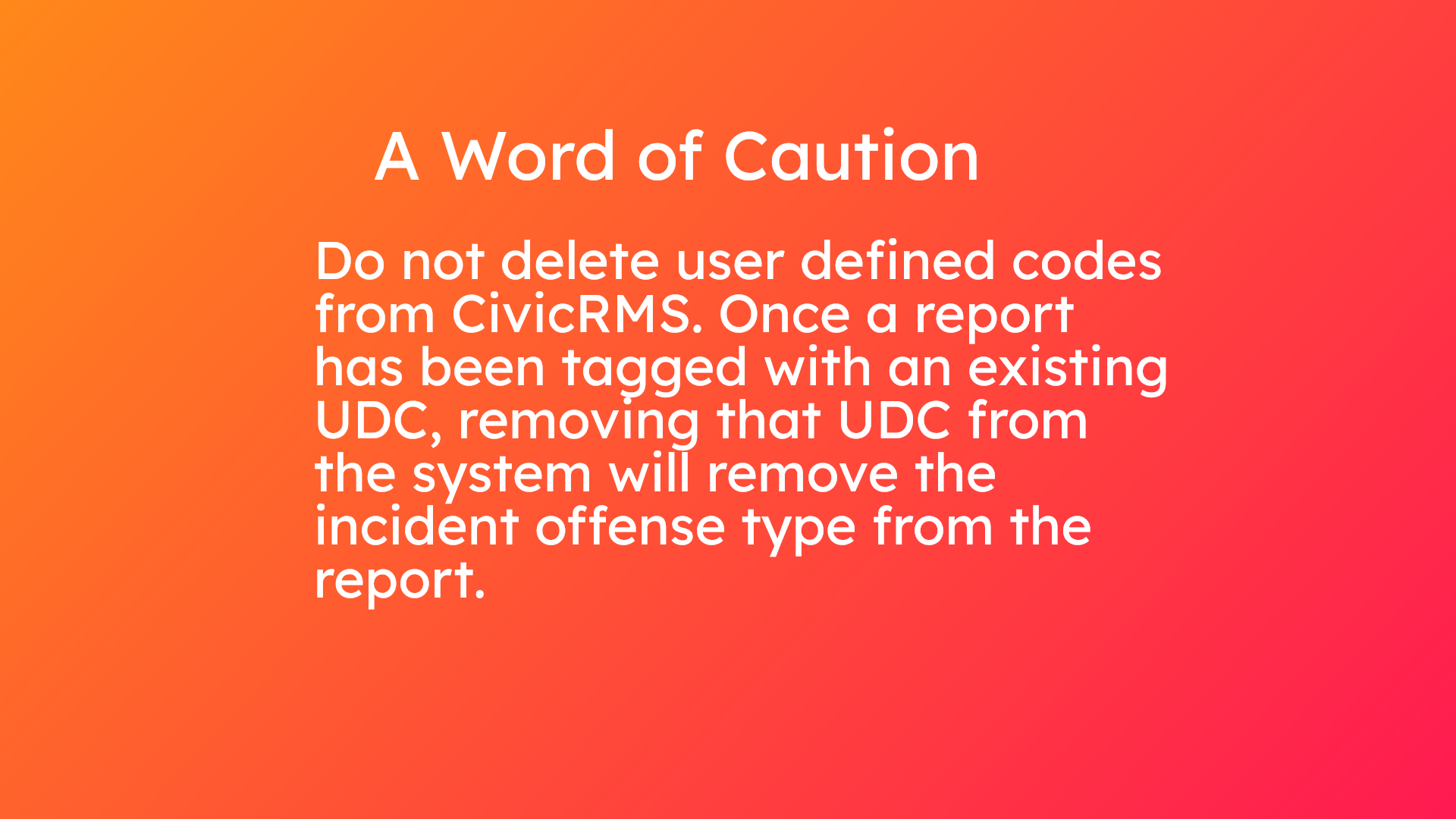
Do not delete user defined codes from CivicRMS. Once a report has been tagged with an existing UDC, removing that UDC from the system will remove the incident offense type from the report.
For questions about adding User Defined Codes, or other CivicRMS issues, please contact a client support manager at 877-778-5277, or e-mail us at support@civiceye.com.
[Powered by **guidde**](https://www.guidde.com)
- [How to Request New Training Content](https://knowledgebase.civiceye.com/knowledge-base/how-to-request-new-training-content?hsLang=en)
- [CivicCase](https://knowledgebase.civiceye.com/knowledge-base/civiccase?hsLang=en#main-content)
- [Prosecutor and Admin Portals](https://knowledgebase.civiceye.com/knowledge-base/civiccase?hsLang=en#prosecutor-and-admin-portals)
- [CivicDocs](https://knowledgebase.civiceye.com/knowledge-base/civicdocs?hsLang=en#main-content)
- [Evidence Management](https://knowledgebase.civiceye.com/knowledge-base/civicdocs?hsLang=en#evidence-management)
- [User Access](https://knowledgebase.civiceye.com/knowledge-base/civicdocs?hsLang=en#user-access)
- [Defense Portal](https://knowledgebase.civiceye.com/knowledge-base/civicdocs?hsLang=en#defense-portal)
- [Law Enforcement Portal](https://knowledgebase.civiceye.com/knowledge-base/civicdocs?hsLang=en#law-enforcement-portal)
- [CivicRMS](https://knowledgebase.civiceye.com/knowledge-base/civicrms?hsLang=en#main-content)
- [Master Index](https://knowledgebase.civiceye.com/knowledge-base/civicrms?hsLang=en#master-index)
- [Incident Reports](https://knowledgebase.civiceye.com/knowledge-base/civicrms?hsLang=en#incident-reports)
- [NIBRS](https://knowledgebase.civiceye.com/knowledge-base/civicrms?hsLang=en#nibrs)
- [Property](https://knowledgebase.civiceye.com/knowledge-base/civicrms?hsLang=en#property)
- [Persons](https://knowledgebase.civiceye.com/knowledge-base/civicrms?hsLang=en#persons)
- [Arrest and Warrants](https://knowledgebase.civiceye.com/knowledge-base/civicrms?hsLang=en#arrest-and-warrants)
- [General](https://knowledgebase.civiceye.com/knowledge-base/civicrms?hsLang=en#general)
- [FAQs](https://knowledgebase.civiceye.com/knowledge-base/faqs?hsLang=en#main-content)
- [Support](https://knowledgebase.civiceye.com/knowledge-base/faqs?hsLang=en#support)
- [Training](https://knowledgebase.civiceye.com/knowledge-base/faqs?hsLang=en#training)
- [Support](https://knowledgebase.civiceye.com/knowledge-base/support?hsLang=en#main-content)
- [User Access / Permissions](https://knowledgebase.civiceye.com/knowledge-base/support?hsLang=en#user-access-permissions)
- [Getting started](https://knowledgebase.civiceye.com/knowledge-base/getting-started?hsLang=en#main-content)
- [CivicEye Personnel Module](https://knowledgebase.civiceye.com/knowledge-base/getting-started?hsLang=en#civiceye-personnel-module)
[.png?width=250&height=99&name=CivicEye_Identity_Secondary%20(4).png)](https://knowledgebase.civiceye.com/?hsLang=en)
The Platform for Public Safety
[mailto:help@civiceye.com](mailto:help@civiceye.com)
Copyright © 2025, CivicEye